Questions
Within a question bank, I can create questions. A question is of a certain type, with 13 types of questions offered, each detailed with various options.
A question is mainly defined by:
- The text of the question itself, for example, “Among these countries, which are members of the European Union?”
- The answers that will be proposed, which can be correct or incorrect
- A title, which will help identify the question more succinctly than the full text
- Various media (images, videos, documents, etc.) that will enrich the question or the answers
In addition to these main features, there are other attributes, which are generally optional, such as:
- A domain to which the question is attached
- Tags that characterize the question
- An explanation, a reminder of possible course material
- A specific score, specific time allotment
- A few other optional attributes, which will be detailed later
I can create questions in two ways:
- Either through interactive web entry
- Or by entering them in a Word file and importing this file into ExperQuiz
Interactive question entry
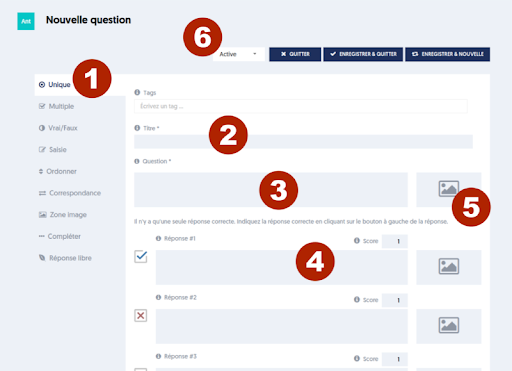
To create a new question or modify an existing question, you can:
- [1] Select the type of question. See below for the description of the types of questions.
- [2] Provide a title for your question. The title is mandatory; it will help identify the question, especially in lists, where the full text of the question would be too long.
- [3] The text of the question, meaning the actual question as it will be presented to the participants.
- [4] The different answers that will be proposed.
- [5] Optionally, you can select a media from the media library to accompany your question. You can also select media to accompany each of the answers.
- [6] Before saving your question, you can select a status, meaning the state of the question concerning validation. We will detail this further below. If you are an administrator, the default status will be 'active', and you can leave it as is.
The different types of questions
You can choose one of the following types of questions:
- Unique: The question has one correct answer that the user must select from the proposed answers.
- Multiple: The question has multiple correct answers that the user must select from the proposed answers.
- True/False: The question presents a statement, and the user will be invited to say if it is true or false. The labels corresponding to true and false can be modified.
- Input: The user will be prompted to type their answer to the question. If there is only one correct answer possible, you will indicate the expected text in the answer field. If there are several answers considered correct, you will enter them in the answer field, separating them with commas. For example, United States, USA, US.
- Order: The user will be asked to arrange different items in order. You enter the different items in the proposed answer fields, in the expected order.
- Matching: The user will be invited to match items from a right column to items from a left column by moving them.
- Image zone: The user will be invited to identify an element present in an image by clicking on the corresponding area. You need to choose the image that will be presented, then select the area to click by dragging with the mouse over the image. This will create a rectangle where the user's click will be deemed correct. You can redo the selection until it suits you.
- Fill in the blanks: The user will be invited to enter the missing words in a gap-filled text. The operation is similar to that of the input type (see above), but it applies to several missing words. You start by entering the reference text, inserting 4 underscore marks (__) for each missing word. As many answer fields as you indicated missing words will automatically appear. In each answer field, you indicate the expected answer. As with the input type, you can indicate multiple answers also considered correct.
- Select: The user will be invited to select the correct answer from a dropdown list for each missing word in a gap-filled text. You start by entering the reference text, inserting 4 underscores (__) for each missing word. As many answer fields as you indicated missing words will automatically appear. In each answer field, you indicate the list of proposed answers, separated by commas, with the correct answer preceded by the symbol “>”.
- Classification: The user will be invited to classify, by moving, objects from the left column into the containers of the right column. Each answer corresponds to an association between the object and the container you write according to the format “container::object” (e.g., “planet::Jupiter”, “fruit::orange”). You can define empty containers as “planet::” or objects that do not correspond to any container, such as “::orange”.
- Open-ended: The user will be invited to respond to an open question by typing a paragraph of text. This type of question has a very specific processing method: the answer will not be automatically corrected and graded but will be subject to a correction process by an expert/professor/trainer or by AI ChatGPT. If an evaluation contains one or more questions of this type, the final grade will not be assigned until the correction has been made.
- Soft skills (unique) and (multiple): these two types of questions are discussed further in a dedicated chapter.
Some other options related to question editing:
- If you wish to use the original font (“Geomanist”) used by ExperQuiz in the input fields and you do not have it on your workstation, in this case, perform a “paste” of your text without its style using the shortcut Ctrl+Shift+V.
- To the left of each answer, you can indicate whether it is a correct answer or not. The blue check mark means correct, the red cross means incorrect. Click on the mark to modify.
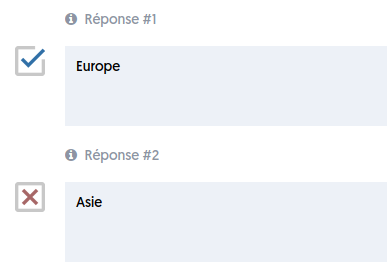
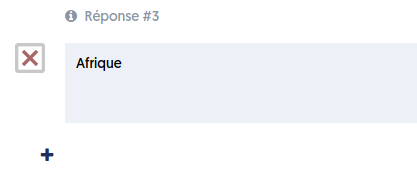
- You can add proposed answers by clicking the + button located below the last answer:
- You can enter additional parameters by clicking the MORE PARAMETERS button located at the bottom of the page. This will open an additional pane with other fields to specify. These are the fields that have been chosen from the options at the question bank level. For example, if you indicated at the level of the question bank that you wanted to assign a difficulty level to each question, you will see a Level field here.
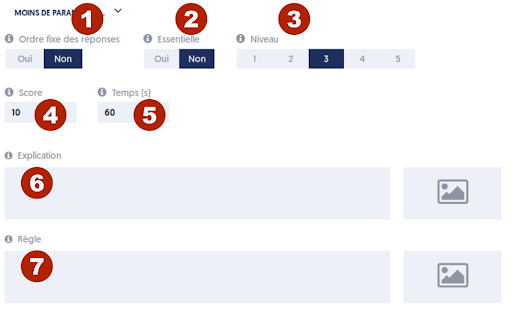
Optional parameters
The optional parameters for questions, some of which depend on the options defined for the bank, are as follows:
- [1] Fixed order of answers: for this question, the answers will be presented in the order you specified. Generally, whether or not to shuffle answers depends on a parameter of the questionnaire, as we will see later. If you choose Fixed order of answers for a question, this means that even if the questionnaire specifies shuffling answers, it will not apply to this question.
- [2] Essential: A question is considered essential if it has particular importance. The implication is that in the context of a certification, this question will be eliminatory, meaning that if a participant did not respond correctly to this question, they cannot pass the certification, regardless of their overall score.
- [3] Level: You can indicate a difficulty level, between 1 and 5, assigned to this question. By default, the level is set to 3. The level can be used when you create dynamic questionnaires to choose easy, medium, or difficult questions. We will see this in more detail when we discuss questionnaires.
- [4] Score: You can specify the score for this question, meaning the number of points that this question will yield when answered correctly. By default, this score is set to 10. This allows you to weigh the relative value of questions based on the importance of the underlying knowledge.
- [5] Time: You can specify the time allocated for this question. This time will only be used if your questionnaire specifies a time control per question.
- [6] Explanation: You can enter text that will be presented—depending on the options of the questionnaire—after the user has answered the question. In this text, you explain why a particular answer is correct, and possibly why another answer is not correct.
- [7] Rule: You can enter a reminder of course material that will be presented—depending on the options of the questionnaire—after the user has answered the question. Unlike the explanation, the course reminder does not specifically reference the asked question; it presents the point of knowledge to which the question refers. If you want to use the same rule for several questions, you can use an HTML sheet that you have defined in the media library and select it here as a course reminder.
The fields level, score, time, explanation, and rule will only be presented if the corresponding option was selected at the level of the question bank.
Other optional parameters, which are not in the More parameters pane at the bottom of the page:
- Tags: If you have activated the question tags option at the level of the bank, you have a tags field above the title field of the question. Entering tags uses a specific editor that offers the various tags already defined. If the bank had the option of a fixed list of tags, you cannot enter a new tag at the question level. A help bubble will remind you of the existing tags.
- Domain: If you have defined domains at the level of the question bank, a type selector field allows you to assign your question to one of the existing domains. You must select a domain.
- Score per answer: If you have chosen the score per answer option at the level of the bank, then you will have, above each of the proposed answers, a score field. You can indicate the specific score that this answer yields if selected. The operation of scores per answer is detailed later.
Media selection
By clicking on the ‘media’ icon located to the right of the fields (question, answers, explanation, course reminder), you can associate media with your question.
As we will see later, media can be an image, a document (PDF, office document), a video, an audio file, or a fact sheet. These different types of media will be described later.
When you click on the ‘media’ icon, a Media Library pane appears to the right of the page:
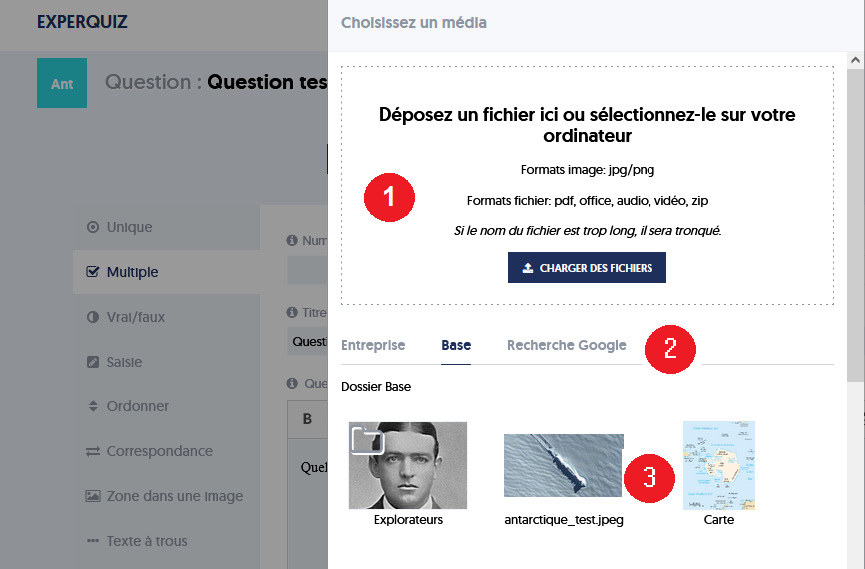
This pane allows you to select media from the media library. If the media is a simple image, you can import it directly from this pane from your workstation.
Let’s detail the functionalities of this pane:
- [1] An image file selection area. You can either drag and drop a file into the area [1], or click on the Browse button and select a file from your directories.
- [2] The media library is organized into folders: there is a company folder, a folder for each of your question banks, and direct access to Google media search. The different tabs corresponding to marker [2] allow you to choose one of these folders. For images, a preview is presented in area [3], before validation.
- [3] The contents of the folder are displayed in area [3], either with a thumbnail for images or an icon symbolizing the type of media.
A few clarifications regarding media:
- The image size you choose here is a maximum size: on a reduced screen format (tablet, mobile), the image will be resized to fit the page.
- If your bank uses formatted text for editing fields, you can insert other images in the body of the text using the features of the editor.
- Audio files are played back using the native browser interface, which will allow the user to start, stop, and resume playback within the allotted time.
- Videos can be integrated in two ways. Either in a ‘native’ manner, by simply uploading a video file from your workstation. Or in an ‘embedded’ manner, by uploading your video to a specialized video hosting site (YouTube, Vimeo, DailyMotion, etc.), and copying a small piece of text, called ‘embed code’, to create a media in the media library. As we will explain later, this second approach is preferable.
Image size
The image size you choose here is a maximum size: on a reduced screen format (tablet, mobile), the image will be resized to fit the page.
You can also modify the size of the image that will be presented in the player from the question editing page.
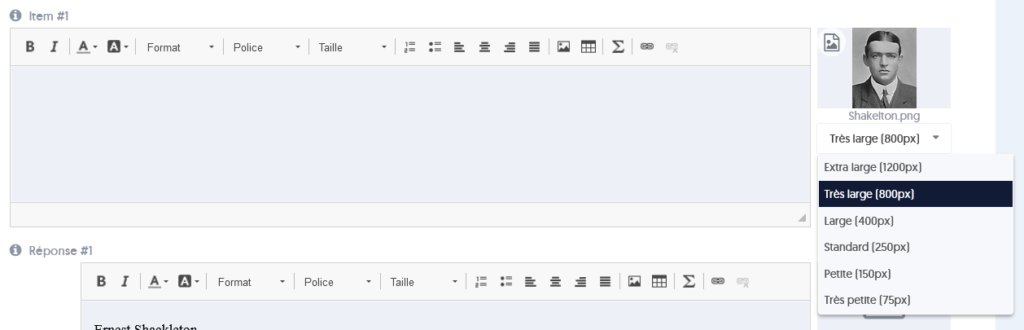
This image size can be resized from 75 pixels to 1,200 pixels.
Score per answer
The definition of scores per answer is an advanced feature that allows for finer control over scoring, meaning the point count corresponding to the question.
This possibility is only offered for questions of type unique, multiple, boolean (true/false), and fill in the blanks.
If this option is activated at the level of the question bank, you can define, for each answer, a particular score, which can be zero or even negative.
The score obtained by the user for the question will be equal to the sum of the scores of the answers they have selected.
Let’s take a simple example. For a multiple-choice question, we could define:
- Answer A (incorrect): -5
- Answer B (incorrect): -10
- Answer C (correct): 20
- Answer D (incorrect): 0
As this is a single-choice question, the user will receive the number of points from the chosen answer.
Now consider a multiple-choice question with:
- Answer A (incorrect): -5
- Answer B (incorrect): -10
- Answer C (correct): 20
- Answer D (incorrect): 0
- Answer E (correct): 10
If the user has selected (B, C), they obtain a total of -10 + 20 = +10 points, out of a total possible of 20 + 10 = 30 points.
Note that it is your responsibility in this case to ensure consistency between the truthfulness of the answer and the points obtained. Logically, correct answers will have a positive score, and incorrect answers will have a zero or negative score. However, it can sometimes be useful to assign a low score to certain incorrect answers. You have control over this.
This score per answer is completely independent of the score per question. You will choose either one in the questionnaire options.
Importing a file of questions
You can also import a batch of questions that you have prepared in a Word file in .docx format.
The file must, of course, be correctly formatted to allow ExperQuiz to recognize the questions well. The format is extremely simple to follow.
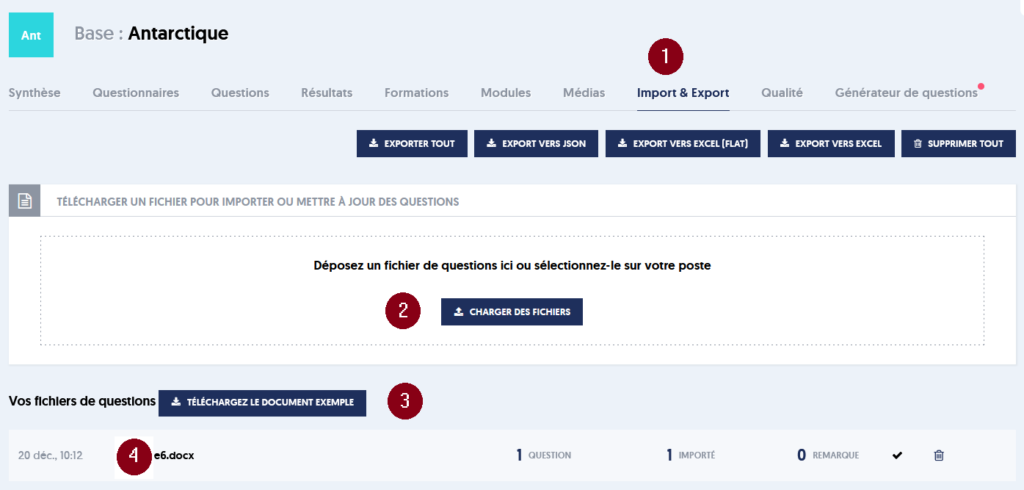
From the question bank page, you have an “Import & Export” tab (marker [1] in the image):
In area [2], you can either drop a file by dragging and dropping it from a file explorer window, or click on the UPLOAD FILES button and then select the file from your folders.
Link [3] allows you to consult a sample file that will explain the expected formatting principles. We will summarize the key principles below.
In area [4] you find the list of files you have uploaded for this bank, as well as the number of imported questions, and possibly the comments or problems associated with that import. By clicking on the button far right of the line, you access details of the comments and issues.
Note that in the previous image, you see buttons for exporting questions in different working formats. These buttons are optional: you will only see them if you have checked the corresponding options on the Company / Options page.
The first of the formatting principles is that each question constitutes a Word table that has two columns. Any text not in a table will not be interpreted during the import. Between two tables, you can thus put pure comment text for yourself, which will not be interpreted.
Each of the tables representing a question appears as follows:
| item | 1 |
| title | The ice cover of Antarctica |
| domain | Geography |
| tags | Science, environment |
| question | What is the average thickness of the Antarctic ice cover? |
| type | Unique |
| level | 4 |
| score | 10 |
| time | 60 |
| eliminatory | yes |
| sequence | A-2 |
| true | 1600 meters |
| false | 250 meters |
| false | 650 meters |
| false | 1200 meters |
| explanation | About 98% of Antarctica is covered by ice, with an average thickness of 1.6 km, extending everywhere except for the northernmost points of the Antarctic peninsula. |
| rule | Covering an area of 14 million square kilometers, Antarctica is smaller than Asia, Africa, or America; only Europe and Oceania are smaller. About 98% of its surface is covered by a layer of ice with an average thickness of 1.6 km. That is why the morphology of the Antarctic subsoil remains little known or even unknown, while gradually the presence of subglacial lakes and subglacial mountain ranges such as the Gamburtsev is revealed. |
The left column contains the names of the various attributes, meaning information describing the question. Some are optional. The attributes that can be used are as follows:
- item: an order number for the question. It must be unique for each question within the file. Note that if you import a file twice, questions with the same item number will be replaced by the version of the second file import. This allows you to edit your questions if needed and then reimport the file.
- title: as seen above, the title will allow identifying the question in tables. It can simply be a short version of the question itself.
- domain: if you have chosen to use domains in this bank, then you must indicate the domain to which each question belongs. Note that if the file mentions domains that do not exist in the bank, they will be created automatically.
- tags: if you have chosen to use tags in this bank, then you can specify the tag(s) that characterize each question. Note that if the file mentions tags that do not exist in the bank, they will be created automatically. If the file mentions tags and the tags are not activated for this bank, they will be ignored.
- question: The text of the question itself, as it will be presented to the user. Note that the text in the file, for the attributes question, true, false (answers), explanation, and rules can include formatting under Word: bold, italic, bullet points, titles. Tables are not allowed. You can also integrate hyperlinks. Finally, if you place an image in the cell, that image will be integrated into the media library and used as the image associated with the attribute. Only one image per cell can be integrated.
- type: the type of question. It can take one of the following values: unique, multiple, order, text, matching, true/false, fill in the blanks, select, classification, open-ended, soft skills unique, soft skills multiple. The image zone question type cannot be integrated through the Word file.
- true, false: the various proposed answers are presented with a true attribute for correct answers and false for incorrect answers. For order or matching type questions, all answers will be true. At the time of import, a consistency check will be performed between the announced type of question and the distribution of true and false answers.
- explanation, rule: these are the explanation and rule attributes already explained above.
In the case of soft-skill type questions, you will indicate the list of tags (the soft-skills), separated by commas and the whole in brackets followed by the text of the proposed answer.
Here’s an illustration:
| item | 1 |
| title | 3 months in Antarctica |
| domain | Explorers |
| question | How would you react if asked to accompany a scientific team for 3 months in Antarctica? |
| type | Soft skills unique |
| level | 3 |
| true | [homebody, instinctive] 3 months with a dozen 'strangers, in the dark and at -80°C, no way! |
| true | [instinctive, bold, curious] Great, an adventure that will take me out of my routines, when do we leave? |
| true | [thoughtful, curious] Why not? Learning sometimes requires certain sacrifices, I'll think about it. |
Analysis of the file and integration of the questions into the bank occurs asynchronously, meaning you can continue to work while the task proceeds. For a file of 50 questions, this processing can take a few minutes.
You can refresh the page to see if the processing is complete. When it is completed, the number of imported questions is indicated. By clicking on the button on the right, you can open a pane that will present a detailed report of the import and will indicate precisely the problems encountered to allow you to correct them.