Automated Grading Function for Open-Ended Questions
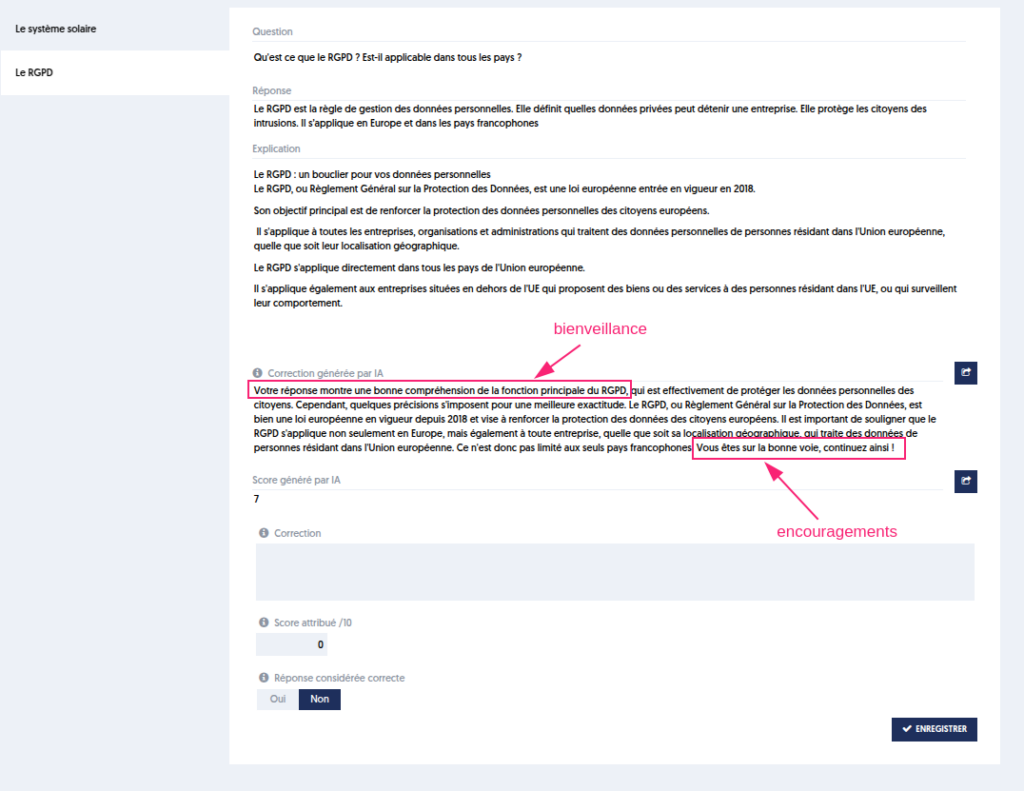
ExperQuiz offers a type of question that is graded by a trainer asynchronously: the open-ended question. The grader can write feedback and assign a grade that is integrated into the overall assessment score.
ExperQuiz uses artificial intelligence to analyze the text provided as an answer and suggest feedback and a grade.
The grader can accept all or part of the suggestions and keep the grade if they believe the suggestions are relevant. Note that this is merely an aid offered to the grader, who must always define their comment and the grade to be assigned, for which they are ultimately solely responsible.
Each suggestion is based solely on the text of the question and the response. No images/media/attachments are taken into account when generating the correction for the grading.
To activate this feature, it should be specified in the question settings that help with grading will be requested.
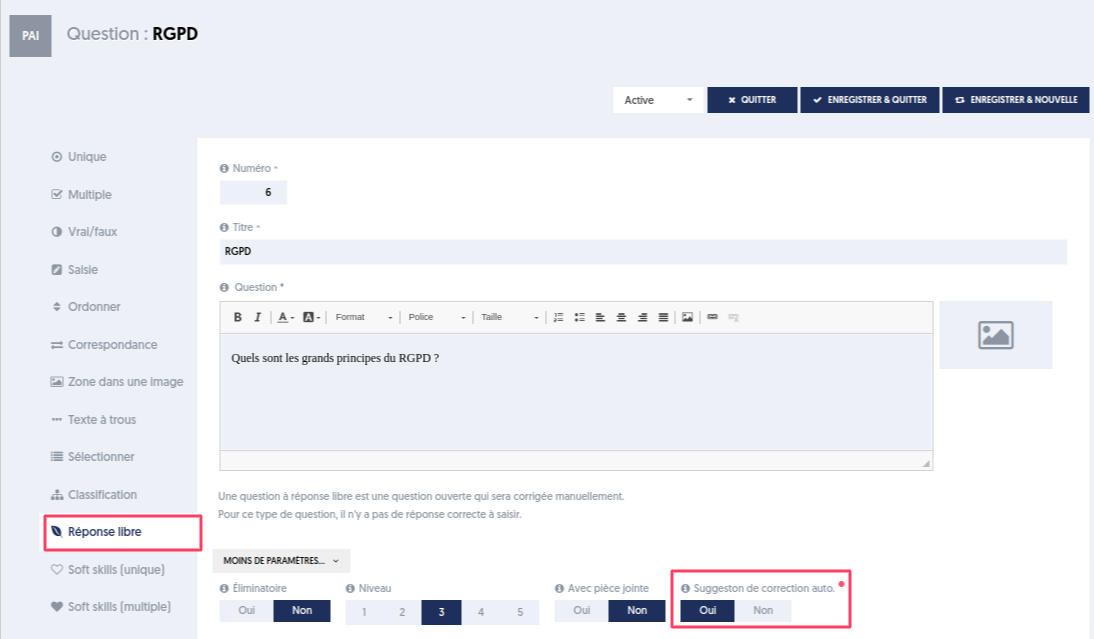
When the assessment is completed, the automatic grading is initiated. This may take a few minutes. However, this does not prevent the grader from reviewing the responses and beginning their analysis.
It is imperative to verify the quality of the suggestions based on the user's response.
Note that, due to its design, the AI will likely be less relevant on recent news topics or those not accessible to the general public.
Automated Grading Function for Open-Ended Questions
Considering the following open-ended question [1]:
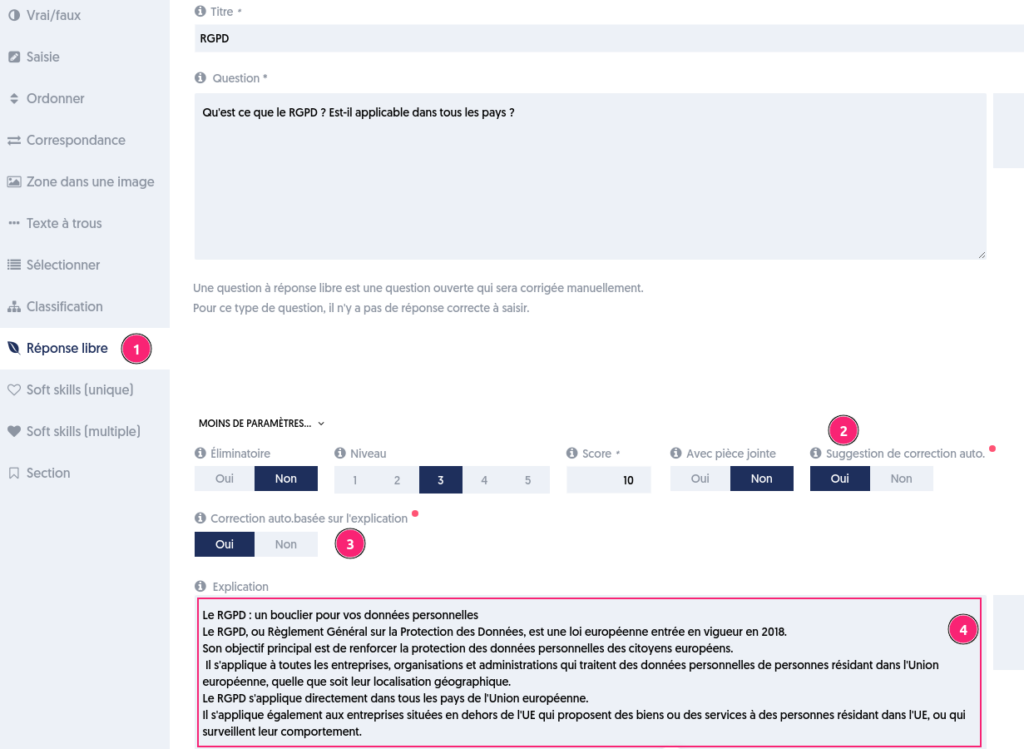
In the “MORE SETTINGS” panel, it is possible to indicate that one wishes to have AI-assisted grading [2] based on the explanation [3] found in the “Explanation” block of the question [4].
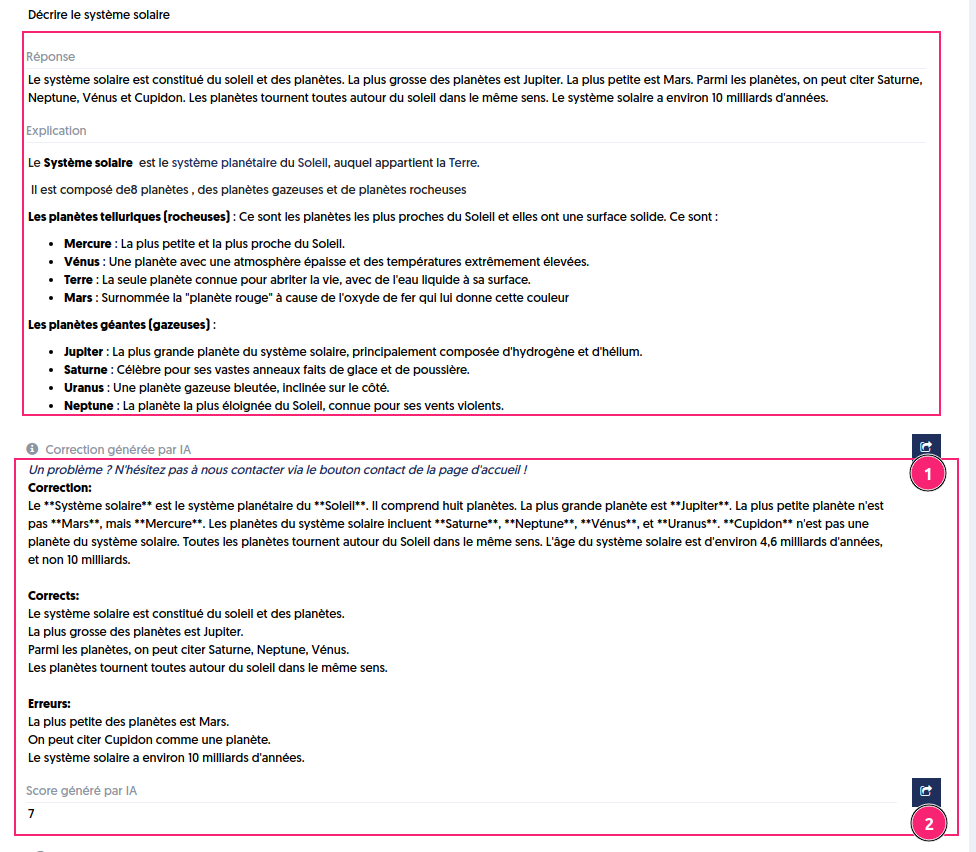
When an assessment is taken, the grader will be able to review the provided answer and the explanation given by the AI as a suggested correction.
The part generated by the AI includes a writing of the correction noting the correct points and mistakes. It also proposes a grade.
Button 1 allows the suggested correction from the AI to be copied into the “Correction” section of the grader, who can adapt it according to their judgment.
Button 2 allows the grade proposed by the AI to be copied.
Activate the Functionality
To activate the features that use artificial intelligence, the option “Use AI features” must be checked in the company settings.
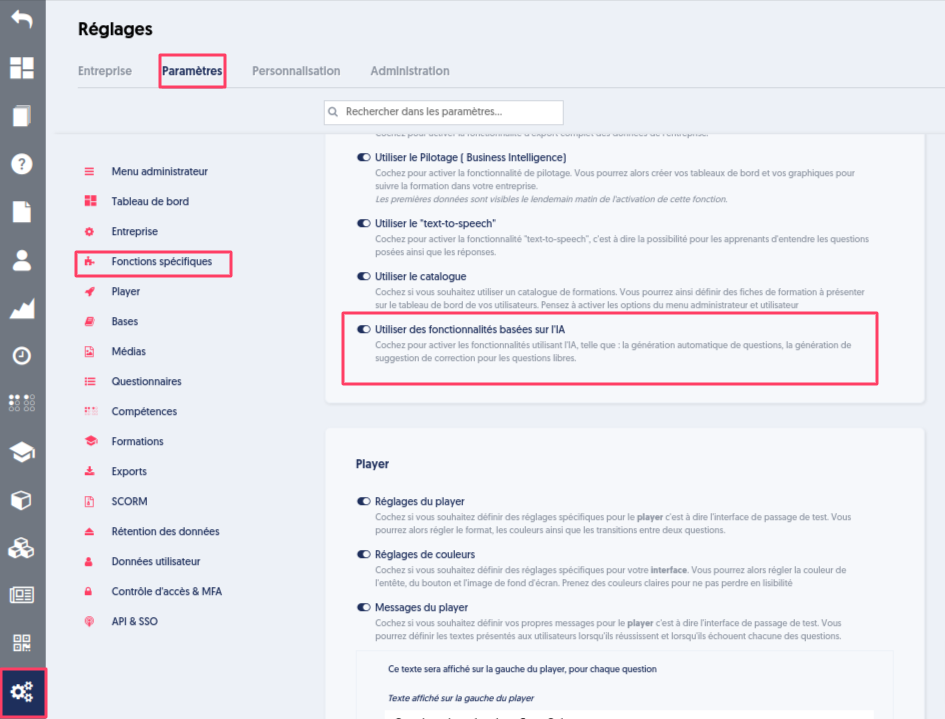
Customize the Grading Assistant
You can customize your assistant, providing specific grading instructions that will apply to the AI grading of open-ended questions in this database when the automatic grading option is activated.
To do this, go to the “Artificial Intelligence” page in the “Question Grading” tab.
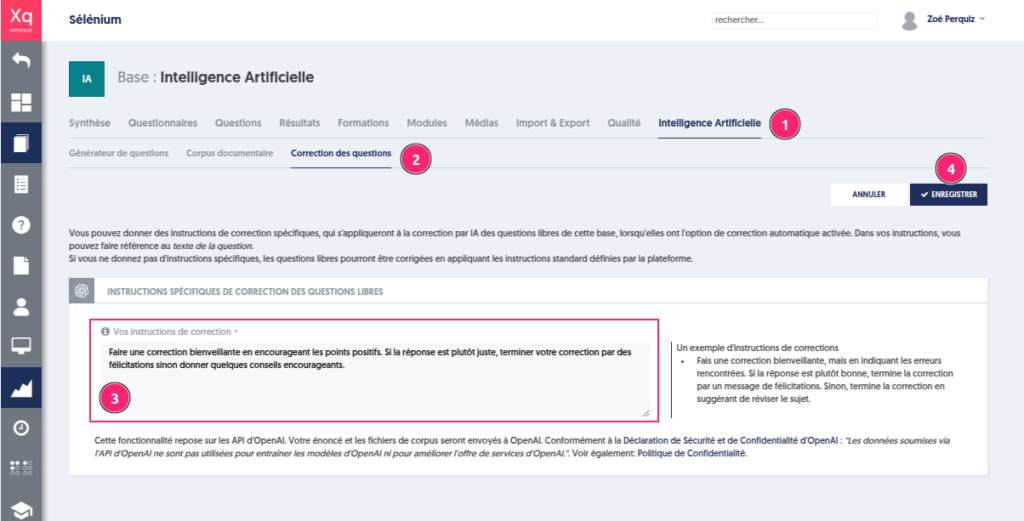
For example, you can indicate:
Make a kind correction by highlighting positive points. If the answer is mostly correct, end your correction with congratulations; otherwise, give some encouraging advice.
If you do not provide specific instructions, open-ended questions will be graded using the standard instructions set by the platform.