Event Monitoring Results
To access monitoring, the supervisor must have the permissions "View user results" and "View questionnaires."
They go to the "Assessment Monitoring" page (button [1]), and choose one of the ongoing or past exams (button [2]).
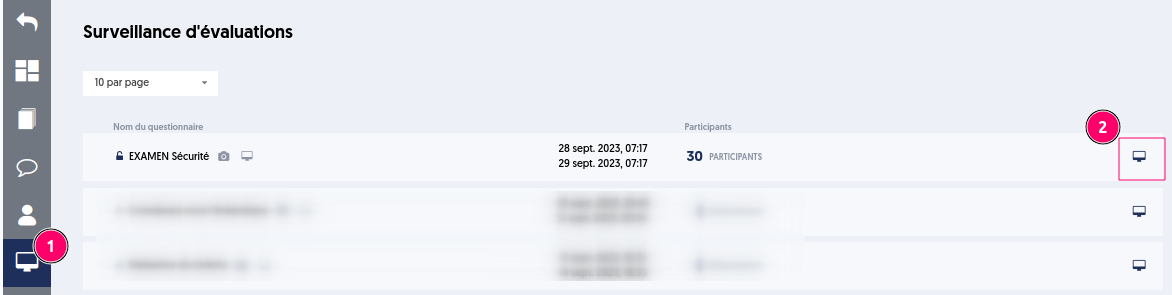
The supervisor accesses the list of monitoring events, which is presented as follows:
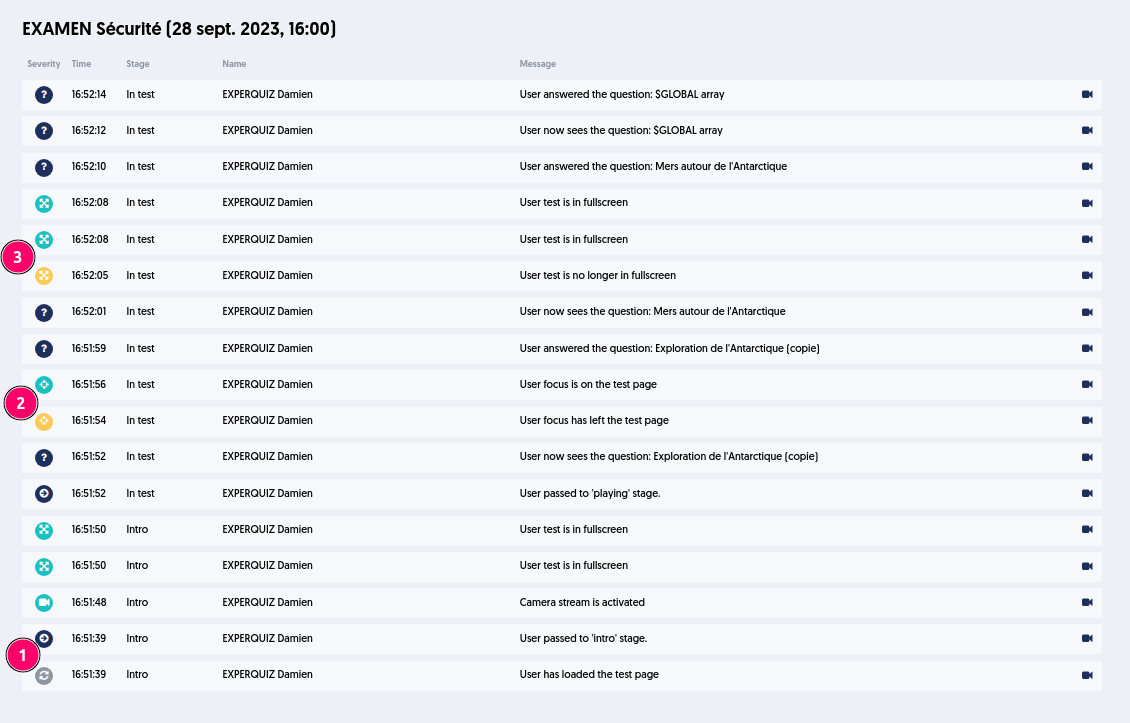
On this page, one can identify:
- An icon symbolizing the type of event and a color corresponding to the level of severity. The gray and blue colors symbolize normal events, orange symbolizes suspicious events, and blue indicates a return to normal, meaning the end of a suspicious event.
- The timestamp of this event
- The phase of the exam process for the participant at the time of this event (introduction, question phase, score page)
- The name of the concerned participant
- A description message of the event
- And a link to the camera image retrieval of the participant if the invitation specified this option and the participant has completed their evaluation.
For example, in the screenshot above, we find:
- In [1]: two normal events: the learner arrived on the test page and entered the introduction step
- In [2] and [3]: two suspicious events: in the first, the candidate left the focus of the test page and returned 2 seconds later. In the second, the candidate exited full screen and restored it 3 seconds later.
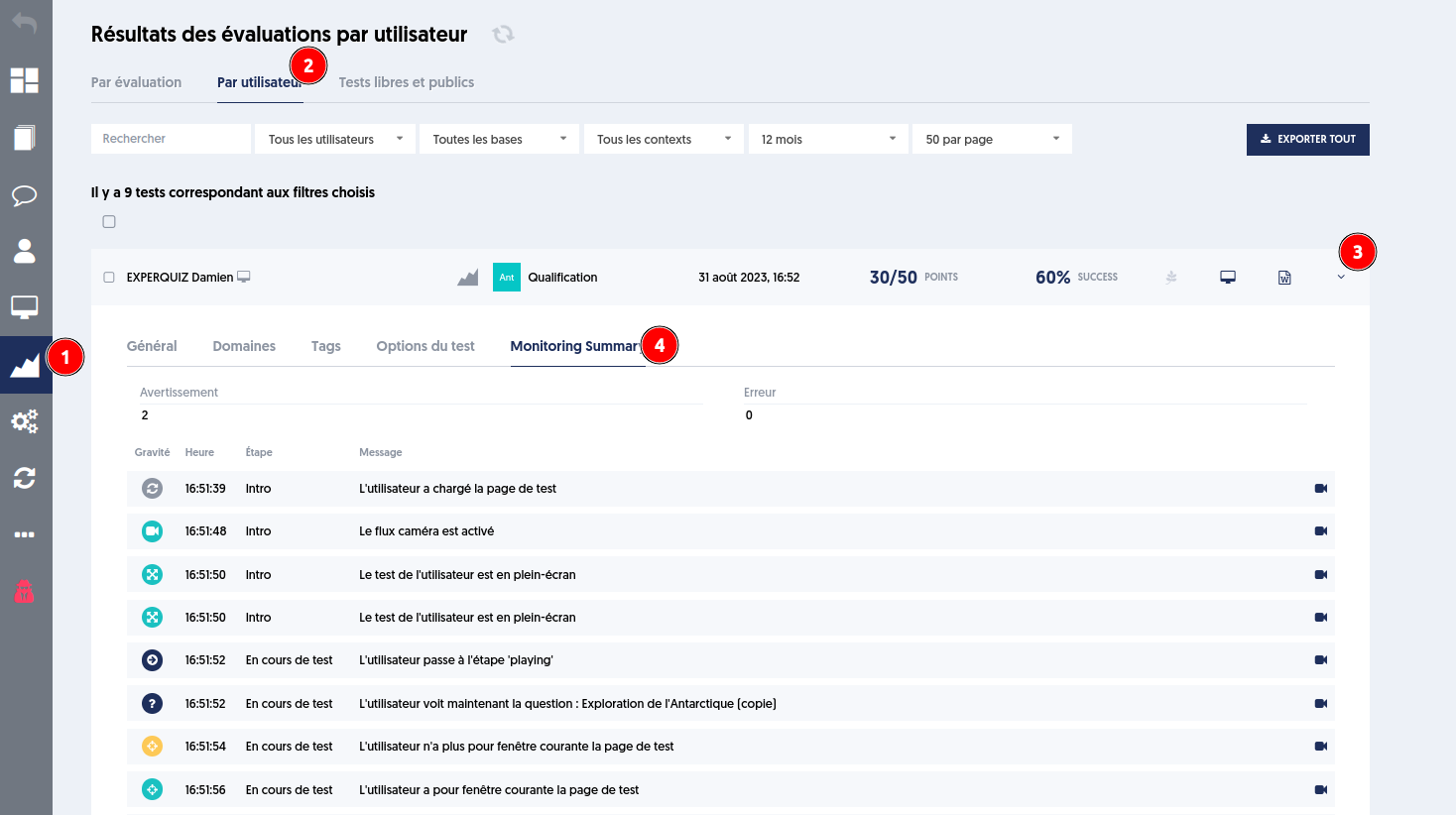
Once the test is completed, it is also possible to find a candidate's events by going to the user results page as below:
Article Navigation
Previous Previous Article: Monitoring Browser Events of Participants
Next Next Article: Capturing the Webcam Image Stream of Candidates