Enterprise Settings
On the Settings page, the Parameters tab presents the main configuration options.
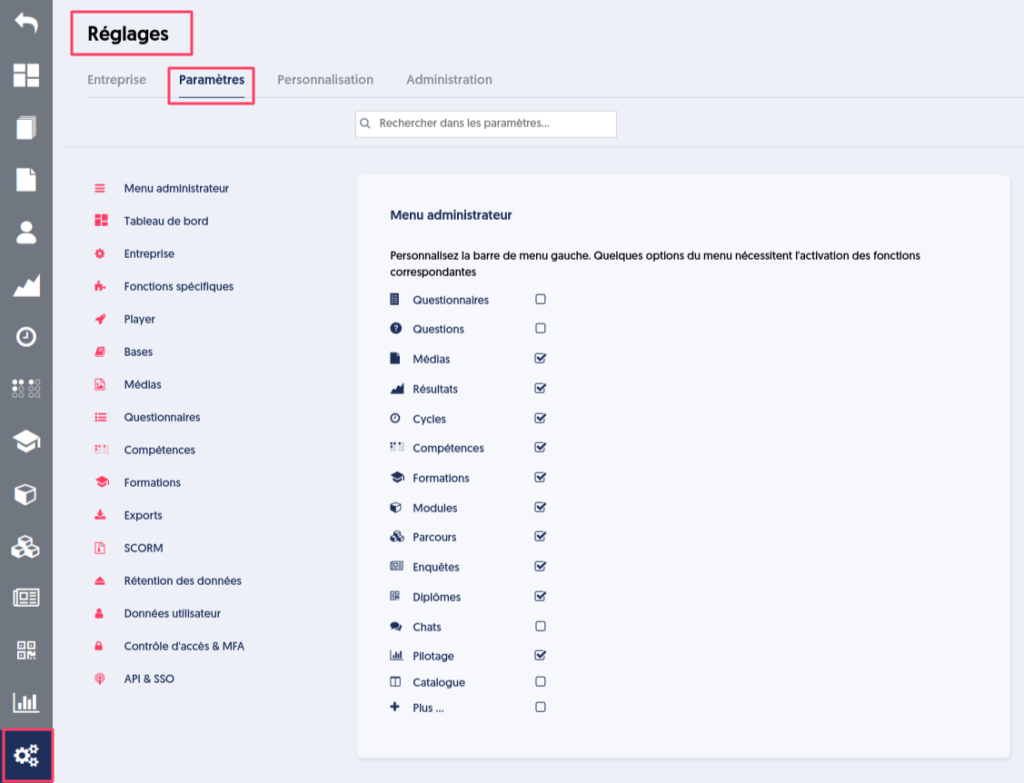
Navigation in the Parameters Page
The settings are organized into sections, which are displayed in a list on the left with red icons (Admin Menu, Dashboard, Enterprise …). Each section is an anchor, meaning you can click on the name of a section to jump to that section.
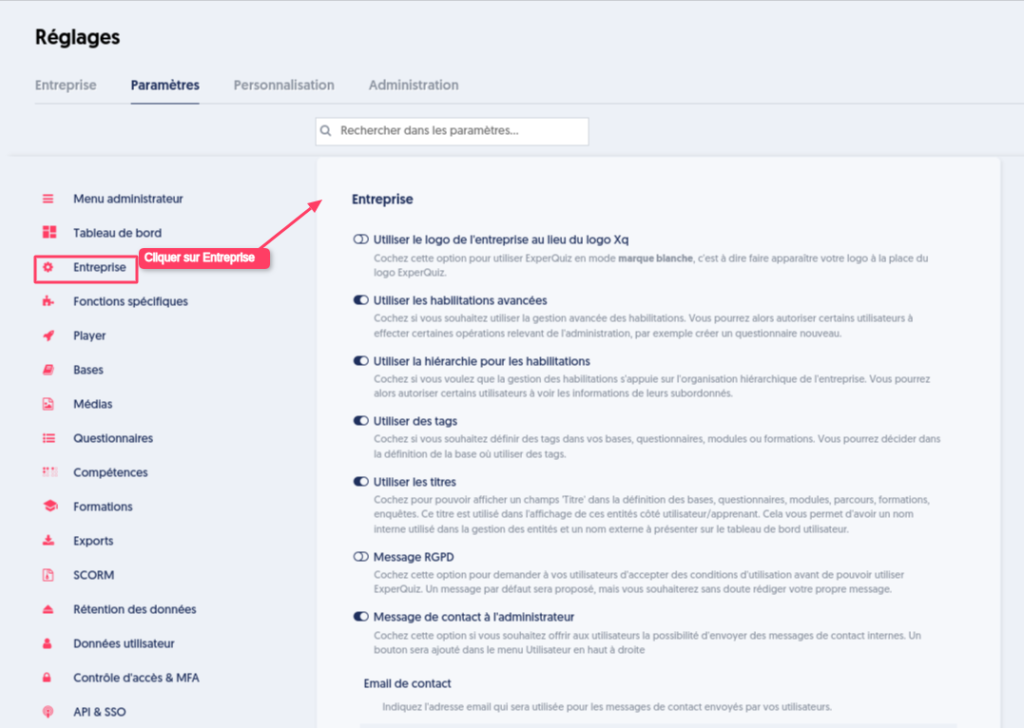
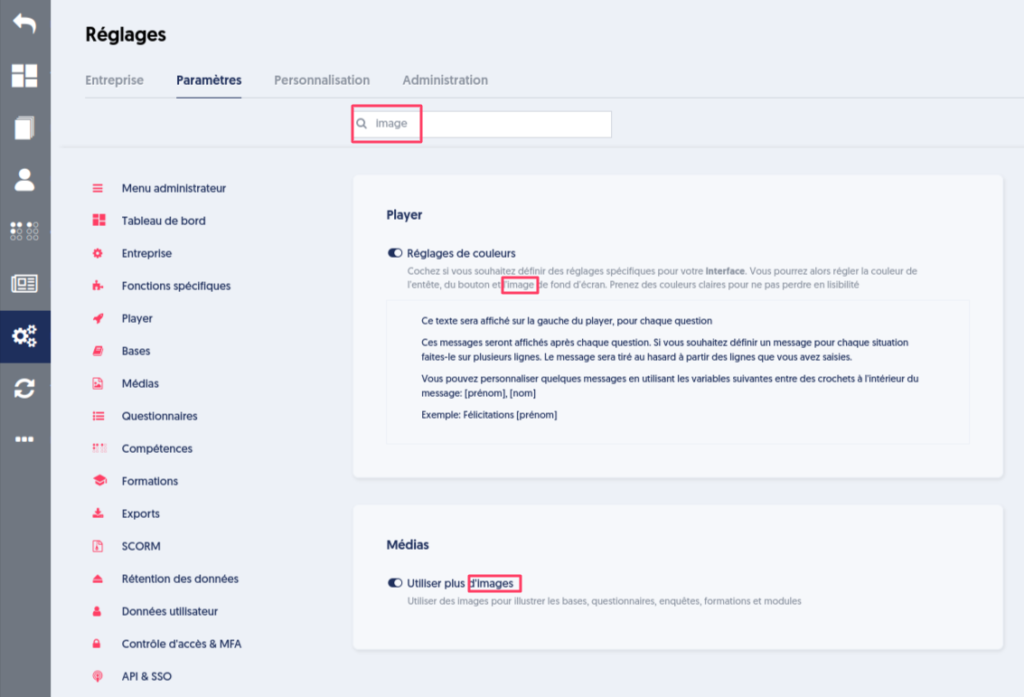
A search bar also allows you to filter articles based on keywords.
Admin Menu
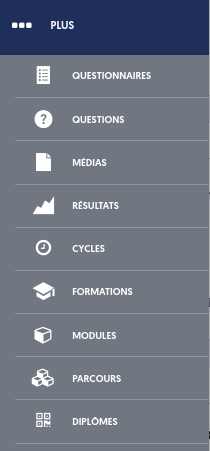
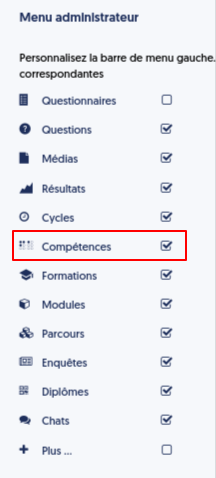
The Admin Menu section allows you to select the features that will be displayed in the vertical menu on the left.
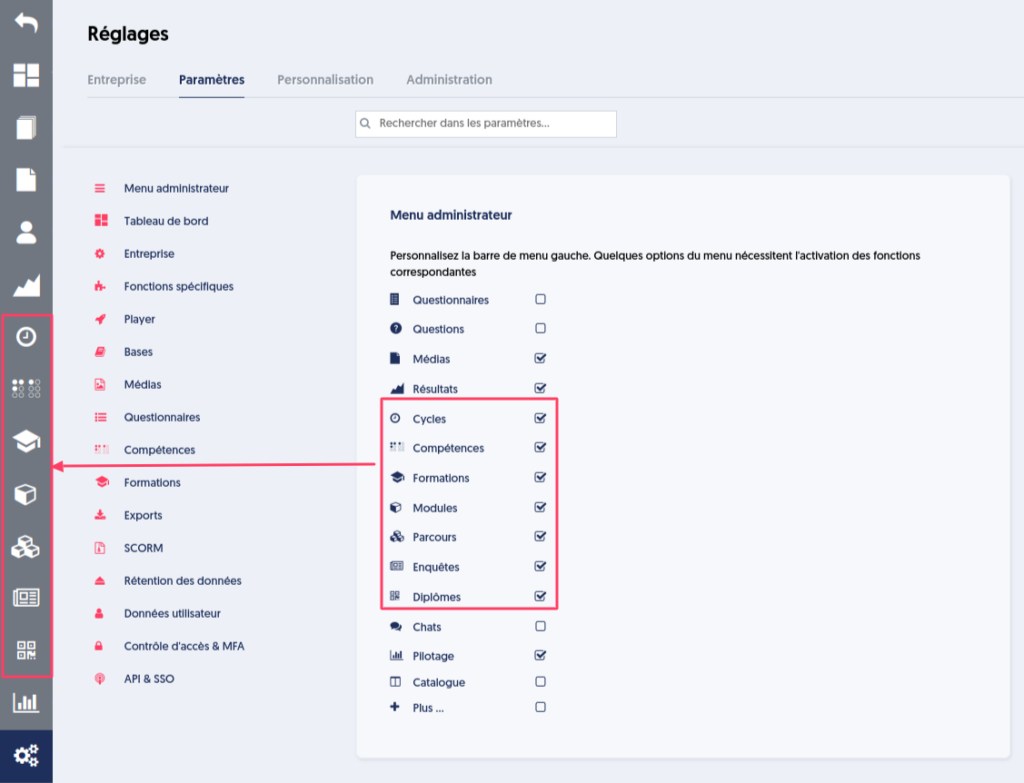
The More option, if checked, allows you to group the other options that were not specifically selected into a single MORE button.
Dashboard
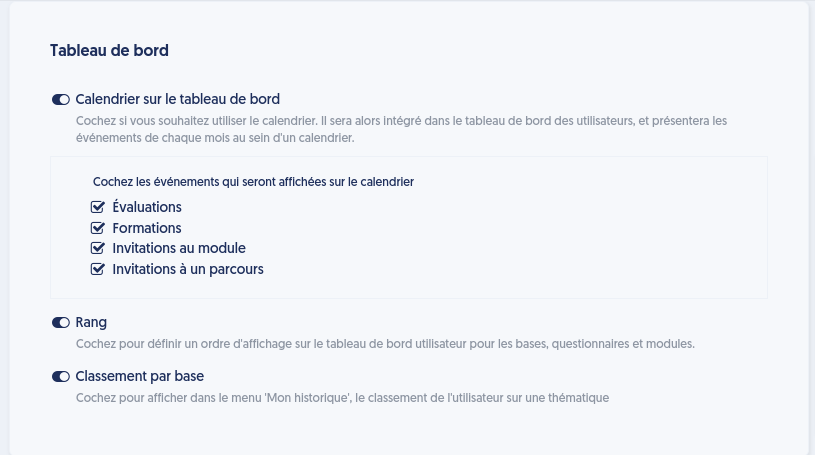
In the Dashboard section, you can choose to display a calendar with selected events (assessments, training, modules, and pathways).
Calendar
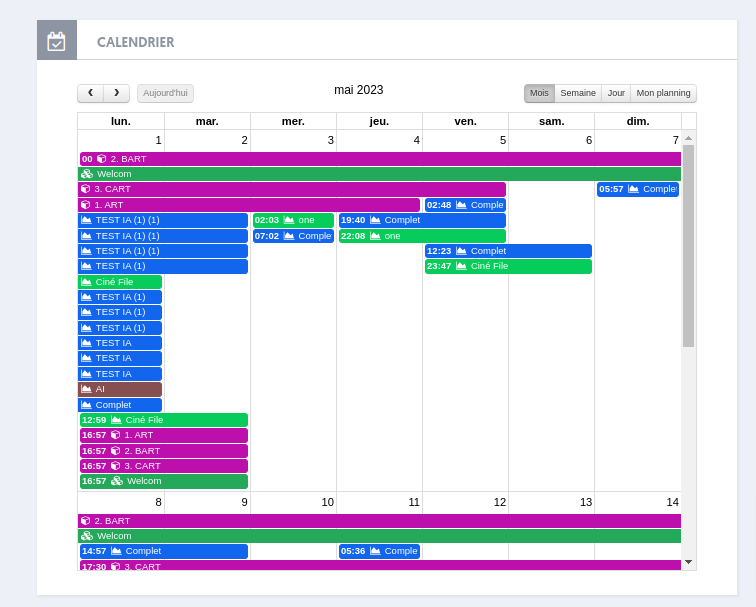
The calendar allows you to position past and upcoming events, such as assessments, training, etc. Check this option if you want a calendar object on the enterprise dashboard.
Rank
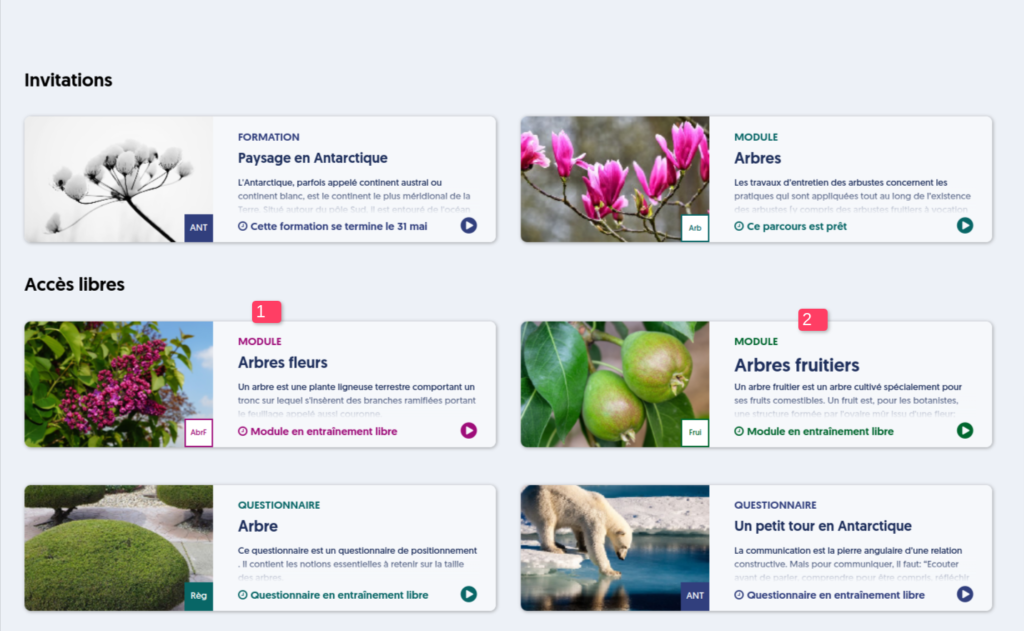
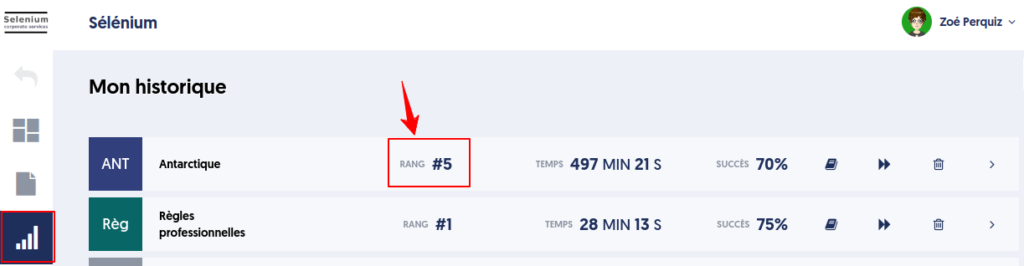
You can also choose to use rank to set the display order of activities on the user dashboard.
Base Ranking
Base ranking is information that shows the rank obtained compared to all players in the enterprise. It can be enabled or disabled.
Enterprise
In the Enterprise category, the options are as follows:
Use the company logo instead of the Xq logo
When you check this option, your company logo will be displayed at the top left of each page, instead of the ExperQuiz logo. It will also appear on emails sent to your users. This moves towards a white-label operation. To be truly white-label, it will also be necessary to change the domain name / hostname used to access ExperQuiz. This is possible; we will see later how.
GDPR Message
When you check this option, each of your users will need to accept terms of use before they can use ExperQuiz. The option is called GDPR message, but you can practically write the terms of use that suit you, whether or not they pertain to GDPR.
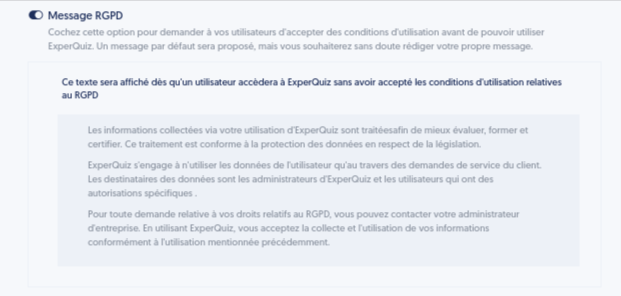
You can define your own message in the space provided for this purpose, expressing your own terms of use. As soon as this option is activated, the users of your enterprise can no longer access any of the features of ExperQuiz until they have accepted the conditions presented to them.
GDPR for people not registered in your enterprise (contacts)

Admin Contact Message
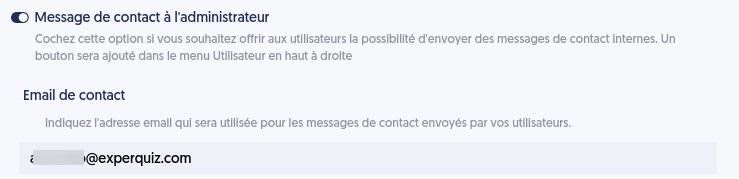
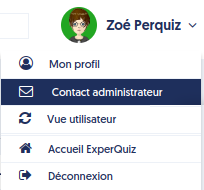
This option allows adding a contact email function in a user's login menu.
The contact email needs to be defined in the Contact Email field.
Configuration Options
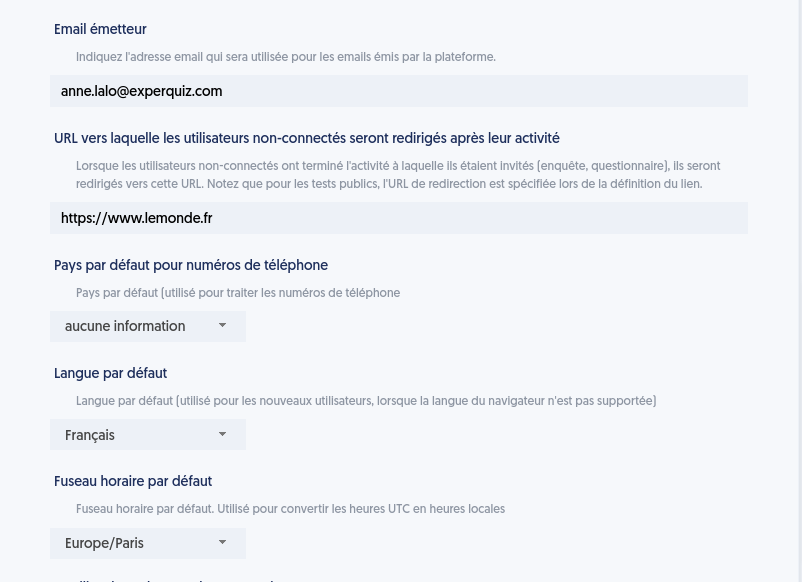
Language, Time Zone, and Exit URL
The default language and default time zone are proposed when creating users and activities. They serve as default values: they do not override choices already defined for a user or an activity.
The redirect URL after an activity lets you specify the page to which an unauthenticated user is sent after completing an activity. Use a full URL, for example your portal or LMS page.
Captcha Verification for Unidentified Users
Enable this option to require captcha verification from unidentified people accessing an activity. It limits automated or abusive access without changing the login conditions for already authenticated users.
Use Tags
Check this option if you want to use tags. Tags are labels that help characterize entities managed by ExperQuiz.
There are two sets of tags:
- Tags characterizing databases, questionnaires, training, modules, cycles.
- Tags characterizing the questions of a database. These tags are managed separately at the level of each database, meaning you can specify that some databases use question tags, and others do not.
Once this option is selected, different pages of ExperQuiz will present new fields, sometimes to specify the tags associated with an entity, and sometimes to filter the list of entities based on particular tags.
Use Titles
This option allows adding a ‘Title’ in the definition of databases, questionnaires, modules, pathways, training, surveys. This title is used in the display of these entities on the user/learner side.
This allows you to have an internal name used in managing entities on the admin side and an external name to display on the user dashboard.
Button to Archive Entities
Archiving question databases is a feature that allows you to hide certain question databases that you are no longer using or using very little, but that you do not want to delete. Archived databases will no longer appear in your list of databases, but you will be able to easily view them again by selecting archived in the filter.
Check this option if you want to have the archiving feature for databases, modules, surveys.
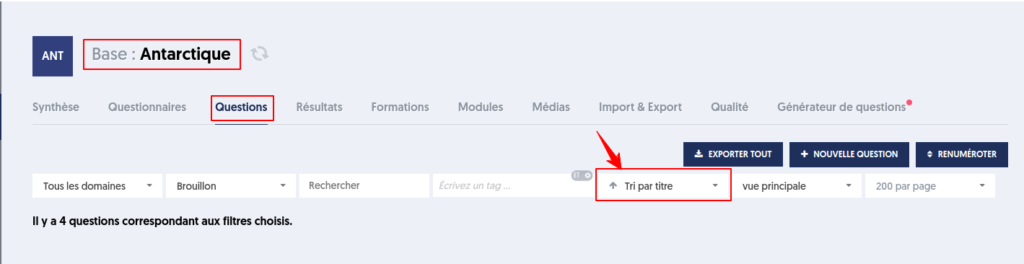
Add the "Sort by Criteria" Option
Specific Functions
The options in this section activate the corresponding features. The Admin Menu block only controls their visibility in the menu: a menu entry alone does not make a feature available.
Use Advanced Permissions
Advanced permissions allow you to define user profiles whose permissions (actions possible on ExperQuiz) are intermediate between those of an administrator and those of a regular user.
Once this option is selected, you will have a new block at the bottom of the user page to define the functions the user can use on ExperQuiz. You will also be able to define the question databases they can access, as well as the user groups they can see.
To define these profiles, see Authorization Profiles.
Use Hierarchy for Permissions
The management of advanced permissions can rely on both user groups and on the organizational hierarchy of the enterprise. The hierarchy is defined in the form of a tree structure linking each user to their hierarchical superior. If you choose this feature, you may specify that a department head, for example, is allowed to view the results of their department's members.
Once this option is selected, you will have an additional block at the bottom of the user update page, allowing you to define both the user’s N+1 and N-1. A new tab on the Users page will give you a complete overview of the organizational hierarchy.
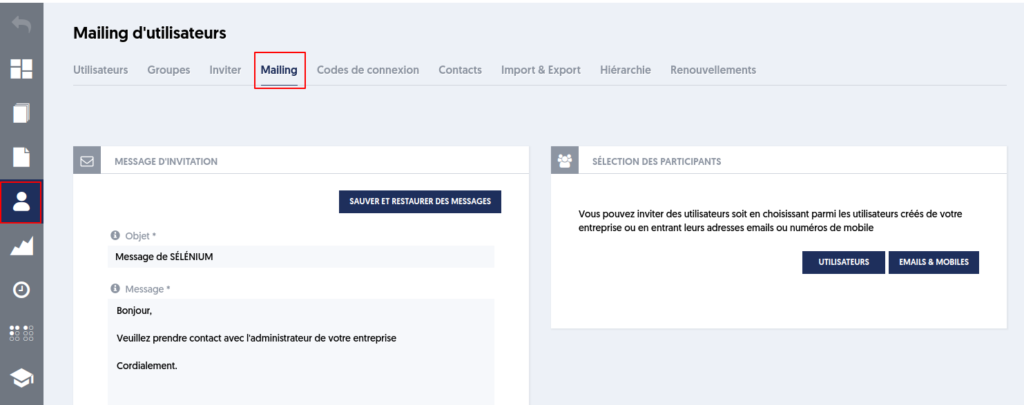
Use Mailing
This option adds the ability to send emails to users in your enterprise.
Use Surveys to Gather Information
This option allows activating the use of data collection forms. For more information, see Surveys.
Use Cycles
This option allows activating the functionality to create cycles. You can then schedule invitations to questionnaires or surveys over time. You can invite users to a cycle or associate a cycle with certain training sessions.
For cycle configuration, see Cycles.
Use a Diploma Generator
Check this option if you want to activate the diploma generator feature. ExperQuiz allows generating diplomas or certificates following an assessment, training, or e-learning module. Note that if you also want to see the DIPLOMAS option in the main menu, it needs to be selected in the ADMIN MENU block.
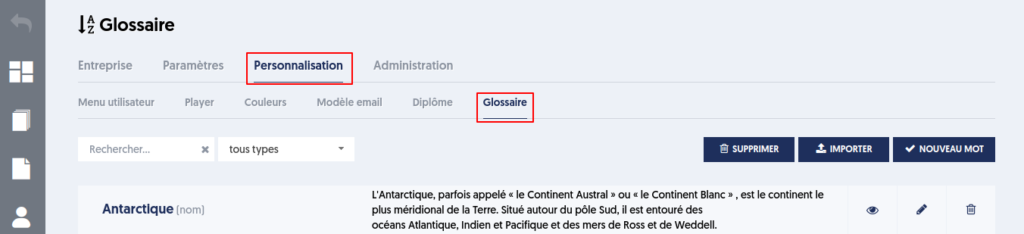
Define a Glossary
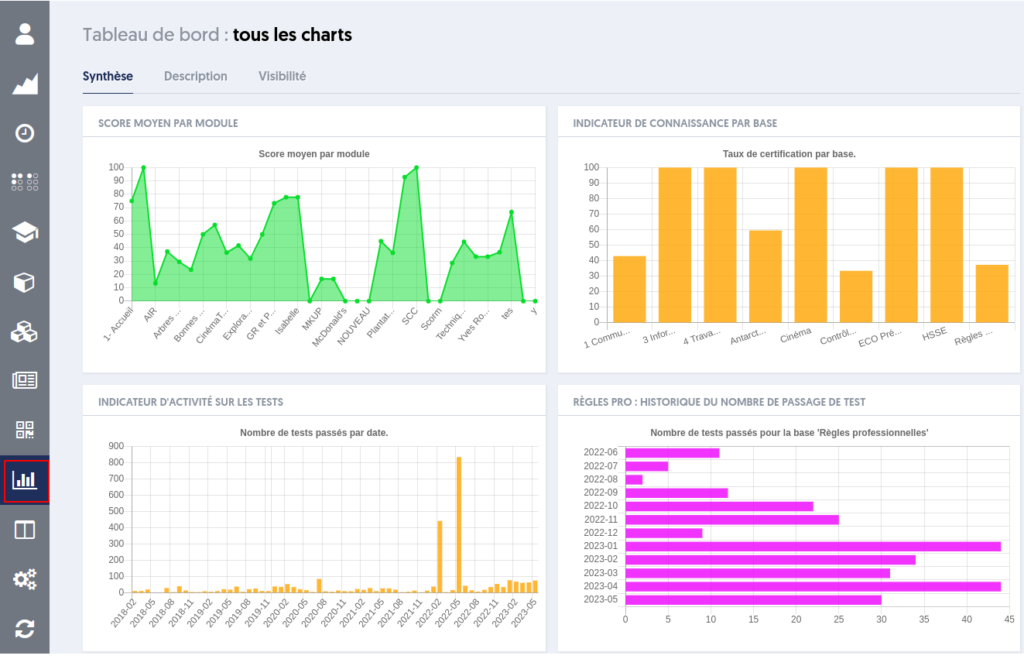
Use Steering (Business Intelligence)
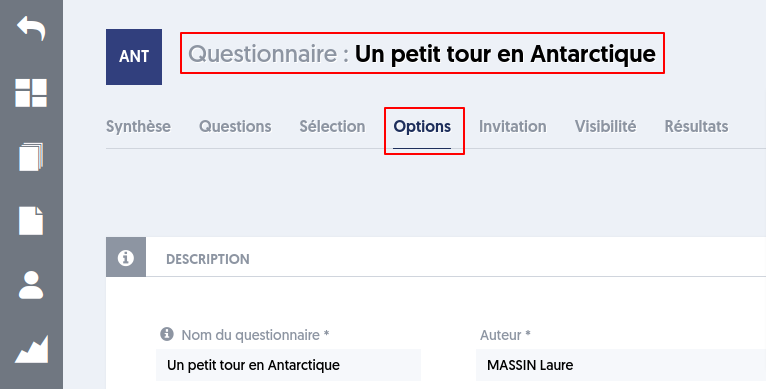
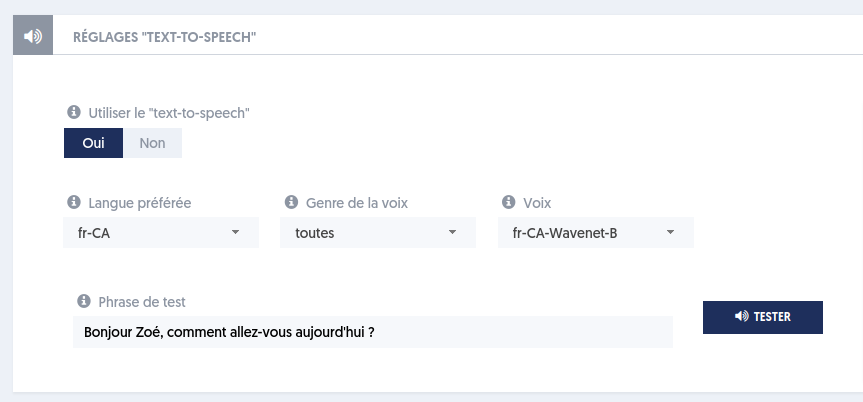
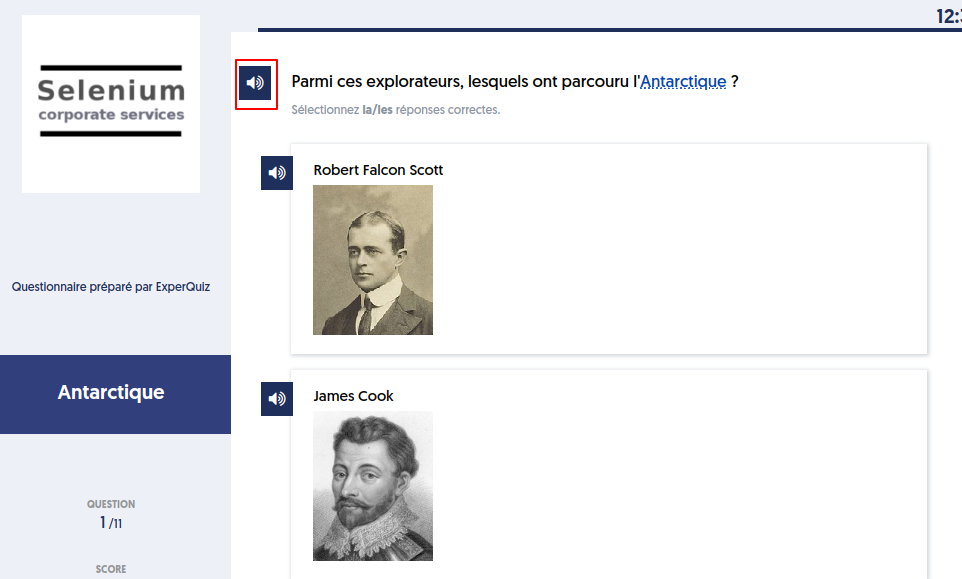
Use Text-to-Speech
The Text To Speech option comes into play during the questionnaire passage and offers oralization of the texts during the passage of questions.
Use the Catalog
This feature allows you to define training sheets to present on your users' dashboard. It is detailed here.
Remember to activate the options from the admin and user menus.
Use AI-Based Features
Two AI-based features are enabled through this option:
- Automatic generation of questions (in the menu of a database)
- Assistance in correcting open-ended questions
Use Multilingual Translation
This option activates the multilingual translation features in the application. See the Enterprise Option section of the Multilingualism page to prepare and use translations.
Player
Player Settings
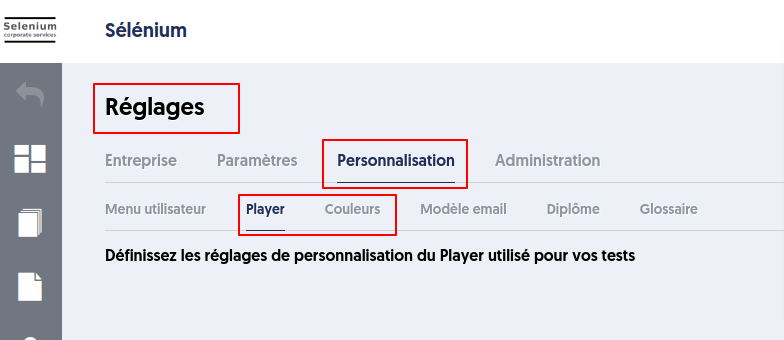
This option gives you access to configure the Player. Recall that the “player” is the interface for taking tests. Once the option is checked, a new tab titled Player Settings appears on the Enterprise page.
Color Settings
This option allows you to customize the colors of your environment, background images for the white-label login page, your surveys…
Player Messages
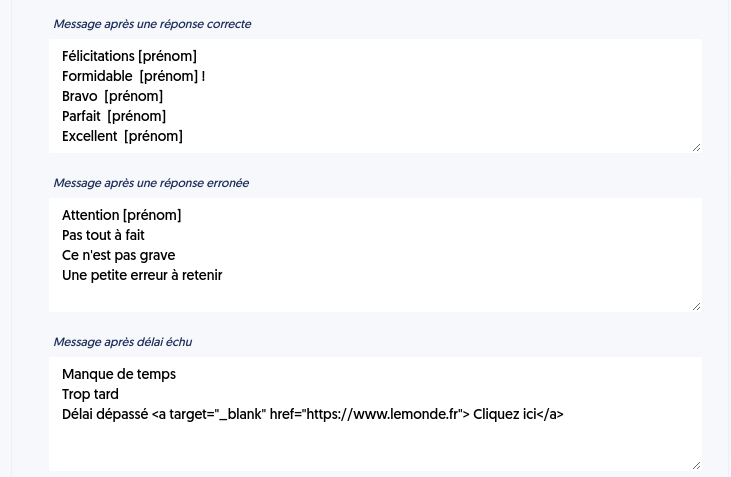
Check this option to customize the messages displayed by the player: a message while going through the questions, then messages after a correct answer, an incorrect answer, or after the time has expired.
Enter one message per line. When there are several lines for the same case, the player randomly picks one. You can insert [first_name] and [last_name] to display the user's first or last name.
The configuration fields are displayed directly in the Player section of the Settings tab.
Databases
Database Color
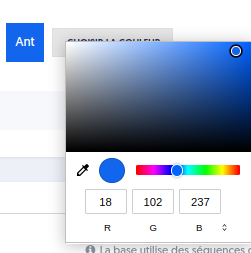
A color can be set for each entity (database, module, survey).
This option replaces the predefined color palette with an RGB color input.
Question Quality Panel
Check this option to activate the question quality analysis feature.
A new tab will appear on the question databases page, titled Quality.
You will have a set of analyses to measure the overall quality of your database, the margin of error in your tests, and to identify lower-quality questions.
This feature is described in more detail in the chapter Advanced Features.
Media
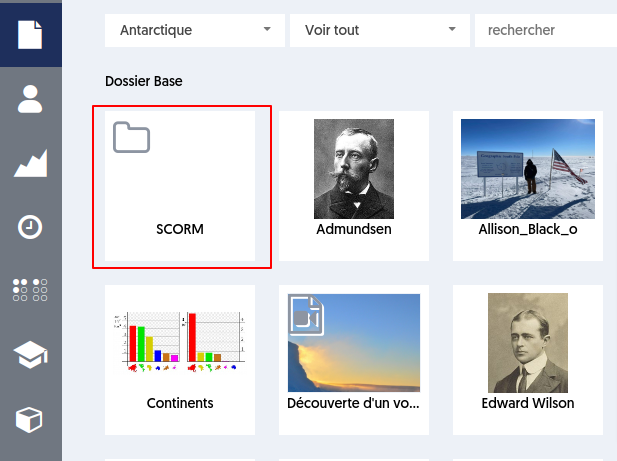
Use Media Subfolders
Check if you want to use subfolders for media management. See Media for their organization and management.
Use More Images
Use images to illustrate databases, questionnaires, surveys, training, and modules.

Allow Media Over 32 MB
Allow media uploads in the media library up to 400 MB.
Use a Custom PDF Reader
Use a custom viewer when displaying PDF media in a module. The native PDF viewer of the web browser allows users to easily download the PDF file. Using a custom viewer does not prevent downloads but makes them more difficult.
Questionnaires
Number of Questions by Domain in the Questionnaire
This option concerns dynamic questionnaires, meaning those that do not have a fixed selection of questions but proceed by drawing questions within the database according to various criteria.
The criteria for drawing questions can pertain to the domains of the database, if the database has defined domains.
There are two ways to consider domains in dynamic questionnaires:
- Either you will simply be able to check the domains from which you want questions to be chosen.
- Or you can specify the exact number of questions you wish to take from each domain.
Check this option if you want to specify the exact number of questions to take from each domain.
Allow Rating of Questions
When you check this option, users will have the ability to rate the question (from one star to five stars) on the test-taking interface, and possibly provide more comprehensive feedback.
Show an Introduction Page Before the First Test
If you check this option, your users will see an explanation page before starting a test, during the first use. The page includes a validation button, through which the user indicates that they understand and no longer wish to receive these explanations.
Show Evaluation Consequence Option
A consequence is a message to display or an action to perform at the end of the test under certain conditions. A consequence can be expressed in the general form: if condition then action;
Assessment Renewal Period
Check this option if you want to manage the notion of certification renewal, meaning that some of your certifications can specify a validity duration and thus a renewal deadline. You can then be alerted of expired certifications.
Save Questionnaire Message
The invitation email for the assessments of a questionnaire is saved for the questionnaire. It will be proposed again during the next invitation. If the option is not checked, the company's model email is proposed for each invitation.
Document Exports in DOCX
Three exports are possible in DOCX format:
- A blank copy of a questionnaire.
- The correction document for the questionnaires. The document will present each question, its characteristics, and the expected answer.
- A copy of past assessments (docx). For each participant in the assessment, the document will present the question asked, the expected answer, the answer given by the participant, and the corresponding score.
Delay Before Sending the Invitation Email
You specify here the delay, in minutes, for sending invitations to an assessment. Thus, for example, if you specify 30 minutes, the invitations will be sent to participants 30 minutes before the assessment opening. This applies, of course, to assessments scheduled in the future. If, when you create the assessment, the opening time is less than 30 minutes away, the invitations will be sent immediately.
Show Ranking
Check this option if you want participants in an assessment to see their ranking, i.e., their position. This is the ranking among participants in the same assessment.
Show the Score / 20

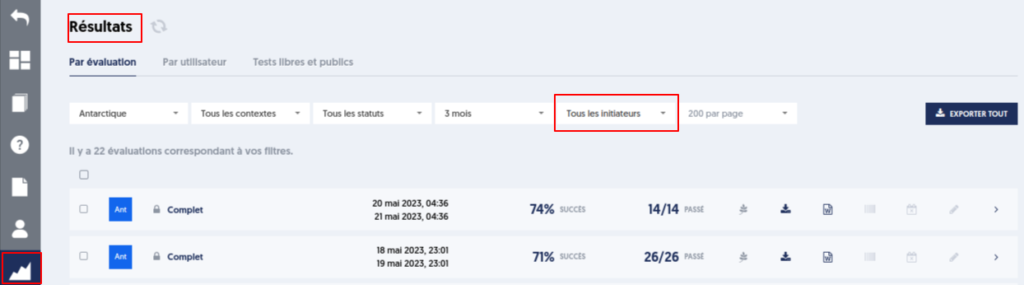
Filter Assessments by Sender
An additional filter on the assessments page will allow filtering assessments by the name of the person who made the invitation.
Define Group Permissions to Use Questionnaires as Resources
Check if you want to restrict the administrative use of certain questionnaires to certain user groups. This administrative visibility is defined in the 'visibility' tab of the questionnaire. If no group is selected, the questionnaire can be used by users who have standard permissions. If one or more groups are selected, the questionnaire can be used by users who have standard permissions and who belong to the selected groups.
Skills
Use Skills Management
This option allows you to use features around skills, qualifications, or professions management.
You can define or import your own skills framework. A skills framework is described by a tree structure of skills blocks broken down into skills, each of which consists of a list of abilities. An ability refers to knowledge, know-how, or interpersonal skills.
Remember to activate the admin menu option.
Use Qualifications Management
This option allows you to define a qualifications framework. A qualification is obtained by validating a set of skills blocks.
A qualification can correspond to a CQP (Professional Qualification Certificate) within the context of professional sectors.
Use Occupations Management
This option allows you to define a framework of occupations. For each occupation, the skills blocks that a collaborator working in that occupation must master can be defined.
Allow Requests for Enrollment in a Block or Qualification
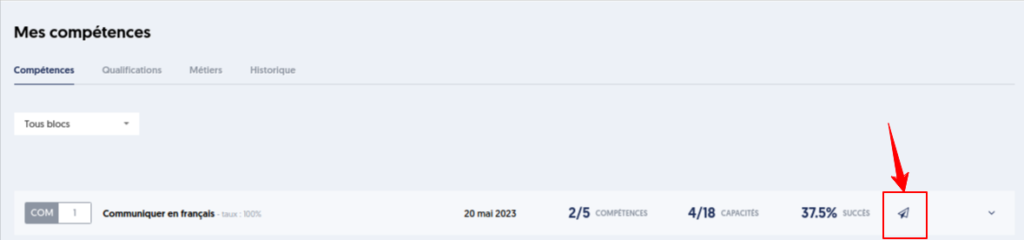
A user with access to their skills booklet can submit a training request for a skills block from their user space.
Show Only Validated or Registered Skills Blocks and Qualifications
Check if you want to restrict the visibility of skills to only those skills that a user has acquired or for which they are registered. This restriction concerns users with permissions and not an administrator who has no restrictions.
Training
Blackboard
Check this option if you want to use the Blackboard feature during your training.
The blackboard is a set of interactive activities that allows you to animate and energize your training. It includes brainstorming activities, instant quizzes, and polling.
Satisfaction Cycles
Check this option if you want to set up a satisfaction evaluation cycle attached to your training. A cycle is...
Attendance Sheet
Check this option if you want to issue an attendance sheet for your training. This is a document produced in PDF format that allows for the attendance verification of participants.
Attendance Functionality
This option adds the ‘attendance’ functionality in training. The trainer can issue a real-time attendance request to their trainees and collect signatures verifying attendance at the training session.
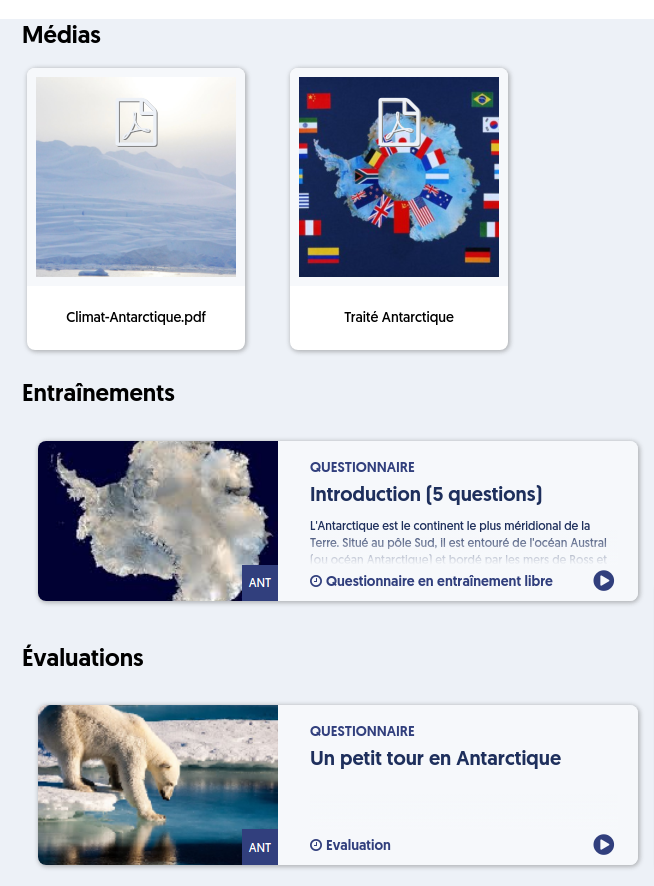
Old User View
The old interface offered for training activities is structured as follows:
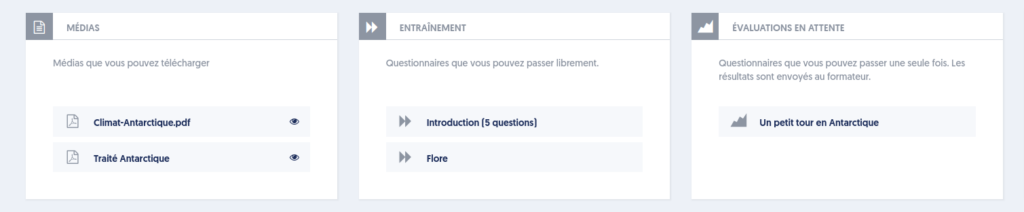
The new interface is presented as follows:
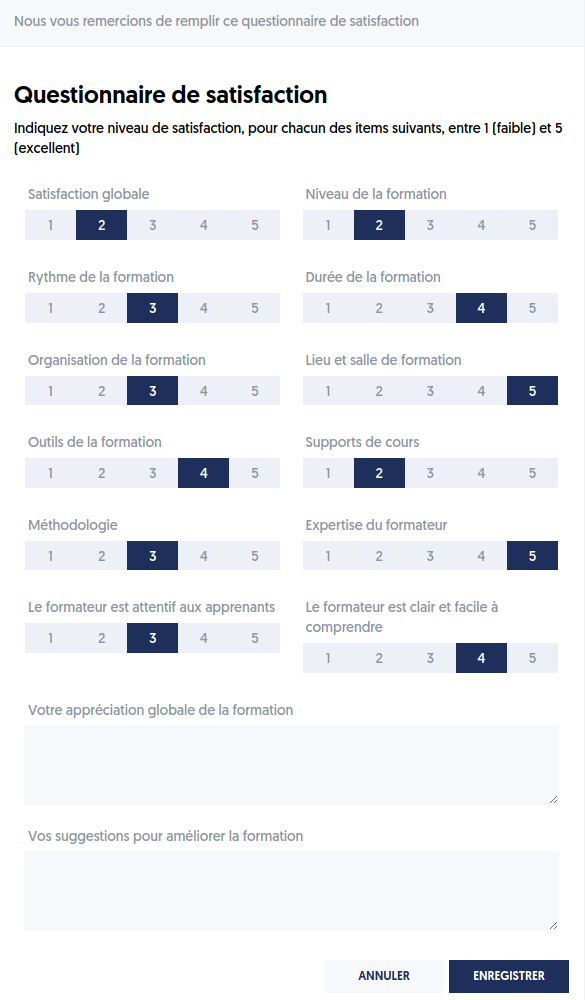
Training Satisfaction Questionnaire
Check this option if you want to implement a satisfaction survey for your trainees. You can configure the questions that will be asked in this feedback survey. This is a simple option.
To use a custom satisfaction survey, you need to use the Satisfaction Cycles feature.
Exports
Export Users
A button will be added to the Import tab on the Users page, allowing you to export your users to an Excel file (xlsx). The format of this file is identical to the import format for users.
Export Questions (flat excel)
Several export possibilities for your questions are offered, and for each of them, you can indicate whether you want to use it.
The export questions (one per line) button allows producing an Excel file (xlsx), in which each question will constitute a row, with the different attributes of the question in columns.
Export Questions
Export Questions (json)
This button will allow exporting questions in JSON format. JSON is a widely-used data exchange format, as it is well supported by all programming languages and IT environments. It will thus be very easy to import your questions into another system.
Export Questions (docx)
This button will allow exporting questions from a database in Word format (docx). In this case, the file will have the same format as the import file for questions, meaning a Word table for each question, with two columns: on the left, the attribute (title, question, etc.) and on the right, the attribute's value.
Use Database Transfer
This feature allows you to transfer a database with its questions, questionnaires, modules, and media from one ExperQuiz account to another.
Use Complete Enterprise Data Export
This option allows exporting enterprise data in JSON format.
Footer for Excel Export File
Define the footer for the Excel export files. You can use [name] and [date] to insert the name of the user who requested the export and the date of the export.
SCORM
Export Questionnaires (SCORM)
Import External Modules (SCORM)
User Data
Edit Profile Information
Check User Data to be Displayed
This option allows you to choose the information needed to fill in the user edit form. This information will be presented on the users page.
Access Control & MFA
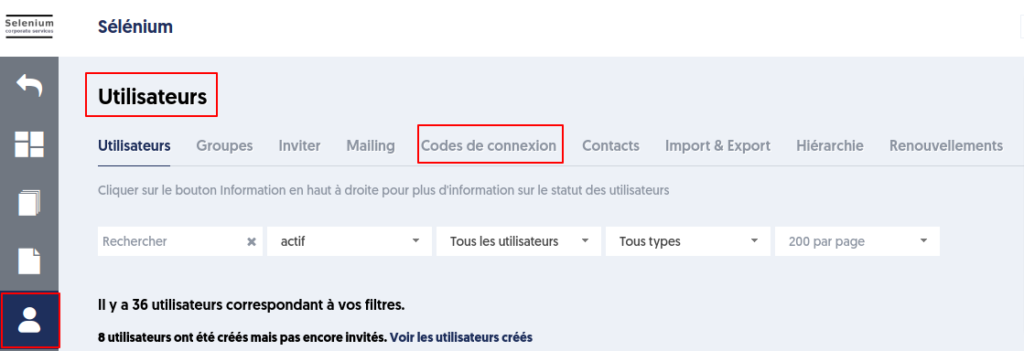
Use Login Codes
When this feature is enabled, admin users can create login codes that will allow users to log in without having to provide an email/mobile or password.
This feature is accessible in the Users menu.
Use Multi-Factor Authentication (MFA) (for admin)
When multi-factor authentication (MFA) is specified, administrators must provide a one-time password, which is a 6-digit code. This code is provided by a specific mobile application, such as Google Authenticator or FreeOTP Authenticator.
Block Account After 3 Failed Login Attempts
As the name suggests, if you check this option, your users’ accounts will be blocked after 3 failed login attempts. The user’s account will be set to an inactive state, prohibiting any further login until the administrator reactivates it.
Require Upper and Lower Case in Passwords
Require Non-Alphanumeric Characters in Passwords
Minimum Password Length
These three options impose specific requirements on the password choice of your users. These constraints apply when changing a password or creating an account.
Allowed Country Codes
This option allows you to specify, separated by commas, two-letter country codes, for example GB, FR, DE, BE, ES. Only logins from IP addresses associated with these countries are accepted. An empty list means all countries are allowed.
IP Address Ranges
This option allows you to indicate, separated by commas, allowed IP address ranges in CIDR format, for example 172.16.0.0/12 (IPv4) or 2a01:e34:ec13::/48 (IPv6). An empty list means all IP addresses are allowed.
To avoid locking yourself out, ExperQuiz refuses to save a list of countries or IP addresses that does not include your current connection.
Session Duration
By default, the session duration is unlimited. This option allows you to define, in minutes, the duration of a user's web session. A value of 0 keeps a session without expiration.
API & SSO
Enable APIs
APIs (Application Programming Interface) are means of exchanging information between two computer systems, in this case between ExperQuiz and a third-party system. You can use them, for example, to create users from your information system (HRIS, ERP) or to collect assessment results.
The APIs use JSON and REST over HTTPS. Logging in with a technical account returns an access token to attach to subsequent requests. You can strengthen this access by restricting the allowed IP addresses.
Enable Webhooks
This option allows activating webhooks so that ExperQuiz calls your information system's URLs when a test is completed or a survey is filled in. The payload data is sent in JSON format; a secret configured for the enterprise is included in the content sent so your system can verify the origin of the request.
Use Specific Hostnames
By default, your users access ExperQuiz by entering https://www.experquiz.com in their browser. In this URL, experquiz.com is the domain name, and www is the hostname (that is, the server name within the domain), or subdomain.
It is possible to access ExperQuiz under other hostnames. Two scenarios may occur:
- Use a subdomain of the ExperQuiz domain, such as selenium.experquiz.com.
- Use a subdomain of your own domain, such as lms.selenium.com.
This feature is typically enabled either to implement a white-label operation or to set up a SSO (see further).
Enter the hostnames, separated by commas, and configure their DNS to point to ExperQuiz. A hostname can only be associated with a single enterprise. When the forced redirect option is enabled, access is systematically redirected to the custom hostname.
Use SSO (Single Sign-On)
SSO (Single Sign-On) is a feature that allows your users to access ExperQuiz without having to log in again.
The feature also allows the ability to not create users within ExperQuiz, but to transmit the characteristics of each user from your information system at the time the user logs in.
Legacy SSO requires a custom hostname. ExperQuiz redirects the user to your identity provider's login URL; after authentication, the provider sends a signed token back to ExperQuiz. The shared secret must remain confidential.
Use SSO OIDC / OAuth2
This option activates the SSO (single sign-on) feature in OpenID Connect / OAuth2 mode. Enter the hostname, the known provider or the issuer, as well as the client ID and secret. The provider's configuration information is then verified from its metadata.
You can map the received claims to ExperQuiz data: email, employee ID, first name, last name, groups, and manager. The just-in-time creation option allows the ExperQuiz account to be created on the first SSO login.
The Users can log in with a password option also allows direct login by email and password. If disabled, a valid OIDC configuration is required. You can also let the user choose between SSO login and direct login, then customize the labels and text of this choice page.
Data Retention
The Data Retention section allows you to choose the retention periods for activity data, the audit log, and the email and SMS log. See Retention Period Management for the data concerned, the minimum durations, and the delay before changes take effect.