Skills Update
Skill management in ExperQuiz allows for defining a skills framework through a hierarchy of skill blocks broken down into competencies, which are themselves made up of abilities.
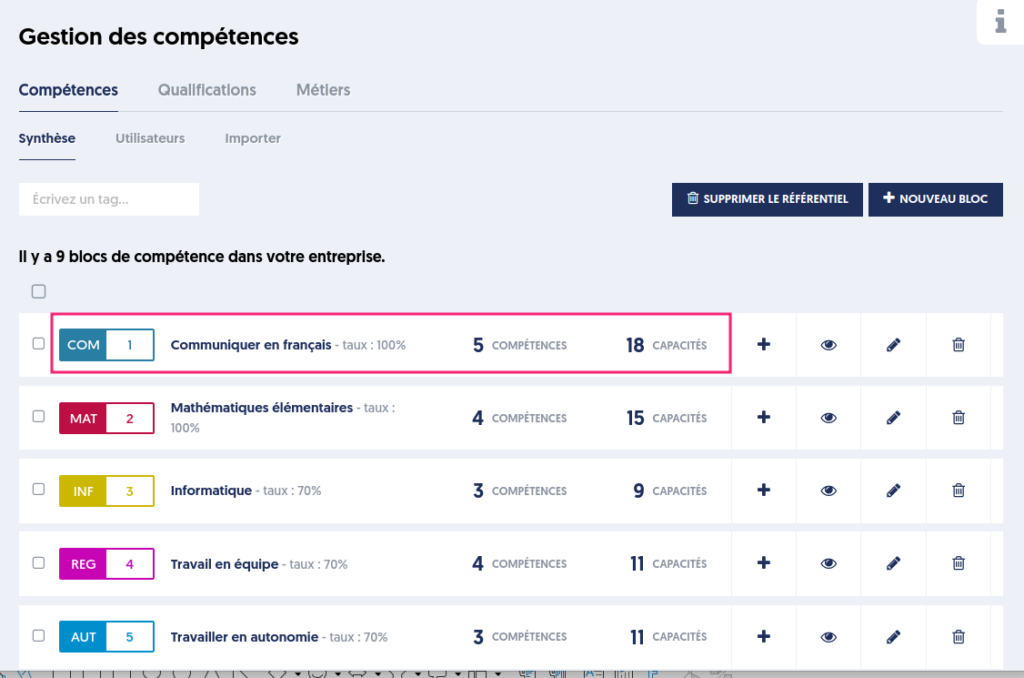
Some abilities can be validated following an assessment, based on a questionnaire, while others are validated manually by a trainer or a tutor who validates the ability, possibly providing proof in the form of an attached file.
This “manual” update of skills now offers an interface that allows modification of all the abilities of an employee.
To view or modify the skills of an employee, go to the “Skills” menu, then click on the “Skills” tab [1] and then “Users” [2].
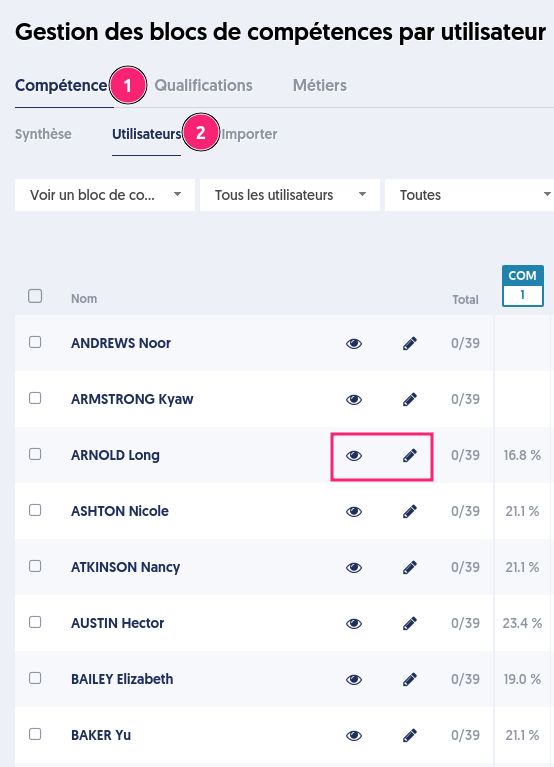
Viewing a user's skills booklet
The eye icon allows you to view a user's skills booklet without being able to modify it.
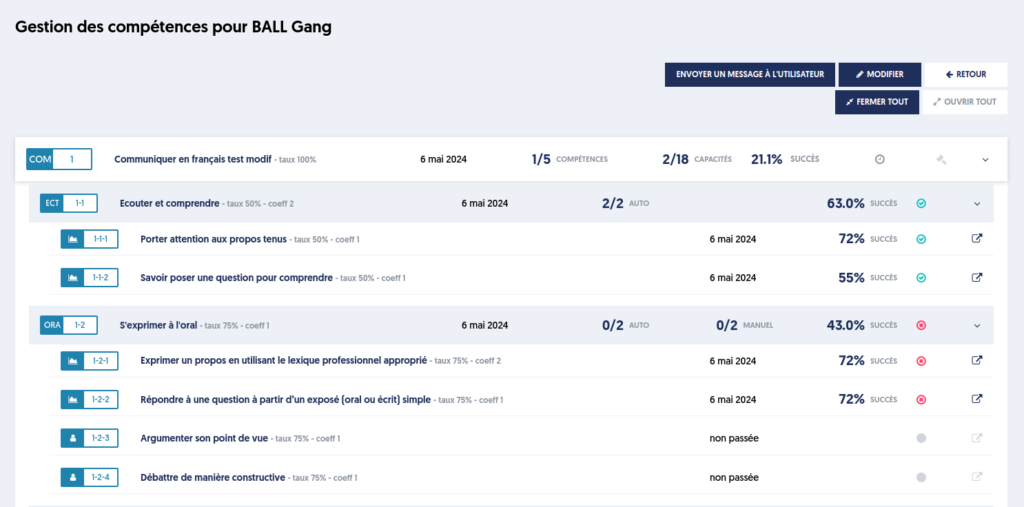
It is possible to expand the first level of a block [1] or the complete hierarchy [2].

Level 1
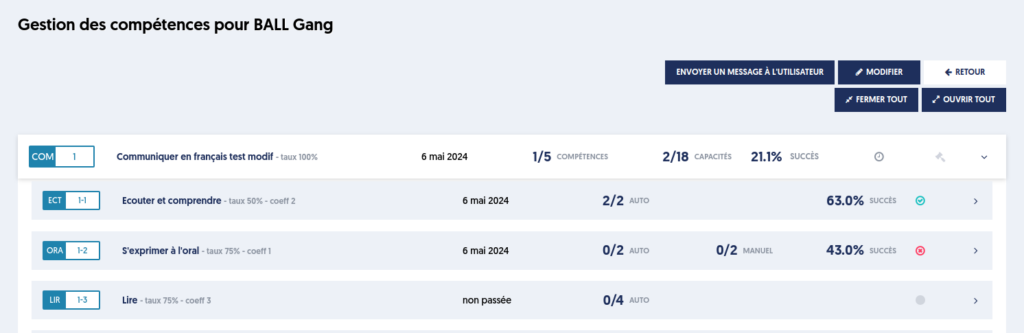
Level 2
Modifying a user's skills booklet
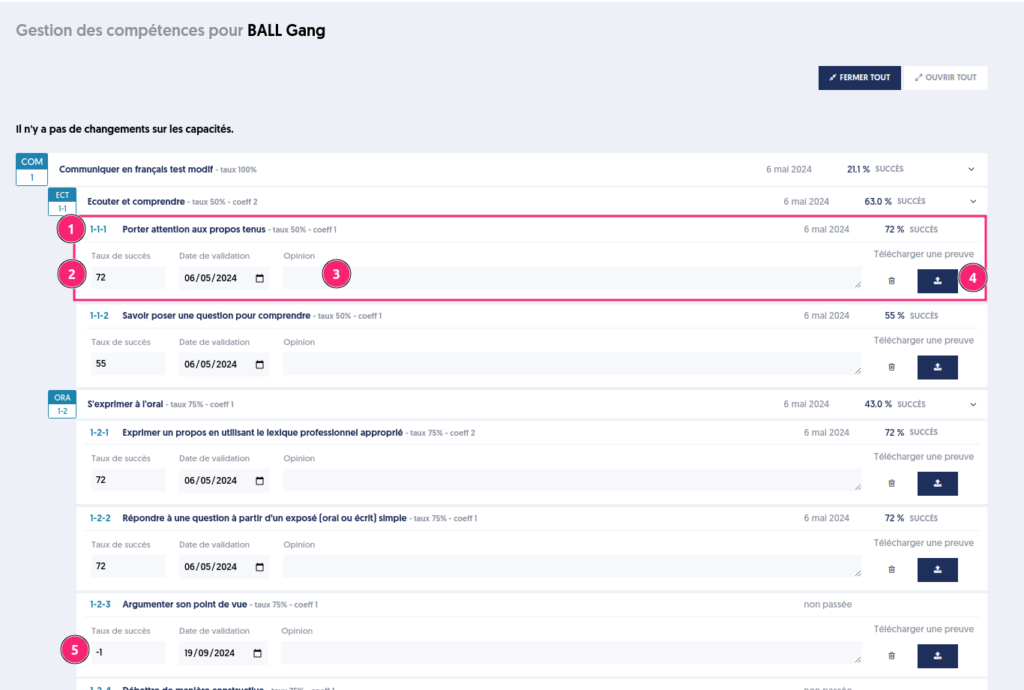
By clicking on the pencil or the “edit” button, you can modify for each ability [1] (knowledge, skills, soft skills) the grades, which can be decimal [2], the comments (opinion 3), and the proof [4] in a candidate's booklet. When the ability has not been assessed, its grade is equal to -1 [5].
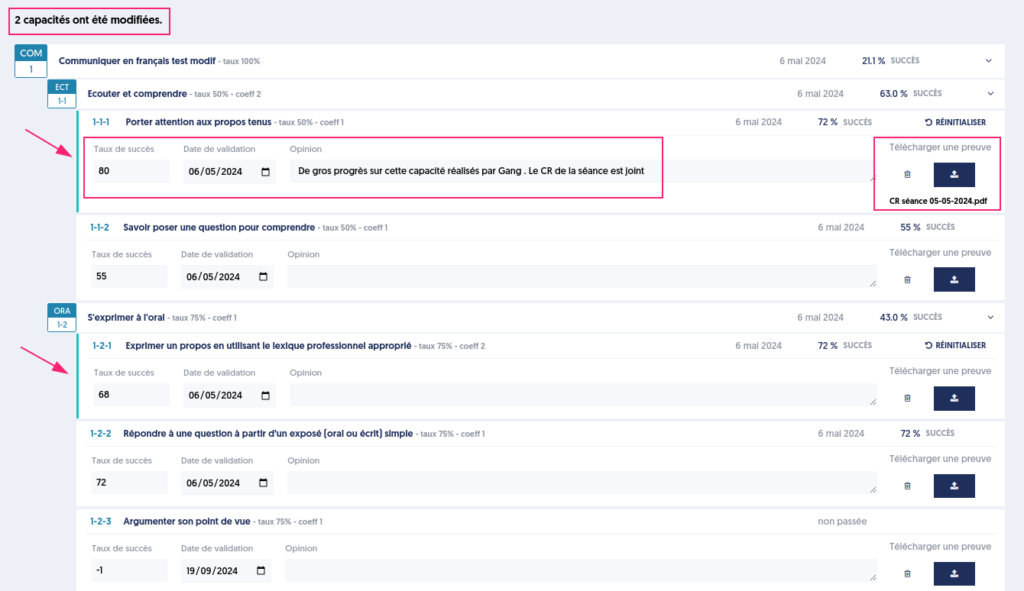
When modifying one or more abilities
It is possible to upload a framework from an Excel file
A file template is available on the “Import” page of the menu.
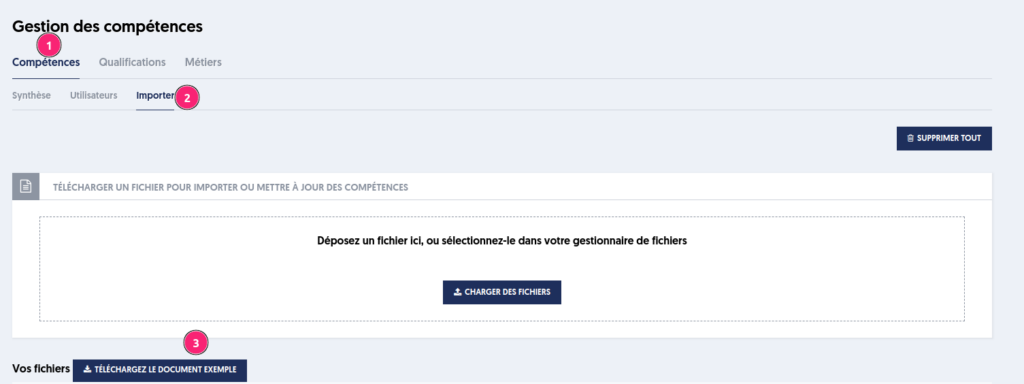
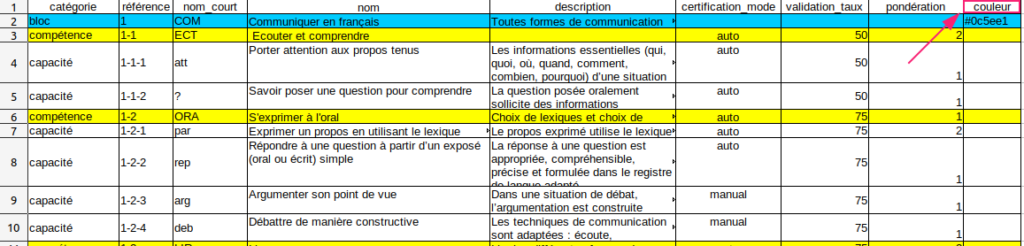
When importing a framework:
- You may receive an alert when modifying an already created entity (block, competency, ability)
- The color can be imported into the file
For point 1, when updating skills, a confirmation panel opens to warn you and ask if you wish to continue with the import.
Indeed, the framework is versioned, so it should be noted that each update on an already existing reference in the framework generates a new version (if you modify the success rate or weighting) or if you add a new ability or a new skill.
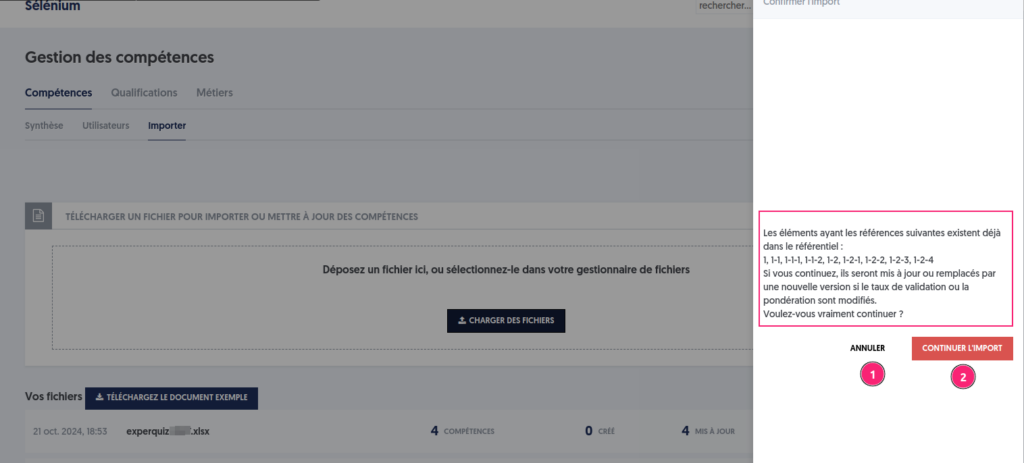
If you do not wish to proceed, click the “CANCEL” button [1]; otherwise, confirm by clicking the “CONTINUE IMPORT” button [2].