Audit Log
Purpose of the audit log
All actions performed by users on ExperQuiz, except for simple views, are tracked in the audit log, which can be accessed by the administrator.
The audit log is a valuable tool to help you find out what has been done on the platform. If you are wondering why a questionnaire is no longer there, you will likely find in the audit log that one of the authorized users deleted it.
For each event, each action, the audit log retains:
- The date and time of the event
- The person who initiated the event
- A description of the event and its important parameters.
Note that it is not possible to delete records from the audit log; this is one of the foundations of traceability.
If your activity is significant, the audit log will quickly have several thousand or several tens, hundreds, or thousands of records. That's why you need to be able to apply filters to it.
Audit log page
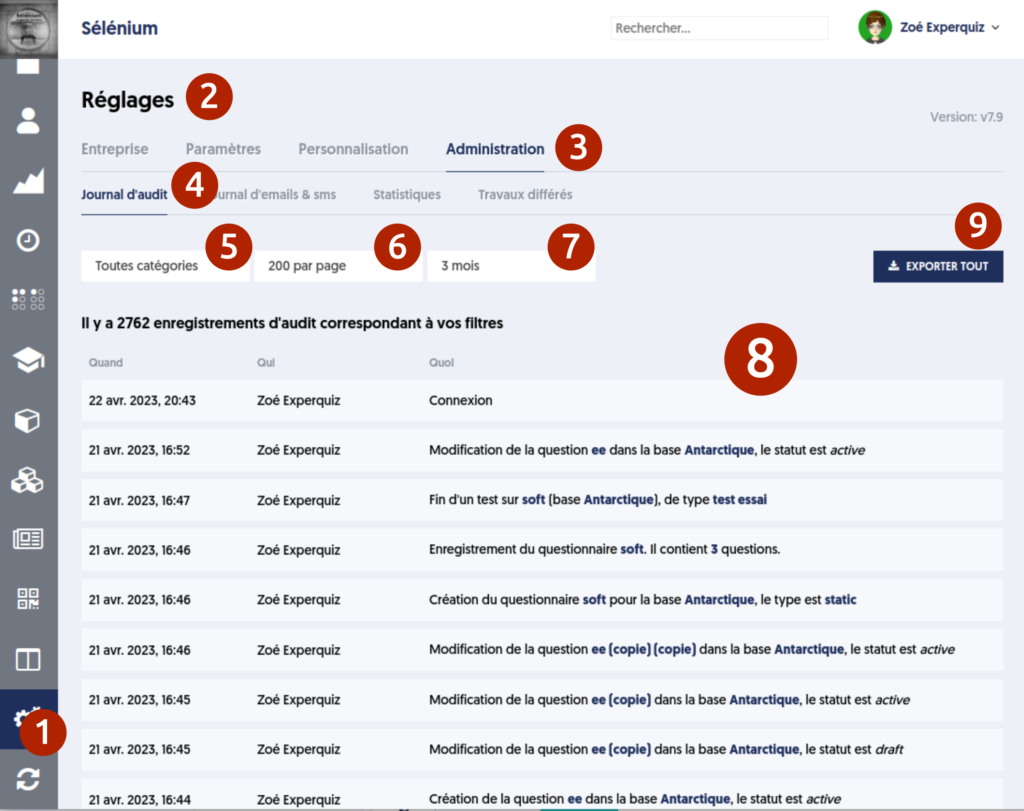
Audit log page
Accessing the audit log page
To access the audit log page:
- In the main menu, choose SETTINGS [1]
- On the Settings page, choose the Administration tab [2]
- On the Administration page, choose the Audit Log sub-tab [3]
Page filters
To explore the audit log, you have the following filters available:
- Event Category [5]. Events are organized into categories and subcategories. Thus, in the main category Admin, you will find all the events related to administration. The subcategories of Admin are Users, Questions, Assessments, etc.
- The Period [7]. Like everywhere else on the platform, you can select either a predefined period, such as the last day, 7 days, 30 days, 3 months, 12 months, or the current year or a past year. You can also define your own filter period by selecting a start date and an end date.
- You can also select page size [6] that you desire. Be careful, larger pages take longer to display. To navigate between pages, there is a page selector at the bottom of the events list.
Audit log information
In the list of events [8], the following information is displayed for each event:
- The date and time of the event
- The first and last name of the user who initiated the event. Note that some events may not be associated with a user.
- A description of the event, with its main parameters, which appear in bold and dark blue.
User’s audit log
It is also possible to access the filtered audit log for a single user. To do this, navigate from the users page, find the relevant user, and click on the Results button.
On the Results page, you will find an Audit log tab.
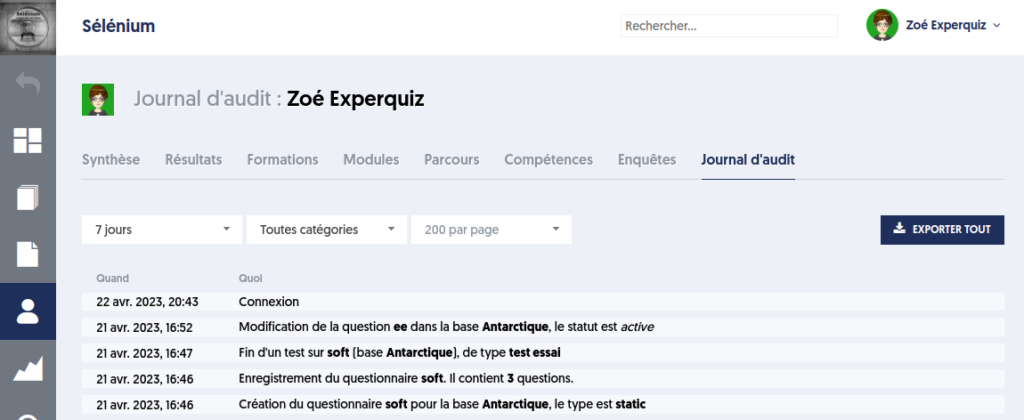
The page presents an extraction of the audit log concerning that user, meaning the actions performed by the user on the platform.
Exporting the audit log
You have a [9] button that allows you to export the audit log to an Excel file. The records that will be exported are those that match the filters you specified. There is no pagination; all pages will be included in your export.
As with other exports on the platform, a panel opens on the right side of your page to give you more information and let you specify the name you want to give to your file. Note that this information is optional.
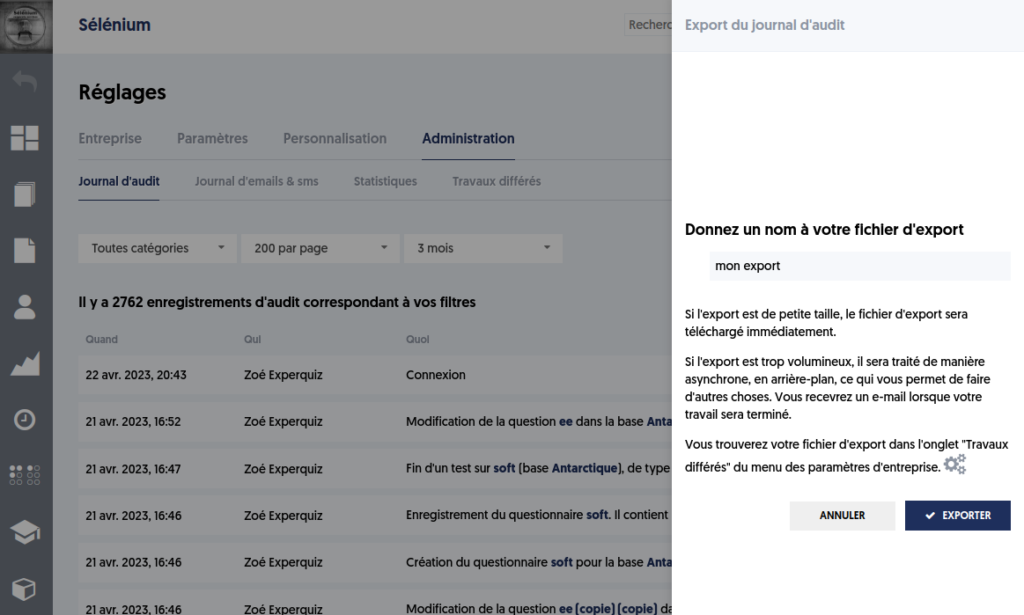
As with other exports, two scenarios are possible. Either your export is small and can be provided to you immediately, so you will receive your file directly. Or your export is large and will be processed asynchronously, in the background, while you continue to work. In this last case, you will find your export file on the Deferred Jobs tab of the Administration page.