Inviting Users to Participate in a Survey
You can invite users to participate in a survey. The procedure is practically the same as sending invitations for an evaluation.
In the same way, you can invite:
- Either users already registered in your company/organization.
- Or people whose email address or mobile number you only know, who will become contacts.
To do this, click on the Invitations tab of your survey.
The page looks like this:
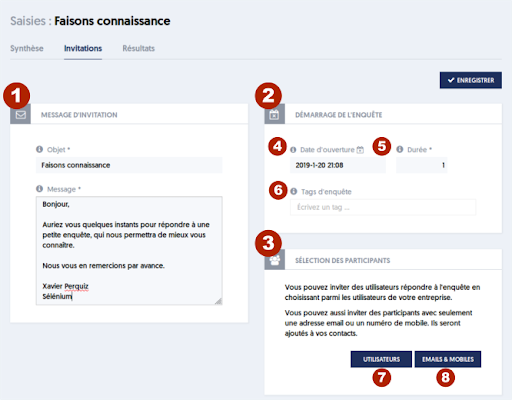
In block [1], you can define the invitation text that will be sent to users.
In block [2], you specify the start date and time of the survey [4]. You can set a future date/time, in which case, the invitations will be sent out shortly before the start time. This delay can be specified in the company options.
The duration [5] is expressed in days and represents the time during which people can respond to the survey, starting from its start date.
Survey tags [6] allow you to associate different invitations with the same operation. The tags you specify here will be attached to the response sets of participants, making it easy to find responses related to the same operation, even if the invitations were sent in several batches.
Block [3] allows you to select participants. By clicking on the [7] USERS button, the user selection panel you are already familiar with will open on the right. It allows you to conduct various searches within your users, whether by group, by type, or by name.
The [8] EMAILS & MOBILES button allows you to specify contacts by entering or copying and pasting email addresses or mobile numbers.
Note that you can simultaneously invite users and contacts by clicking successively on the [7] button and the [8] button.
Once you have selected participants for the survey, the SAVE button becomes an INVITE button. By clicking this button, you launch the invitations. If the start was set in the future, the invitations will not be sent immediately, but their sending is scheduled.
Participants will thus receive an email or SMS message containing the text you specified. The message includes a link that launches the survey, leading to the survey response page. Users will need to log in if they are not already, before starting the survey. Simple contacts will start the survey without logging in but will not have access to any other functionality once the survey form is submitted.
Article Navigation
Previous Previous Article: Associating a Survey with a Questionnaire