Multilingualism
Introduction
Multilingualism is now an essential requirement in many training and assessment contexts. Until now, it was possible to offer assessments in different languages, but this involved duplicating content in separate databases, one database for each language, and managing translation outside of the platform.
Each assessment was specific to a given language, invitations had to be sent out language by language, and the exploitation of results was not global.
Experquiz offers a multilingual management mechanism, allowing you to integrate all the languages spoken in your company and present content to each collaborator in their preferred language.
When content is created or updated, translations are automatically generated for each desired target language. You can choose either a fully automatic translation or an automatic translation subject to validation or potential correction by a human translator.
Thanks to this evolution, a single invitation to an assessment can be sent to a group of participants with different languages, each participant seeing the content in their chosen language. This approach applies to databases with their questions, but also to the questionnaires themselves (titles, descriptions, messages).
Here are the main steps to implement this feature in your environment:
- Activate the multilingual option in your company’s settings.
- Define the list of target languages used in your company.
- At the level of a thematic database, define the desired languages for the database content, as well as the translation mode to be used (automatic, manual, or mixed).
- Use the “Translations” page to view, validate, or adjust the proposed translations.
- Assign a preferred language to each user (this can be done automatically or manually).
And that's it: your content automatically adapts to the language of each participant, without duplication or management overload.
Company Option
In your company's settings, select the option “Use multilingual translation.”
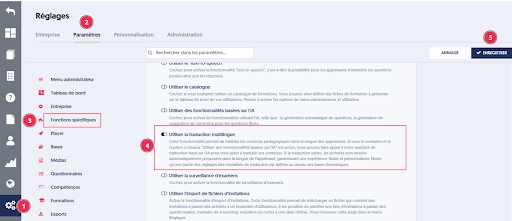
Once the option is activated, you will have a new choice “Translations” in the main menu.
On the “Translations” page [1] tab “Settings” [2], indicate the languages you wish to use within your company [3] and then save your selection [4].

User Language Choice
The learner can select the language at the moment of starting the activity. Even if their default language is English or not specified, they can choose to take the test in any available language for the database.
Example:
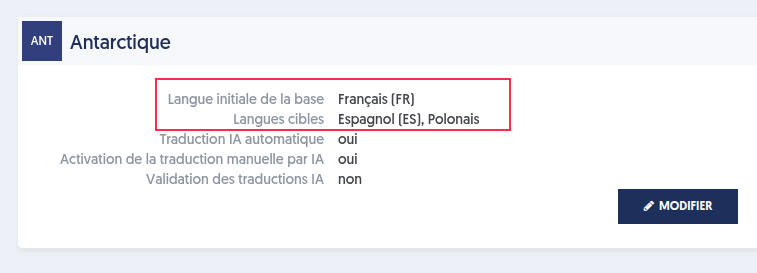
The Antarctic database is translated into 3 languages: French, Spanish, and Polish.
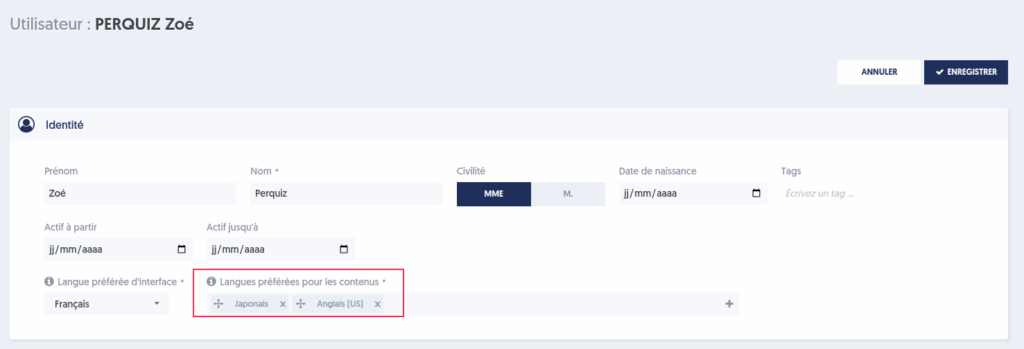
The user’s preferred languages are defined in their profile.
When invited to take a questionnaire, the user can choose from the 3 languages offered for the database.
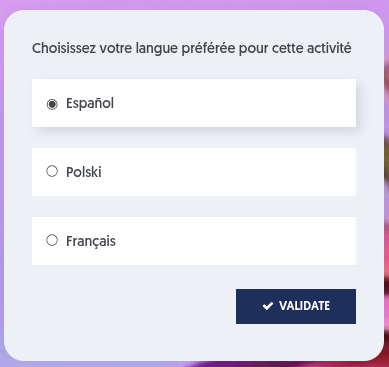
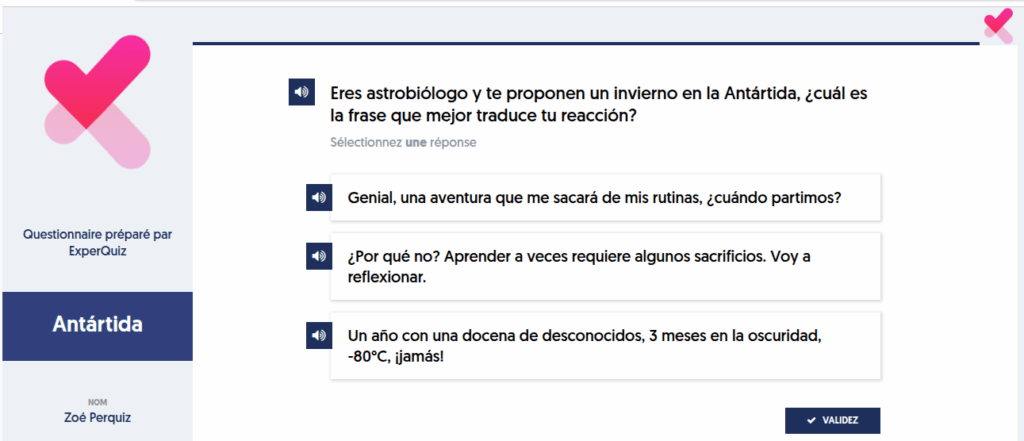
The user chooses Spanish: the questions are then presented in Spanish.
Exclusion of Uppercase Texts
If you activate this option, words or phrases in uppercase (e.g., “EUROPE”) will not be translated and will appear as is in the target text regardless of the language.
Database Configuration
The rest of the configuration is done on a database-by-database basis.
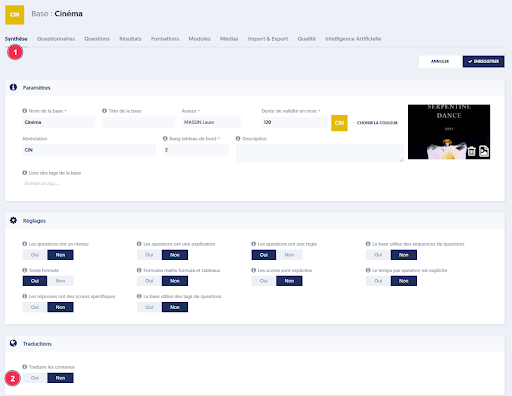
In the database menu, choose a database, edit it [1], and activate the option “Translate Content” [2].
The following settings are presented.
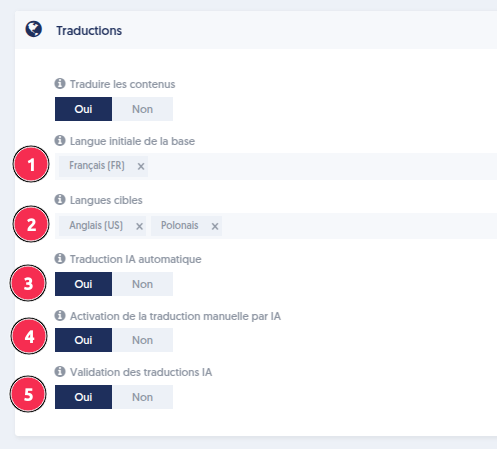
- Initial Language of the Database: This is the language in which the contents of this database are initially written.
- Target Languages: The list of languages for which you want the content to be available.
- Automatic IA Translation:
Do you want translations to be automatically performed as soon as content (especially a question) is created or modified? - Activation of Manual IA Translation:
Allows the use of a button to manually trigger an AI translation on each entity. This option can be used with or without automatic translation. - Validation of IA Translations: Do you want translations to be manually validated before being used?
Note that when you have saved the translation options for the database, the translation process will start immediately if the automatic translation option is chosen. Depending on the volume of content in this database, the translation process may take a few minutes or several dozen minutes.
Database Translation
Go to the “Translations” page to manage translations.
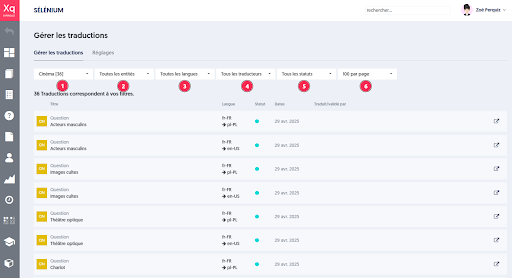
The list of translated or to-be-translated entities is displayed on this page.
It is possible to filter them by:
- The database
- The type of entities
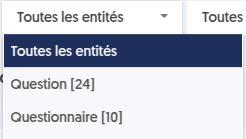
- The languages for which to perform the translation
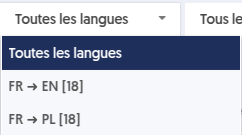
- The translators
- The translation statuses (draft, pending, validated)
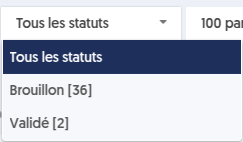
- Page filter
When a translation is validated, it is directly used in assessments or open tests for users who have chosen that language.
“Draft” or “pending” translations are not used in assessments.

When you click anywhere on the line of a translation [1], a panel opens on the right allowing you to manage the translation and its validation.
If you click the button located to the right of the line [2], a new tab opens, leading to the editing of the corresponding entity (the question, the questionnaire, or the database).
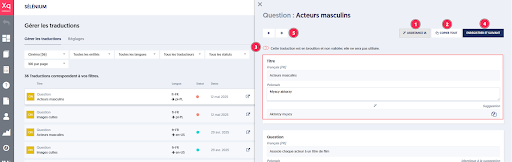
In the previous image, one of the entities has been selected, and the management panel is open. The form pertains to all text fields of a question. For each field, you have (a) the original text, (b) the chosen translation, and (c) the translation proposed by the AI.
The only modifiable field is the chosen translation field.
When the chosen translation is exactly identical to the proposed translation, the proposed translation field is not displayed.
To the right of the AI proposed translation field, a button allows you to accept the translation, meaning copying it into the chosen translation field. Another button [2], at the top of the panel, allows copying proposed translations into the chosen translations for all fields of the entity. The "AI Assistance" button [1] invokes the AI translation again, which takes a few seconds and the new translation is available. Note that, generally, this button is only useful if you did not opt for automatic translation.
On this form, you can also define the validation status [3]. If the translation is validated, it will be used.
Once you have accepted or entered translations and indicated the validation status, you can click “Save and Next” [4].
Finally, the buttons [5] allow you to navigate between the different entities in the left list.
User's Preferred Languages
You can indicate a user's preferred languages by editing their profile.
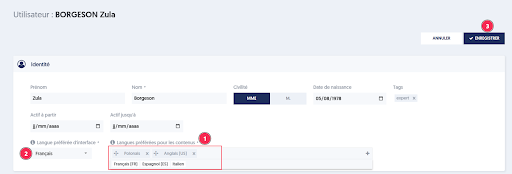
In the “Preferred Languages for Content” [1] field, you can select one or more languages from the list of languages defined for the company. Note that you can also order this list of languages by dragging and dropping one of the languages.
In the previous image, we see the distinction between the preferred interface language [2] and the preferred languages for content [2]. The choice of the interface language is an existing feature, which only concerns the texts of the user interface, such as menus, tabs, or field labels and prompts. The possible interface languages are English, French, and Spanish. Other languages can be added if needed, but there is no automatic translation process.
The preferred languages for content [2], as seen earlier, pertain to questions, questionnaires, and databases, and will soon include modules and surveys as well.
Translation Permissions
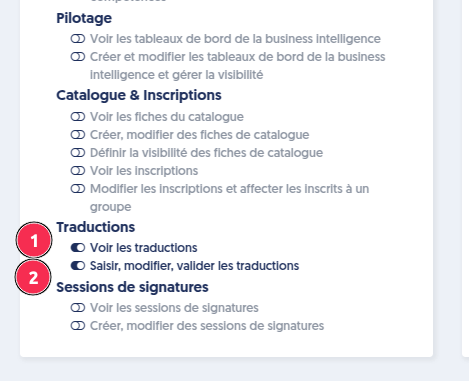
The translation process is subject to specific permissions. Of course, an administrator is always allowed to manage translations. But a user can also either view the translations [1] or modify and validate them [2], if they have the corresponding permissions, as indicated in the screenshot below.
How Does It Work in Practice?
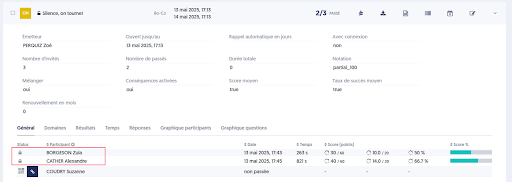
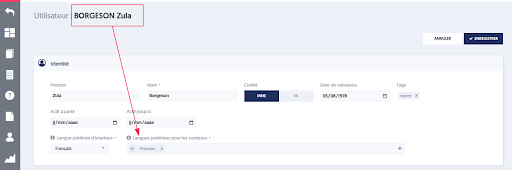
For example, Zula Borgeson chose Polish as their language, Alexandre Cather chose English, and Suzanne Coudry did not specify anything.
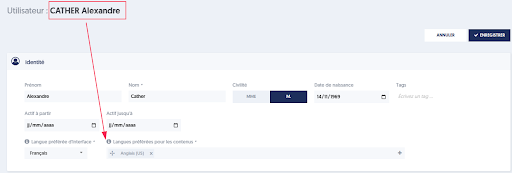
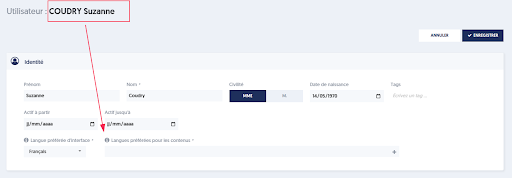
Zoé invites these three participants.
Alexandre sees his questions in English:
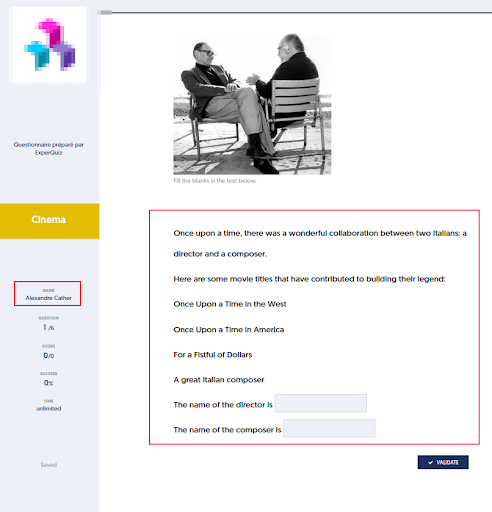
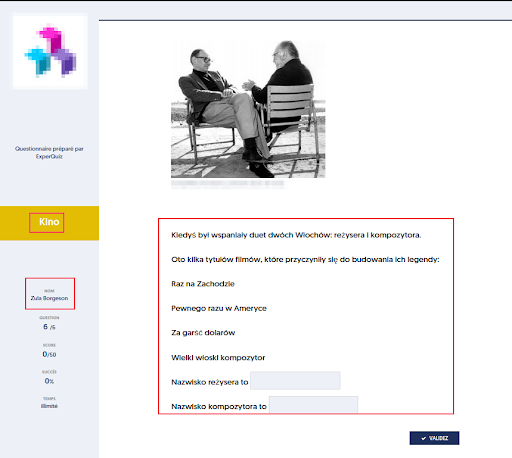
And Zula sees them in Polish:
Suzanne, for whom the preferred language has not been defined, will see them in the initial language of the thematic database.
The scores and responses of all participants are returned in the same place in the same assessment.