Participant Selection
As mentioned, you can invite either registered users or new people, for whom you only know an email address or a mobile number.
Invitation of Registered Users
To invite registered users, click on the USERS button (see [11] above).
A panel appears on the right side of the page, allowing you to select the users who will be invited.
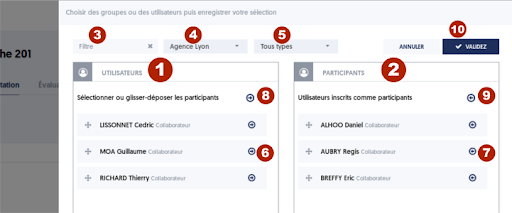
The operating procedure is very simple: you move the users from the USERS column on the left [1] to the PARTICIPANTS column on the right [2]. You can either drag and drop or click on the arrows [6] and [7].
You can select all users in the left column by clicking on [8], or conversely remove all selected users by clicking on [9].
You can search and filter users with the following tools:
- [3] User search filter
You can enter the first letters of the last name, first name, or email address, and the list in the left column will be filtered accordingly.
- [4] Select a user group
In selector [4], you can choose a user group, or all users. The left list will be reduced to users from the selected group. Thus, to invite all users from a group, you select the group and then click [8] to select all users from that group.
- [5] User type filter
You can also filter by user type (collaborator, provider, intern, etc.).
Finally, when you have selected the desired users, click [10] VALIDATE to confirm your selection. The side panel will close and the selected users will be reflected on the invitation page.
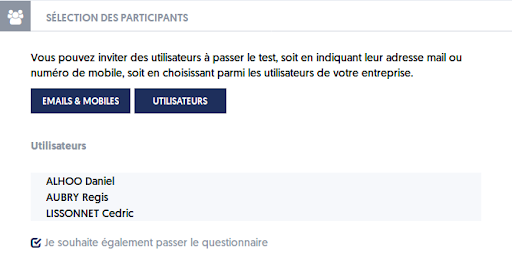
You can check the option I also wish to take the questionnaire, which will add you as a participant.
To start the invitations, click the INVITE button in the top right corner of the page.
Invitation of Unregistered Users
You can also invite users who do not have an account on ExperQuiz, and for whom you may only know an email address or a mobile number.
To do this, click on the EMAILS & MOBILES button – reference [11] on the Invitations page.
A panel opens on the right side of the page, which looks like this:
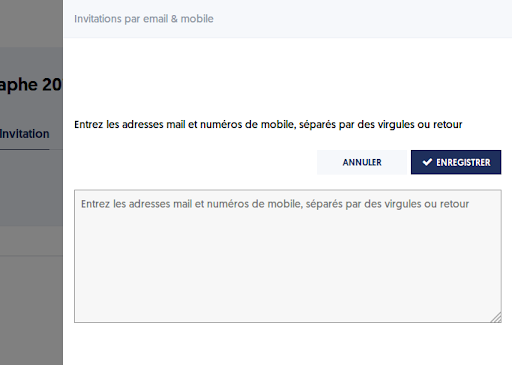
You just need to enter, or copy-paste a list of email addresses and/or mobile numbers. You can separate them either by commas or by line breaks.
Then click SAVE and the invitees will be reflected on the Invitations page.
Unregistered Users Become 'Contacts'
Users you invite in this way will not have an account on ExperQuiz; the only thing they can do is take the evaluation to which they have been invited.
However, from the first invitation, these users are referenced as Contacts. On the Users page, you have a Contacts tab where you will find all the users to whom you have submitted an evaluation. If you have submitted multiple evaluations to the same contact, you will find all results associated with that contact.
You can, if you wish, enrich the information associated with them, indicating their first name, last name, or other details. Finally, you may optionally convert them into active users.
Article Navigation
Previous Previous article: The time of sending the invitation message
Next Next article: Adding and removing participants from an ongoing evaluation