Catalog Sheets
The catalog menu presents the training sheets that make up the catalog, as well as the registration requests for these trainings.
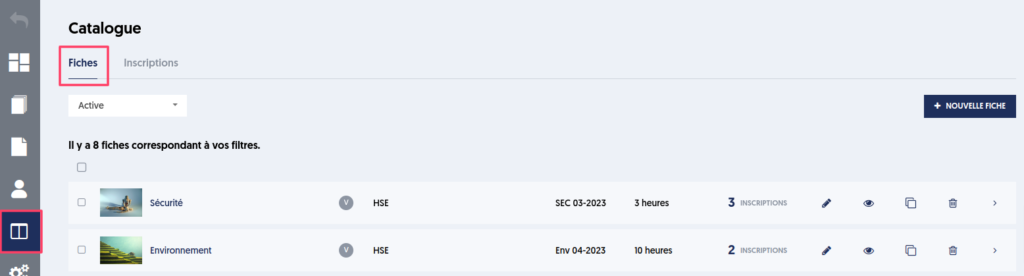
Creating a Sheet
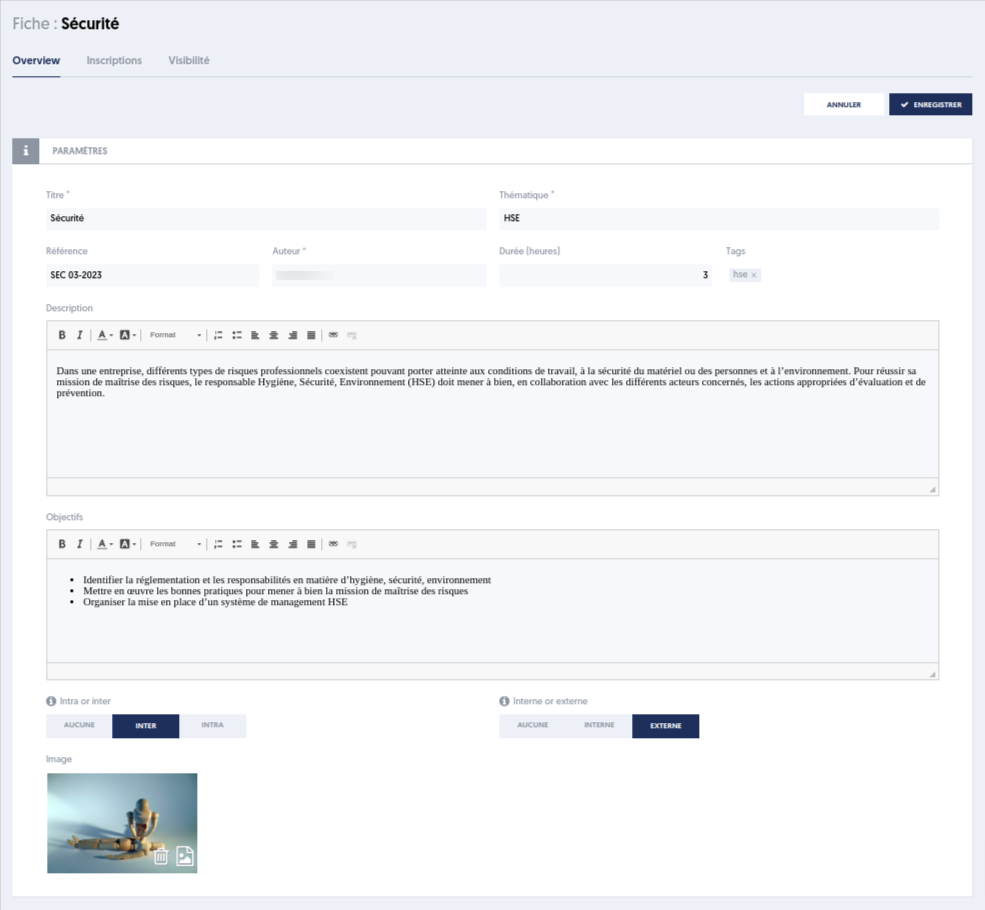
You can create a new sheet by clicking on the New Sheet button and filling out the form below, providing a title, a theme, a description, training objectives ...
The mandatory fields are the title, the theme, and the author.
Actions on a Sheet
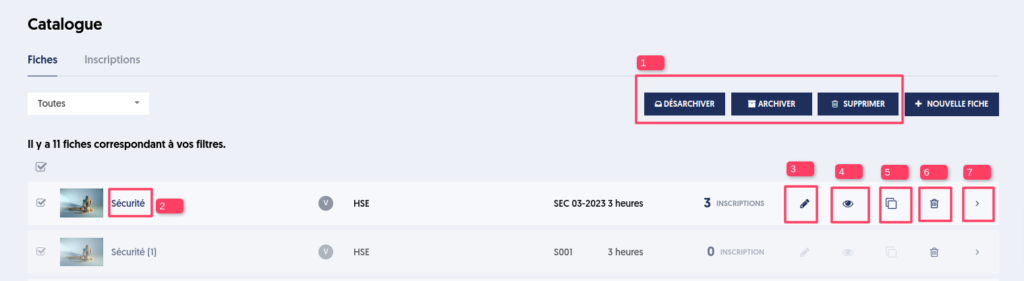
You can access the catalog sheets page and perform the following actions:
- Actions on a selected list of sheets [1]: Unarchive, archive, or delete
- Action on a specific sheet: go to the summary of the sheet [2], edit [3], set visibility [4], duplicate [5], delete [6], or view the details of a single item [7].
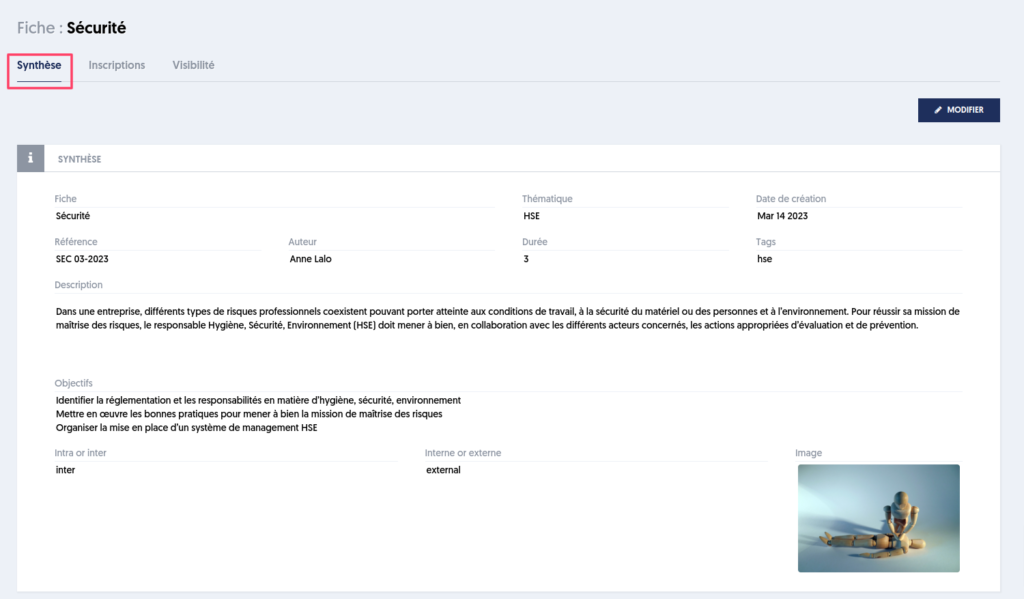
Here is the summary page for the sheet "Security" [2].
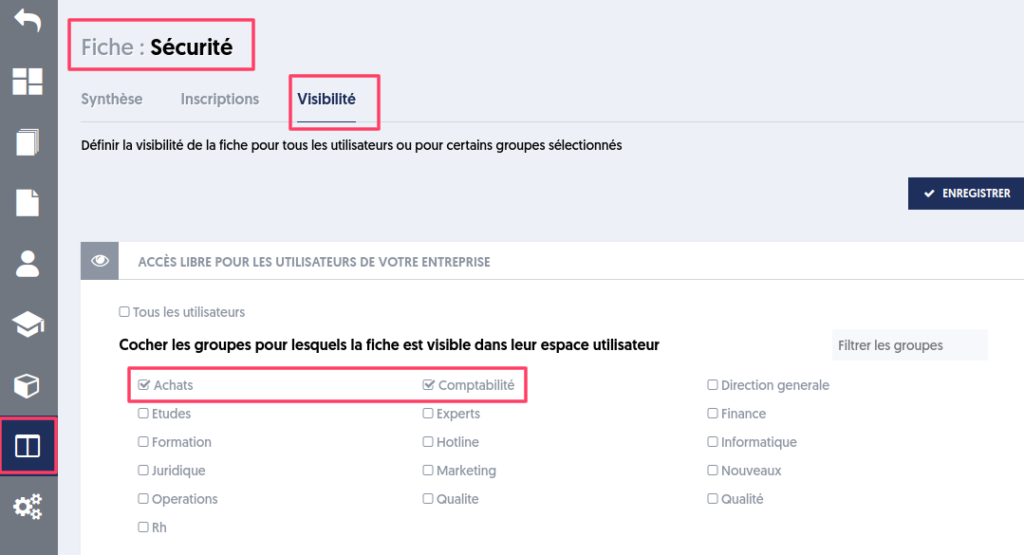
Once created, if you want to give certain users access to a sheet, you need to manage its visibility. The principle is similar to sharing access to questionnaires, media, modules.
Now let's see what a user sees.
User View
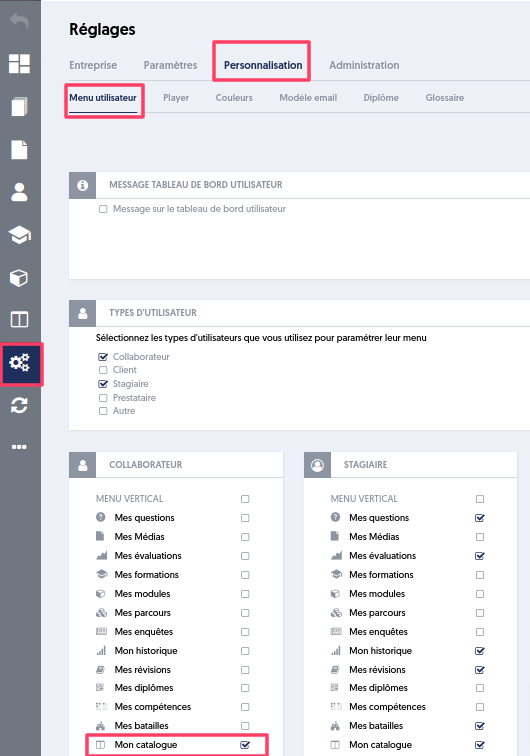
For your colleagues to access the catalog on their personal dashboard, you need to activate this option in the Personalization menu, "User Menu" tab.
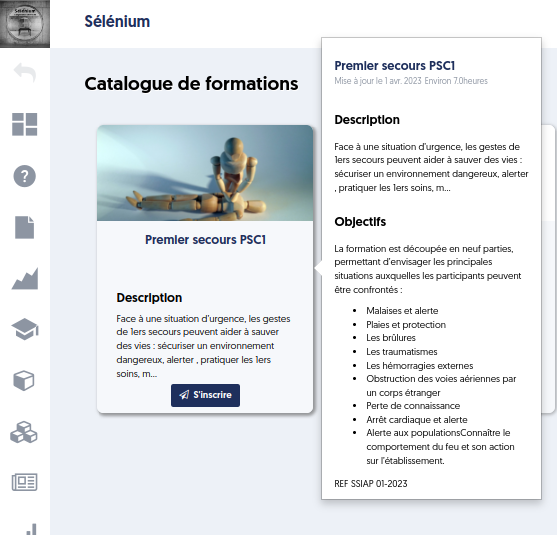
This catalog is displayed to users, who can then:
- see the content of the training item on hover
- request a registration by clicking the "Register" button
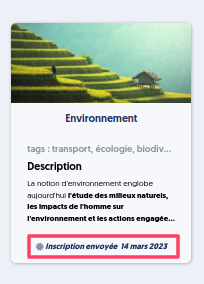
Once the registration is requested, the sheet is updated.
Article Navigation
Previous Article: Company Option and User Menu
Next Article: Managing Registrations on the Administrator Side