Capture the image stream from candidates' webcams
This second option allows capturing an image stream from candidates at intervals using their webcam.
Attention Note: Candidates who have not activated their webcam will not be able to start their test.
Once the evaluation is complete, you will be able to access the visual report of the evaluations by clicking on the “camera” button.
To do this, simply click on a camera icon next to their name on the real-time event report page or from the details of their evaluation in the user results.
You will then have access to the timeline, which will look like this: 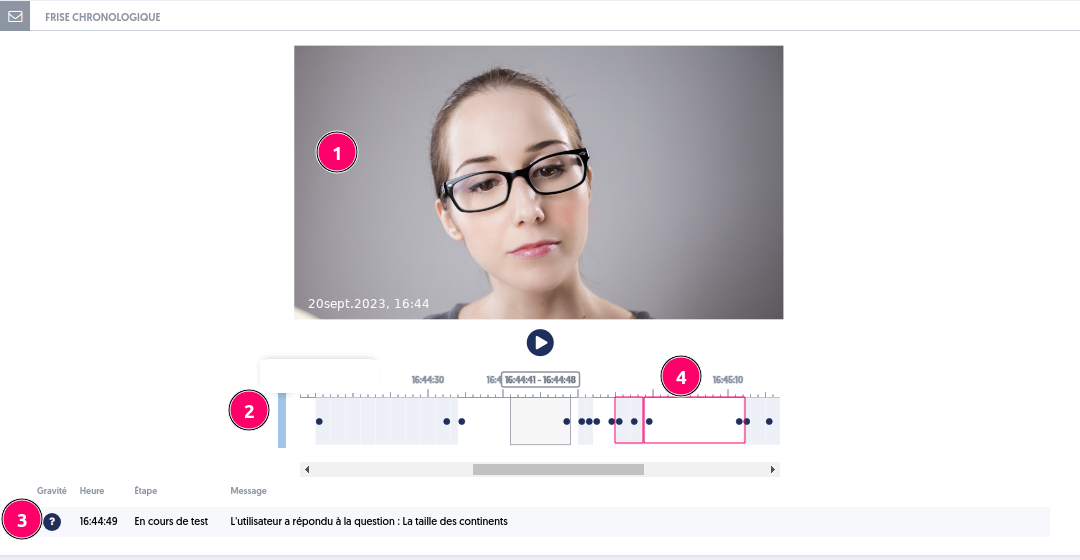
You will be able to visualize:
[1] the images from the webcam
[2] the timeline of events that occurred during the evaluation. The color code representing the level of severity will help you easily identify potentially more suspicious periods than others.
[3] the details of the events associated with the displayed images.
[4] the alternation of areas with a white or blue background on the timeline that marks the transition from one question to another. Thus, the events in the white rectangle all occurred during the transition of a single question.