Invite Participants
Creating participants in a training can be done by invitation or self-registration.
Invitation by the Administrator or Authorized User
To invite, that is, to register, participants for the training, go to the Invitations tab.
If you have switched to TRAINER VIEW, don’t forget to return to ADMINISTRATOR VIEW, as the Invitations tab is not available for the trainer.
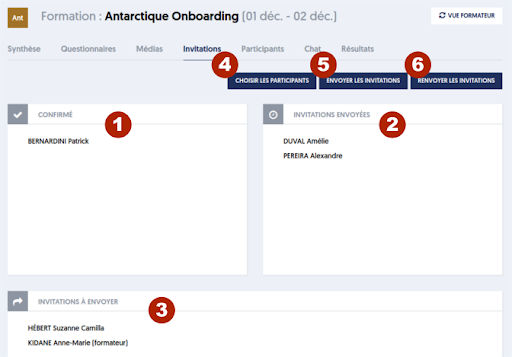
In the previous image, users have already been invited. Depending on the status of the invitations, they appear in one of the following blocks:
- Invited and Confirmed: these users have confirmed their attendance at the training.
- Invitations Sent: invitations have been sent to these users, but they have not yet confirmed their participation.
- Invitations to Send: these users have been selected for enrollment, but the invitations have not yet been sent.
To enroll users in the training, click on the button [4] CHOOSE THE PARTICIPANTS.
A selection panel opens on the right; it is exactly the same, and with the same operating method, as we saw earlier for inviting users to an evaluation.
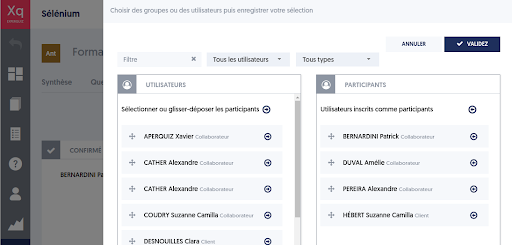
We will not detail the operating method here again. The principle is simple: on one hand, you can filter the users presented in the left column using filters based on name/surname, group affiliation, or user types.
On the other hand, you position the users to be enrolled by placing them in the PARTICIPANTS column, either by drag-and-drop or by using the arrow buttons.
When the list of participants is correct, click on the VALIDATE button. The panel disappears, and you return to the previous page.
You can then use one of the following buttons:
- Send Invitations: an invitation will be sent to the users in the INVITATIONS TO SEND block, either by email or SMS according to individual preferences.
- Resend Invitations: a new invitation will be sent to the users in the INVITATIONS SENT block.
Self-Registration of Trainees
When creating the training, if the corporate option allows the use of login codes, it is possible to offer self-registration for trainees.
A trainee who has the training code arrives on the page with the list of trainees already registered for the training.

If their name is part of the list, they can access their training space by clicking on their name.
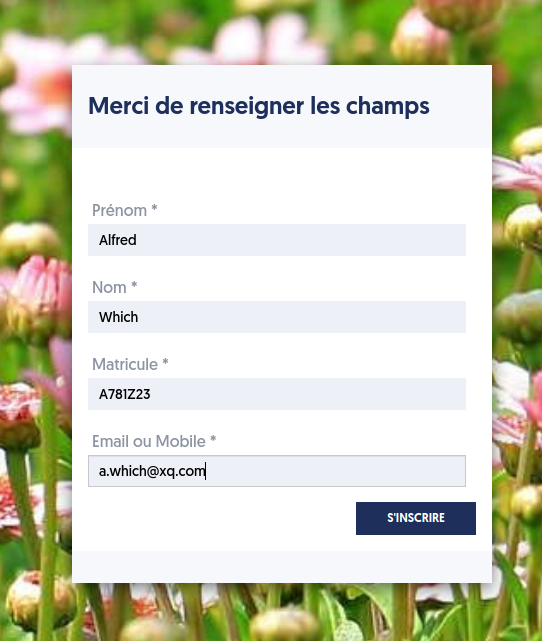
If they are not registered, they must click on the REGISTER button and fill in the form defined by the administrator, then click on the REGISTER button.
Article Navigation
Previous Previous Article: Gather Questionnaires and Documents / Media