SCORM
The SCORM Format and Its Uses
SCORM (Sharable Content Object Reference Model) is a specification used in the context of LMS (Learning Management Systems) to facilitate the sharing of educational resources.
A SCORM file is a file that combines a set of resources involved in an e-learning module. The module defines its own user interface, design, interactivity, and includes all the resources it needs. The SCORM standard uses ZIP file compression to combine resource files of different types (html, css, javascript, images, videos, audios, etc.) into a single compressed file. The SCORM specification sets rules for organizing the contents of this file, but more importantly, it defines how the programs contained within the SCORM file will communicate with the LMS. Through these interfaces, the module can obtain contextual information from the LMS, such as the user's name, and in turn, the LMS can obtain the results of the module.
The SCORM specification is over 20 years old, but it is still widely used, and nothing equivalent has taken its place.
ExperQuiz supports SCORM in two ways:
- A questionnaire built on ExperQuiz can be exported as a SCORM module, which can then be used in the context of another LMS (that supports this standard).
- If you have a SCORM module produced by another tool or platform, you can integrate it into ExperQuiz and submit it to your learners.
There are standalone "authoring tools" products that are often not SaaS-based but installed on your Windows or MacOS machine. In this category, we can mention Adobe Captivate or Articulate 360. These products can produce e-learning modules in SCORM format, which can thus be integrated into ExperQuiz.
It is noteworthy that ExperQuiz is, itself, an authoring tool, as it allows the design and production of modules that can be used in other contexts.
There are several versions of the SCORM specifications. The latest is "SCORM 2004," which is the version supported by ExperQuiz.
Activating SCORM in ExperQuiz
To use SCORM-related features in ExperQuiz, you need to activate these options in your company's settings: menu "Settings," then tab "Parameters" [1], then select the "SCORM" section [2] in the left column.
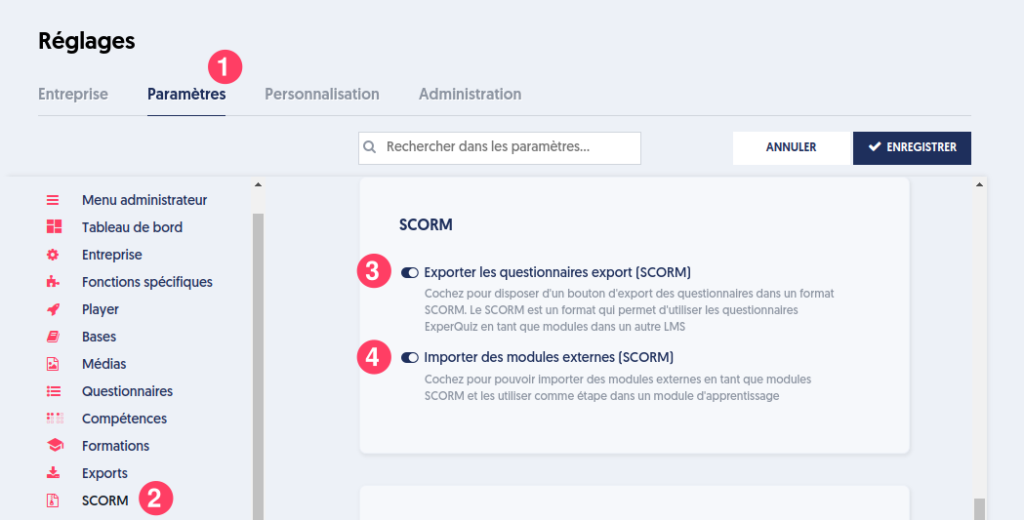
Configuring SCORM options
You have two options:
- [3] Export questionnaires as (SCORM). As indicated, by checking this option, you will have an additional export button at the questionnaire level, allowing you to export a questionnaire in SCORM format.
- [4] Import external modules (SCORM). This option will allow you to import files corresponding to SCORM modules produced by another tool into the media library.
Exporting a Questionnaire in SCORM
Once you have activated the SCORM export feature for questionnaires, you will find a new button labeled "EXPORT SCORM" on the summary page of a questionnaire.
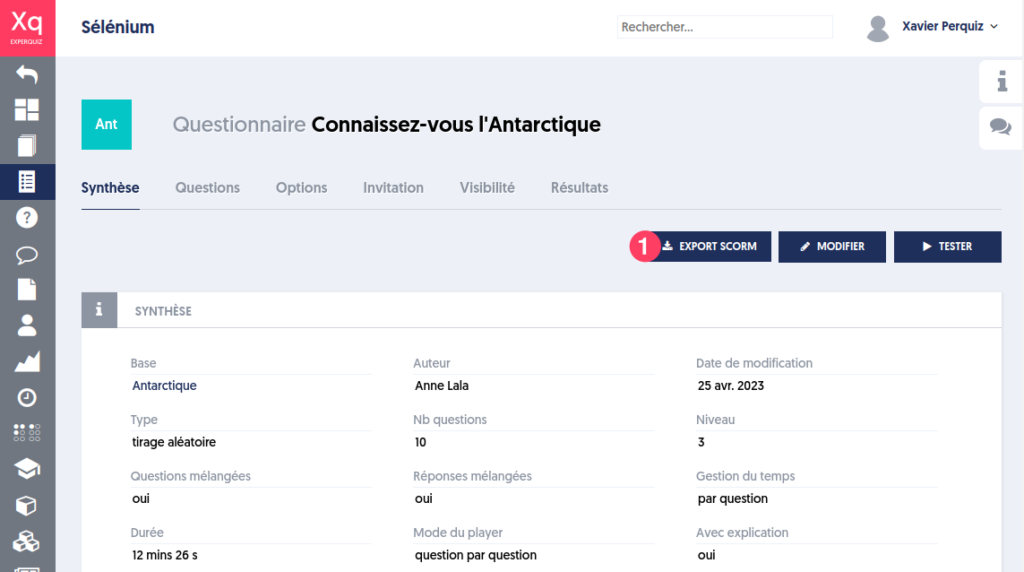
Questionnaire summary page and SCORM export button
When you click this button, a panel opens on the right, which looks like this:
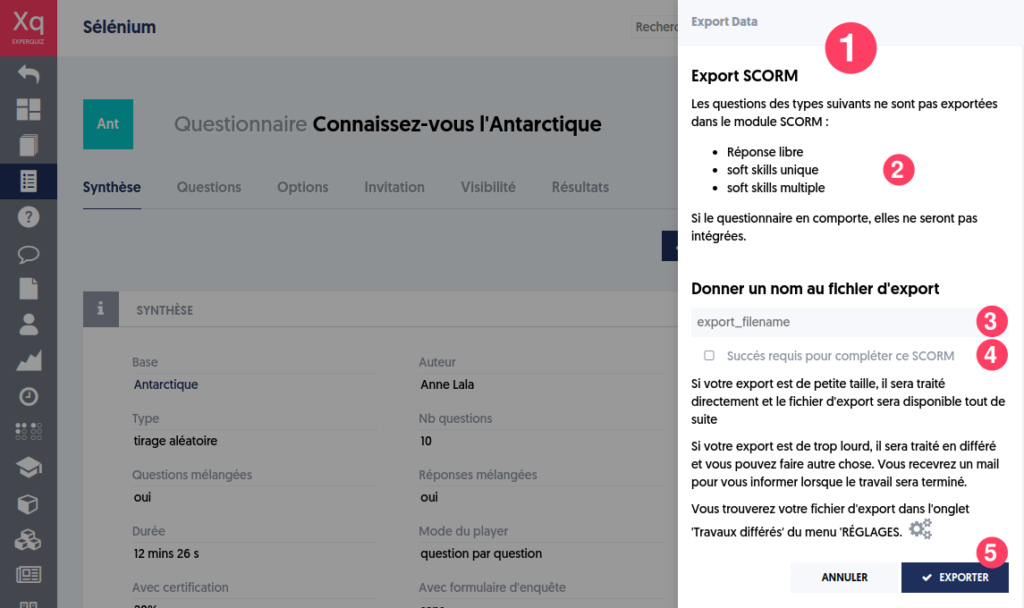
SCORM export preparation panel
In the SCORM export preparation panel for the questionnaire [1], the main components are as follows:
- [2] an informational message that states that certain questions will not be exported. These include open-ended questions, simply because they require a grading process that cannot take place in the context of another LMS. Additionally, soft skills questions, which are generally not well managed by third-party LMS.
- [3] you can name the export file; this is not mandatory, and you can allow the platform to assign a name to the file, and modify it later if needed.
- [4] An export option: whether success is required to complete this SCORM module. We explain this further along.
- [5] Click the EXPORT button to start the export.
Your export will take place asynchronously, meaning you can continue working. In this case, you will find the resulting file in the deferred works, accessible from the administration tab on the settings page.
Let’s revisit option [4]. In communication with the LMS, the SCORM module can convey various information, including:
- Is the module completed successfully or not (cmi.success_status)? This is generally a condition of a minimum score to be achieved.
- Is the module's progress completed (cmi.completion_status)?
If you check this option for your exported module, then the module will not be considered complete if the success condition is not met.
How to Use the Exported SCORM File?
You can import this file into another LMS. Each LMS has its specific interfaces, so we cannot provide the user manual for this integration here.
The Rustici Software Scorm Cloud site (https://rusticisoftware.com/products/scorm-cloud/) allows you to freely test your module. Rustici Software has been the most active player in the SCORM standard, and this platform is often used as a reference platform, meaning it validates the compliance of a module.
You can create a free account on Scorm Cloud. You can then integrate the SCORM module exported from ExperQuiz and test its proper functioning. Conversely, if you have a SCORM module from another application that does not work in ExperQuiz, you can verify that it is valid and compliant with the standard by testing it on Scorm Cloud. If it works on Scorm Cloud, it should work on ExperQuiz.
The SCORM module communicates with the LMS, particularly to convey user results.
User Association in the Context of SCORM
The ExperQuiz LMS allows exporting its questionnaires in SCORM format to be used within another LMS.
ExperQuiz allows associating a user acting on an external LMS with a user created on ExperQuiz to “link” their external activities to their activity history on ExperQuiz.
In future developments, it will then be possible to take advantage of the multidimensional analysis of results from ExperQuiz evaluations even if the questionnaire was taken externally.
Automatic Assignment
If the user identifier (id) provided by the external LMS exactly matches the ID number or email, then the assignment will occur automatically during the next questionnaire attempt if the user has not already been assigned.
Manual Assignment
To manually assign an external SCORM user to an ExperQuiz user, go to the “Users” menu under the “SCORM Assignment” tab.
A list of filters allows you to filter assigned users and the LMS on which the activity was completed.
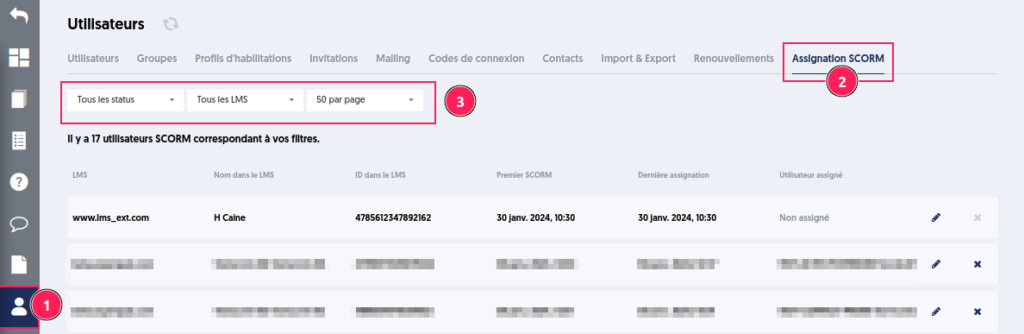
Each line corresponds to a user / LMS external pair with:
- [1] The name of the LMS
- [2] The name of the user in the LMS (if it has been returned by the LMS)
- [3] The identifier of the user in the LMS
- [4] The date of the first activity completed by this user in this LMS
- [5] The date of the last automatic or manual assignment
- [6] The name of the ExperQuiz user associated with this user
- [7] Button to create or modify the assignment
- [8] Button to delete the assignment
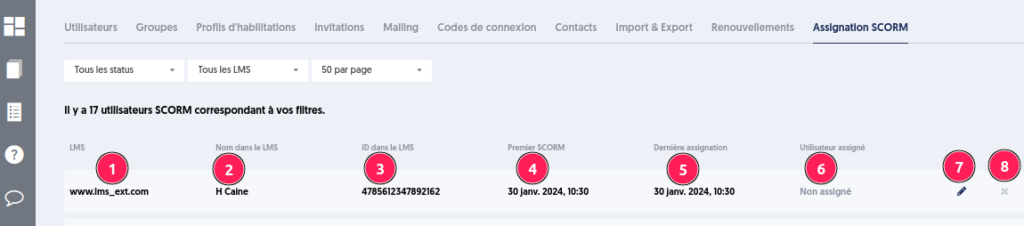
When you want to assign a SCORM user to an ExperQuiz user, you need to click on the pencil icon, which opens a panel.
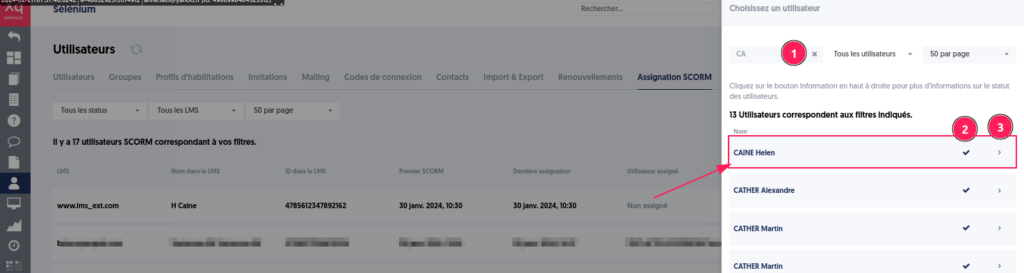
Filters [1] allow filtering users by their name and group.
To assign the user, select them by checking the box [2].
The panel closes, and the user is assigned.

Important:
- This evolution concerns SCORM generated by ExperQuiz after February 19, 2024. For older SCORM questionnaires generated earlier, you need to do a new export.
- An ExperQuiz user can only be assigned once to an LMS.