Collecting Questionnaires and Documents / Media
If you haven't already, make sure to read §2.1 before approaching this feature.
To prepare for the training, as an administrator, you will then select the educational resources (questionnaires and media) that will be made available to the trainer for use during the training.
Questionnaires
On the newly created training page, go to the Questionnaires tab:
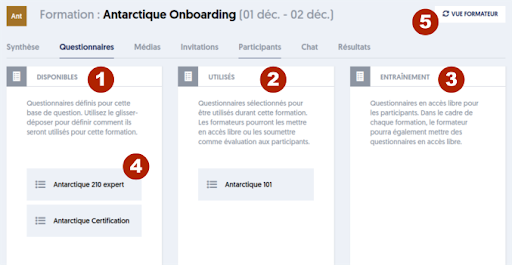
The page displays three columns:
- Available: In this column are initially stored all the questionnaires defined for the question bank related to the training. Each questionnaire is a block (reference [4]), which you can move by dragging and dropping between the columns.
- Used: You can place in this column the questionnaires that can be used by the trainer in the context of this training. The questionnaires in this column will not be directly visible to the training participants.
- Training: The questionnaires that you place in this column will be visible to participants, who can take them as many times as they wish.
You can place the questionnaires in either column by dragging and dropping using the mouse.
The button [5], TRAINER VIEW located at the top right of the page, allows you to see this page as a trainer would, which looks like this:
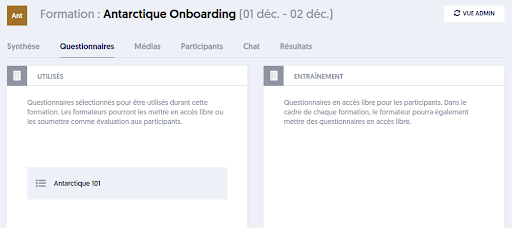
The view is very similar, but the AVAILABLE column has disappeared. The trainer can move the questionnaires between the USED and TRAINING columns, but cannot see the questionnaires that have not been selected by the administrator.
Note also that in this "trainer view," the Invitations tab has disappeared. Indeed, it is not the trainer who invites the participants.
We will look later, specifically, at the functionalities intended for trainers.
Media
As for media, the principle is exactly the same.
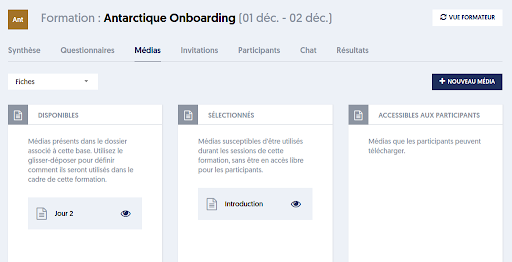
In the administrator view, the three columns are the same and the operating procedure is identical: you move the documents/media between the columns.
One small difference is that you have a filter, at the top left, allowing you to see only certain types of media.
Another difference is that the trainer can add documents/media if they wish. The added media will be integrated into the media library of the thematic database associated with the training.
In the trainer view, as before, only the two columns on the right are present:
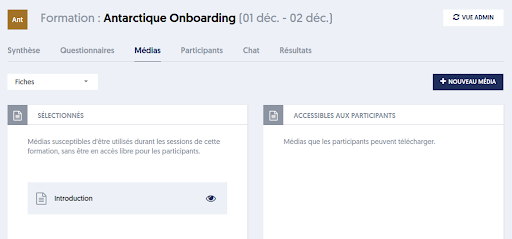
Note the NEW MEDIA button that allows the creation of media by importing it from their workstation. It will initially appear in the SELECTED column.