Scenario-Based Cross Evaluation
General principle
Scenario-based evaluation makes it possible to build cross evaluations based on a structured scenario.
The scenario defines what needs to be observed and assessed, then serves as a common framework for the different evaluation participants.
The scenario defines:
- The different criteria to be assessed
- The rating scale to be used
- The information and instructions displayed to participants
The objective is to provide a consistent framework for:
- The self-assessment of the person being evaluated
- The evaluation by an evaluator, who may be the manager
- The final consolidation by an authorized person, called the consolidator
Enabling the feature
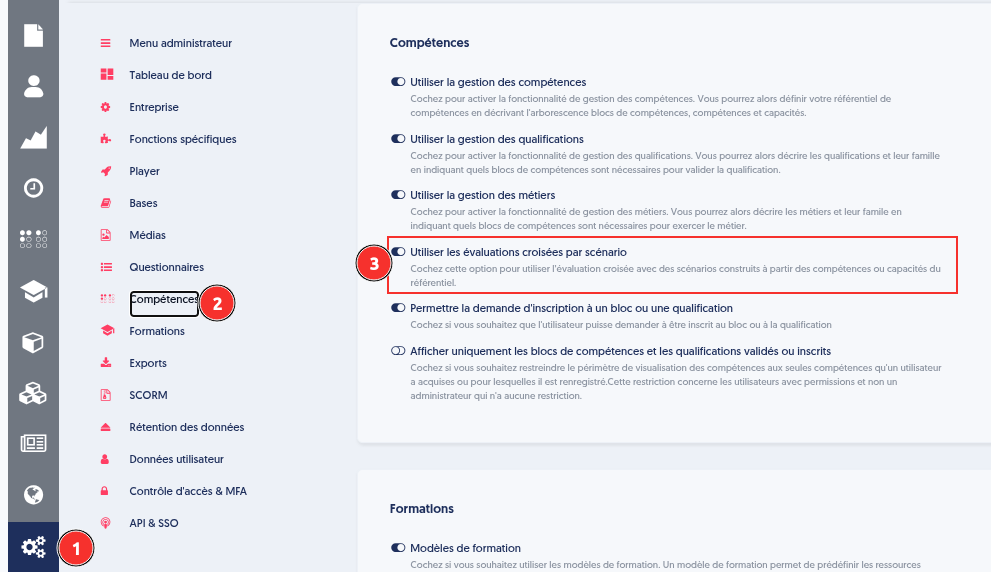
To enable this feature, go to the Settings menu, Parameters tab. Click on “Skills” and check the option “Use scenario-based cross evaluations”:
Creating a scenario
The creation of a scenario is based on the company’s skills framework.
When creating a scenario, the administrator defines the general elements of the scenario:
- The name, title, description, an image to display the activity on the dashboard, and the company logo displayed during the evaluation (by default, this is the company logo defined in the settings).
- The settings with a description area, an opinion field, and the choice of rating mode (numeric rating scale or custom rating scale).
- The skill blocks from the framework on which the evaluation scenario is based.
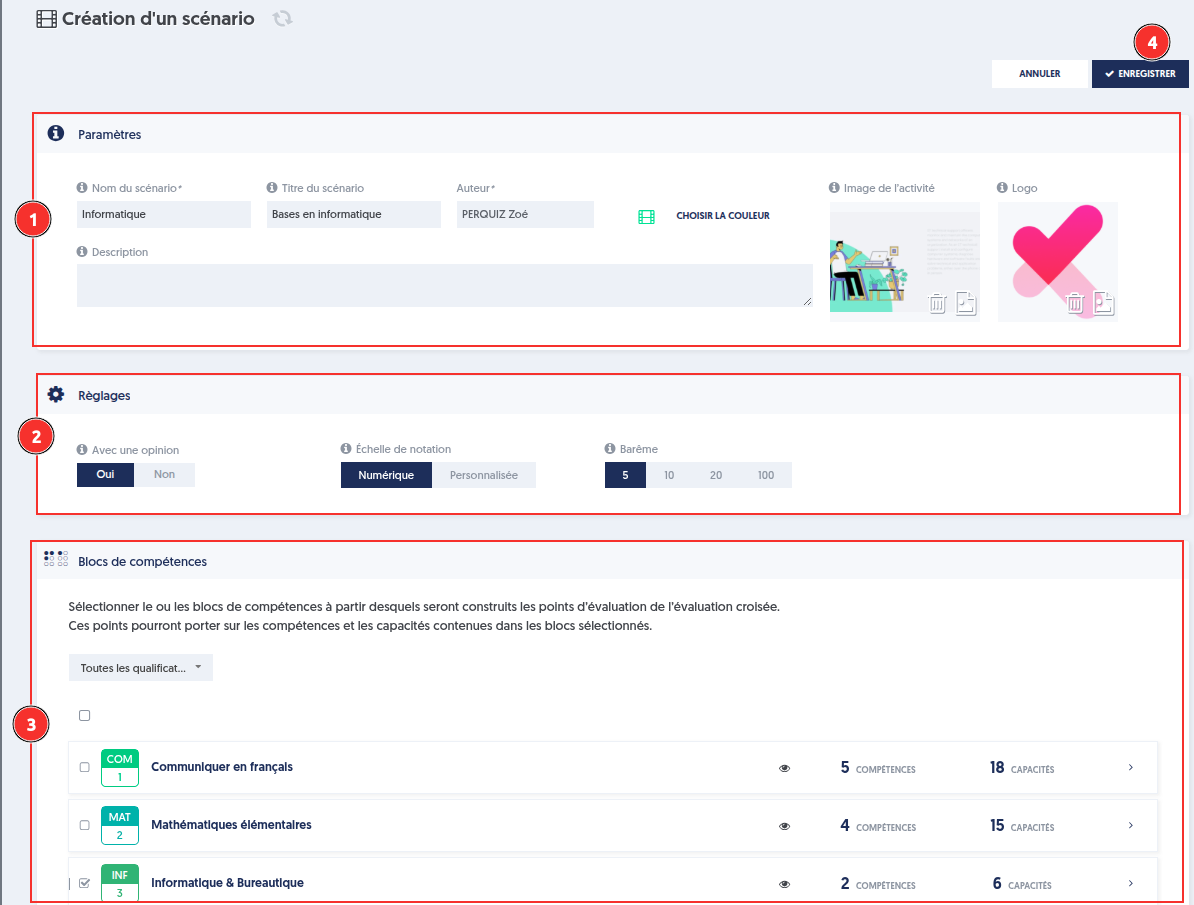
Based on this selection, the system initializes the evaluation points of the scenario from the skills and/or underlying capabilities.
In other words, the scenario is not created manually from scratch: it relies on the existing skills framework. However, as we will see later, it can include free evaluation points that are independent from the framework.
Rating by evaluation
For each scenario-based evaluation, the administrator can define a specific rating system.
The rating can take two forms:
- Numeric rating (scale of 5, 10, 20, or 100).
- Custom rating: qualitative rating based on levels defined by the administrator.
Applying the rating
When the rating scale is numeric:
- The score is entered on a defined scale (for example, out of 5, out of 10, out of 20, or out of 100).
- This score is then automatically converted to a percentage out of 100.
Conversion formula: (Score obtained ÷ Maximum score) × 100
Example: Scale out of 5 → multiplied by 20 to convert the score to a base of 100
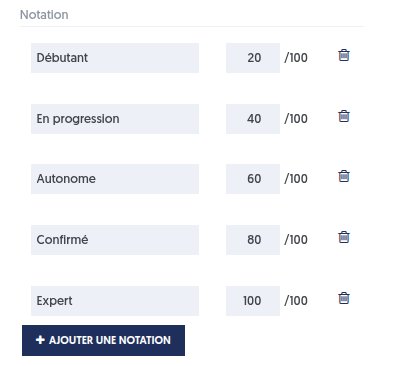
When the rating is customized, the administrator defines:
- The evaluation levels (for example: Not applicable, Beginner, Autonomous, Expert).
- Their numerical correspondence on a scale from 0 to 100; the numerical value associated with the selected level corresponds to the score recorded in the skills portfolio.
After this creation step, the scenario is created as a Draft.
As long as it is not activated, it remains fully editable but cannot yet be used in a campaign.
Modifying a scenario
The scenario can then be adjusted to match the business requirements:
- More precise selection of the skills or capabilities to be assessed.
- Adaptation of titles.
- Adaptation of descriptions.
- Selection of the actual evaluation points.
- Possible addition of free evaluation points to cover more specific elements.
Once the blocks and rating system have been defined, the scenario is automatically generated in Draft mode.
The administrator can then:
- Select the evaluation points for each block (skill or capability).
- Adjust the labels of the blocks and evaluation points before distribution.
- Adjust the description if necessary.
Each evaluation point corresponds either to a skill or to a capability.
Skill evaluation
When an evaluation point is a skill:
- The evaluation automatically covers all capabilities linked to this skill.
- The score assigned to the skill is applied to all of its capabilities.
Capability evaluation
When an evaluation point is a capability:
- Only this capability is evaluated and the score is assigned to that capability.
- The other capabilities of the skill are not affected by the evaluation of this point.
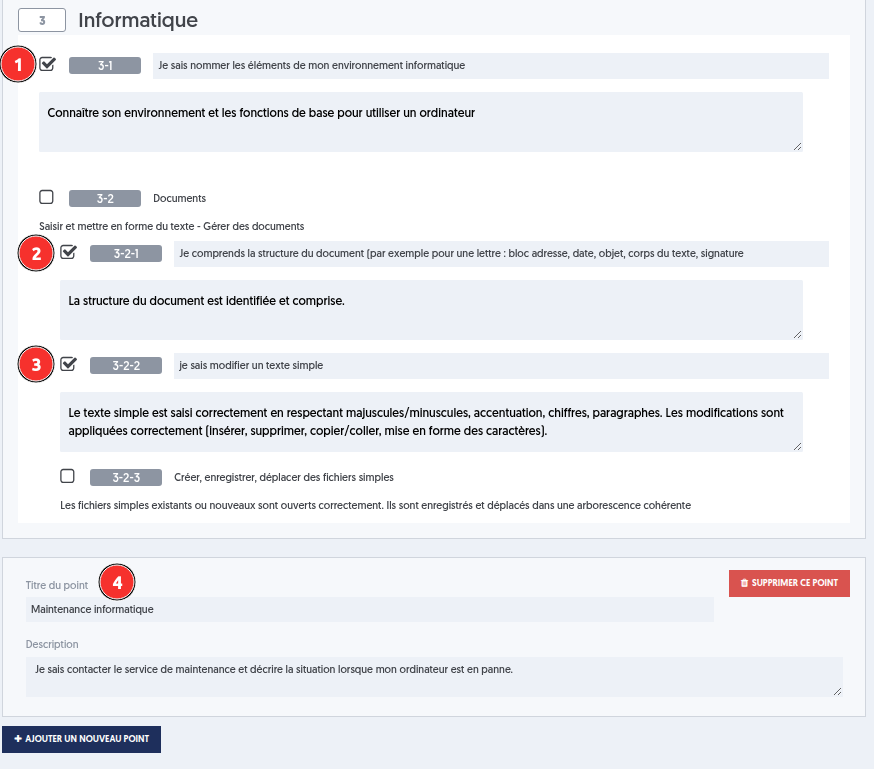
In the example below, the scenario consists of 4 evaluation points:
- Point on skill 3-1.
- Point on capability 3-2-1.
- Point on capability 3-2-2.
- Point outside the framework.
Activating a scenario
A scenario can then have different statuses:
- Draft
- Active
- Archived
Activation indicates that the scenario is ready to be used to launch evaluation campaigns.
Once the scenario has been activated, you can still modify the titles of the evaluation points, but you can no longer modify the skills and capabilities they are associated with. This restriction ensures consistency and comparability of results over time.
To make broader changes to the scenario, you can duplicate it at any time in order to freely modify its evaluation points and their associations.
Finally, an archived scenario remains available for viewing previously completed evaluations, but can no longer be used to launch new invitations.
Scenario permissions and visibility
Scenarios can be subject to permission and visibility rules.
In particular, it is possible to restrict the administrative use of a scenario to certain groups. This logic complements global functional permissions, such as:
- View cross evaluation scenarios.
- Modify cross evaluation scenarios.
- Invite users to a cross evaluation based on a scenario.
- Consolidate cross evaluations.
Therefore, a user must have both the required functional permissions and, when a group restriction is defined, belong to at least one of the authorized groups in order to use the scenario.
If no group restriction is defined, the scenario remains accessible to all administrators who have the required functional permissions.
Inviting users to complete a cross evaluation
Once the evaluation scenario has been finalized, it can be used to launch one or more cross evaluations.
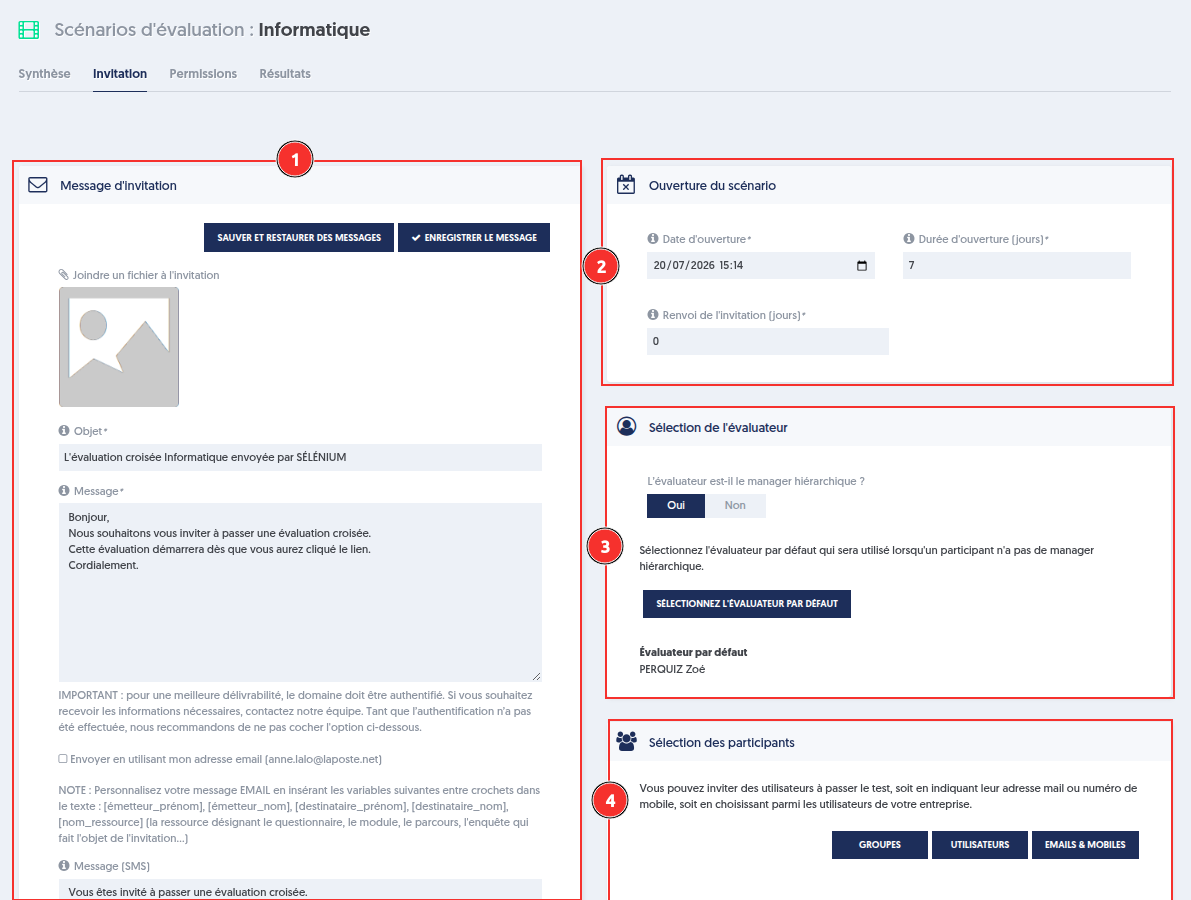
When creating the invitation, you can define:
- The invitation message sent to participants, as well as its subject and, if necessary, an attachment.
- The evaluation settings: evaluation opening date, the period during which the evaluation remains accessible, and possible reminders for participants who have not yet completed their evaluation.
- The choice of evaluator: you can designate the hierarchical manager of each evaluated person as the evaluator. When this option is enabled, a default evaluator can also be assigned for people who do not have a manager specified.
- The people to be evaluated, selected from users, contacts, or groups.
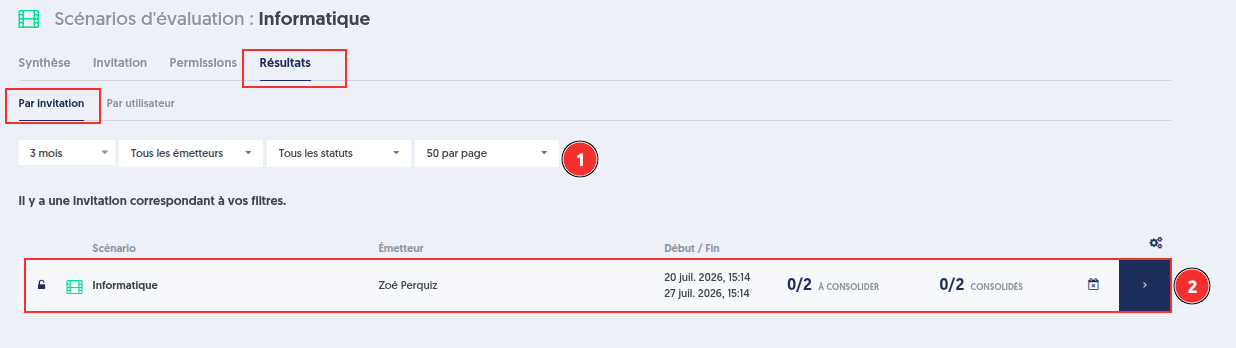
Once the invitation has been sent, the administrator can find it under the Results > By invitation tab.
This page allows invitations to be quickly found using different search filters.
For each invitation, a summary line displays in particular:
- The scenario name.
- The sender of the invitation.
- The evaluation opening period.
- The progress of evaluations to be consolidated.
- The number of evaluations already consolidated.
These indicators make it possible to quickly monitor the progress status of the cross evaluation invitation. For example, when the evaluations of all N invited people have been completed and consolidated, the counters display 0/N to be consolidated and N/N consolidated.
As with other evaluations in Experquiz, it remains possible to modify the opening period of the invitation.
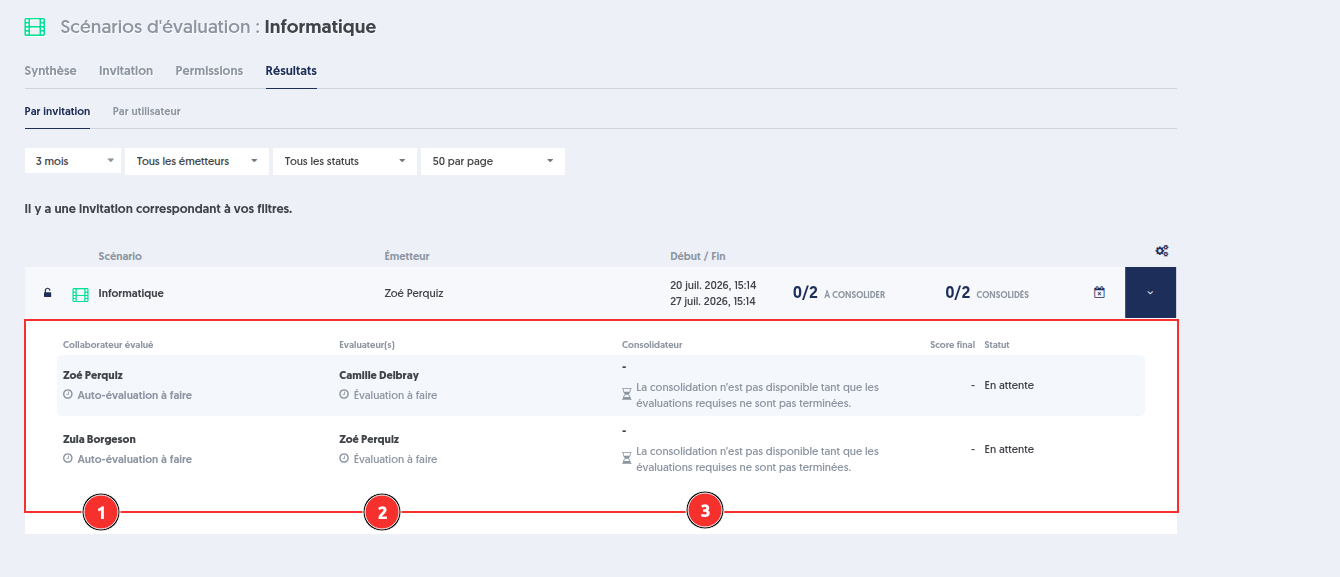
A detail panel also allows more precise monitoring of the progress of each evaluation and its different participants (evaluated person, evaluator, consolidator), whose roles will be presented below.
Participants
Scenario-based evaluation relies on three main roles.
1. The evaluated person
The evaluated person receives their invitation by email or finds it on their dashboard. This is a self-assessment.
In our example, the evaluated person is Zoé.
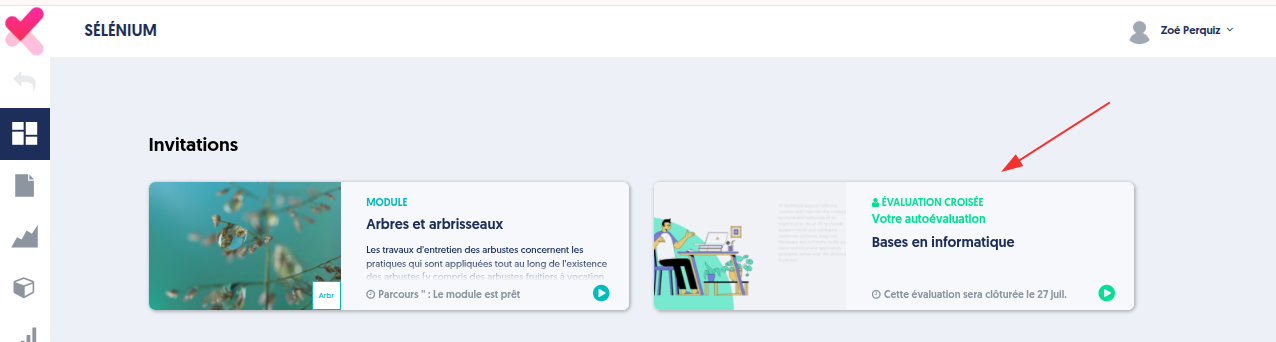
They begin by completing their self-assessment on the points defined in the scenario.
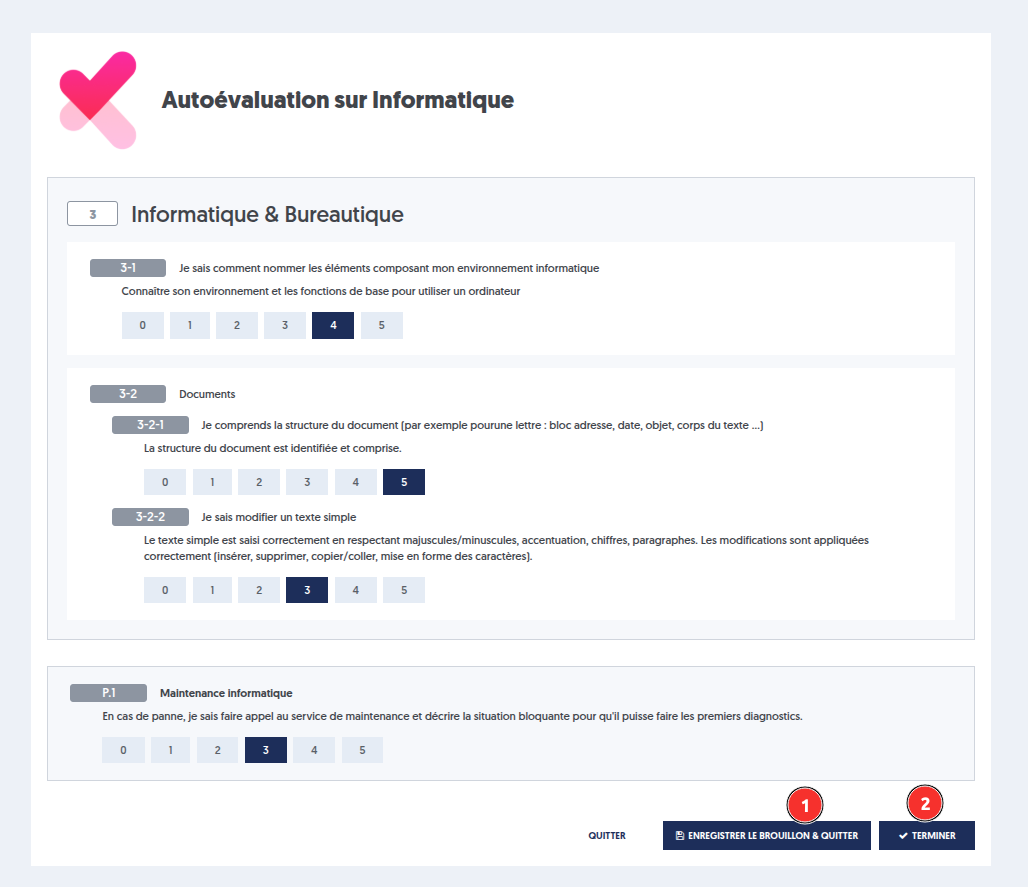
The evaluated person can save their work as a draft (1) to resume it later, or permanently complete their evaluation (2) when they consider their contribution finished.
2. The evaluator
The evaluator performs the cross evaluation on the same scenario for this person in parallel. This evaluation is available on their dashboard.
In our example, Zoé’s manager is Camille Delbray.

3. The consolidator
The consolidator intervenes at the end of the process, once the evaluated person and the evaluator have completed their evaluations. This is a person authorized to perform consolidation.
They can consolidate cross evaluations by viewing results by user. The consolidator can be the same person as the manager.
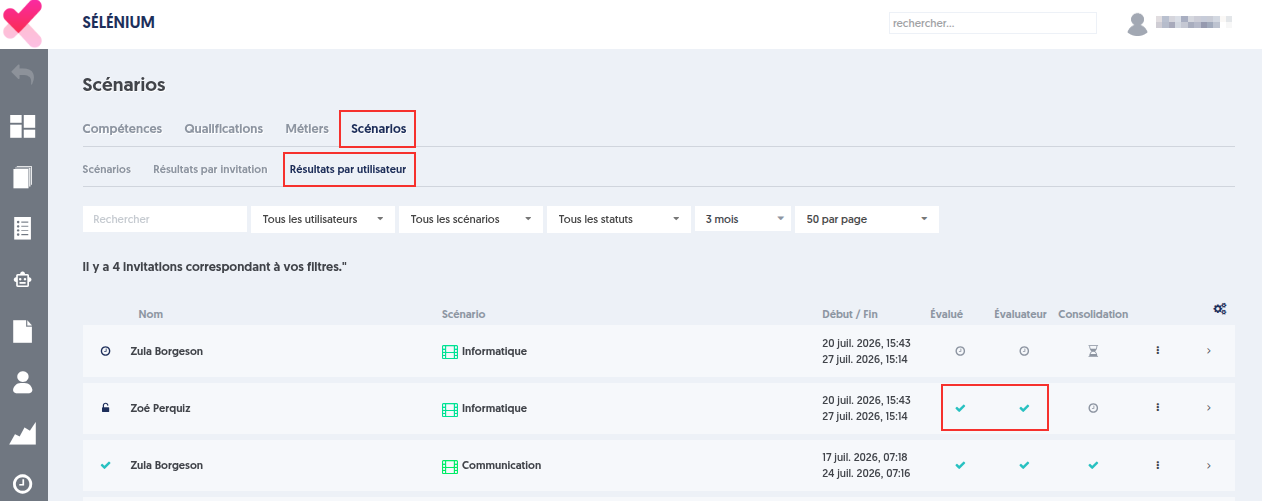

Their role is to:
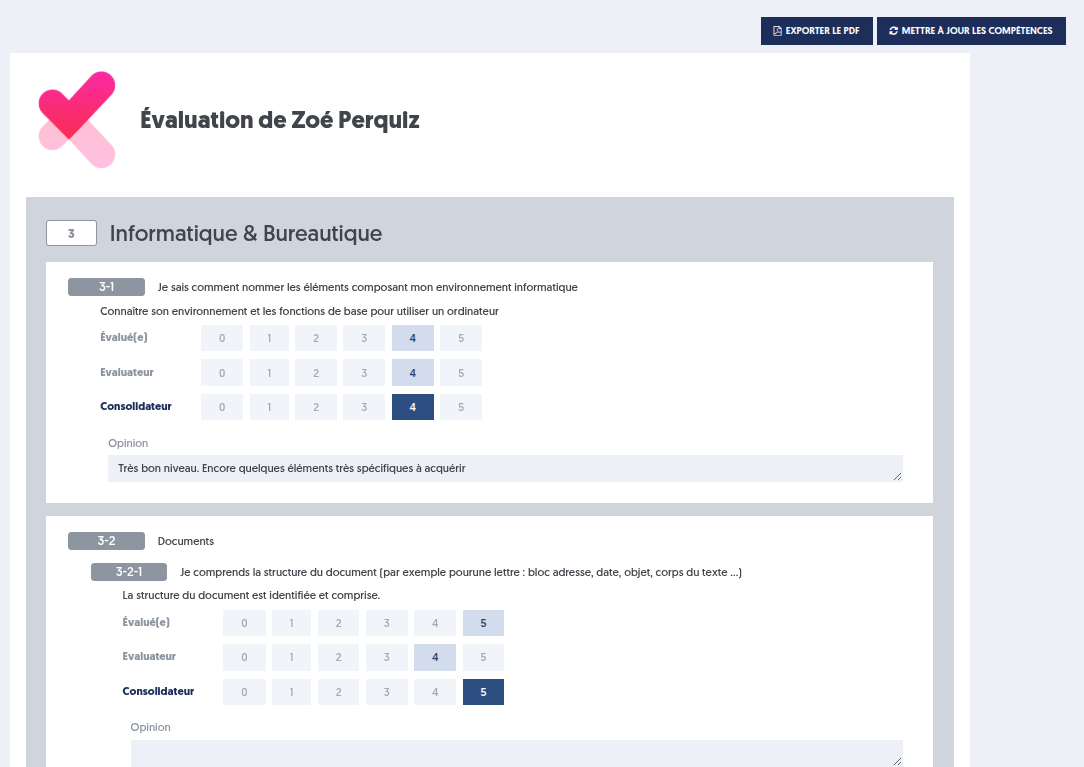
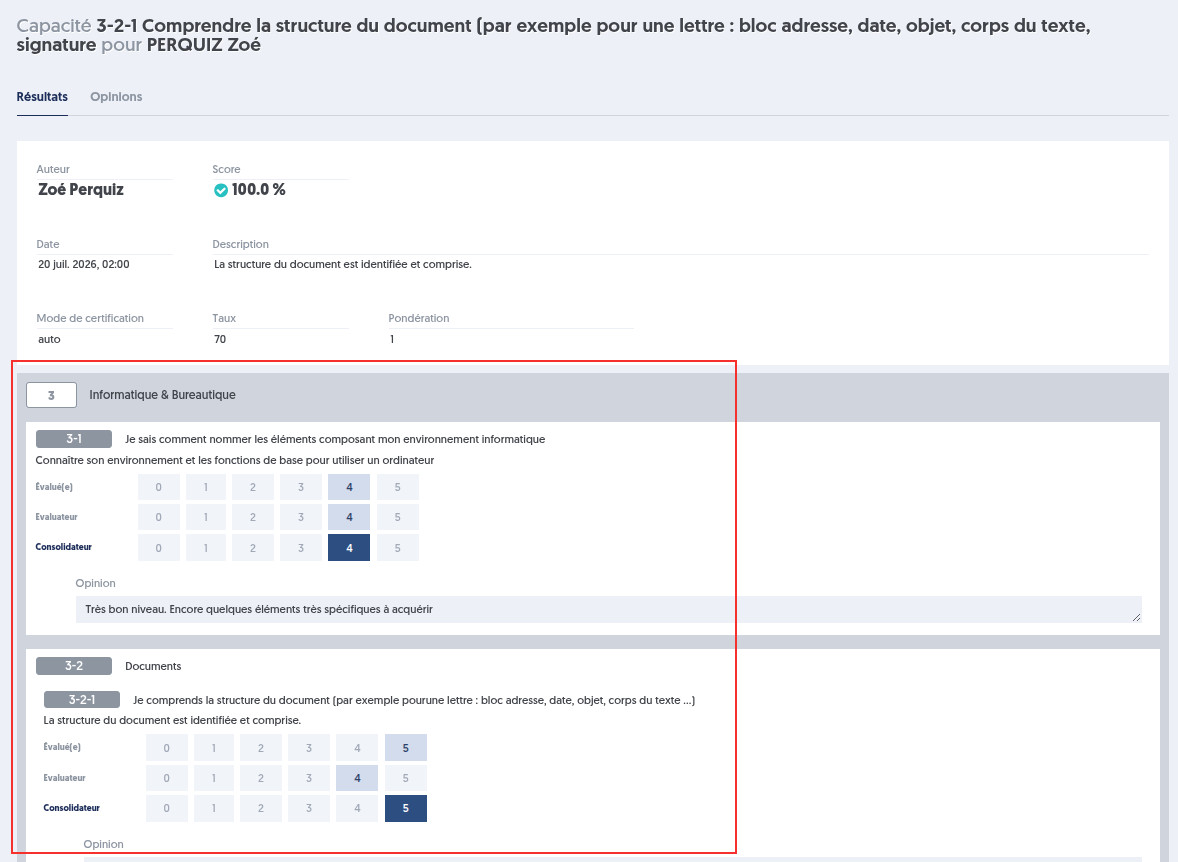
- Compare the self-assessment of the evaluated person with the evaluator’s assessment.
- Initiate a discussion with the evaluated person to discuss and justify the practice.
- Enter the final consolidated scores.
- Add an opinion with supporting evidence if necessary.
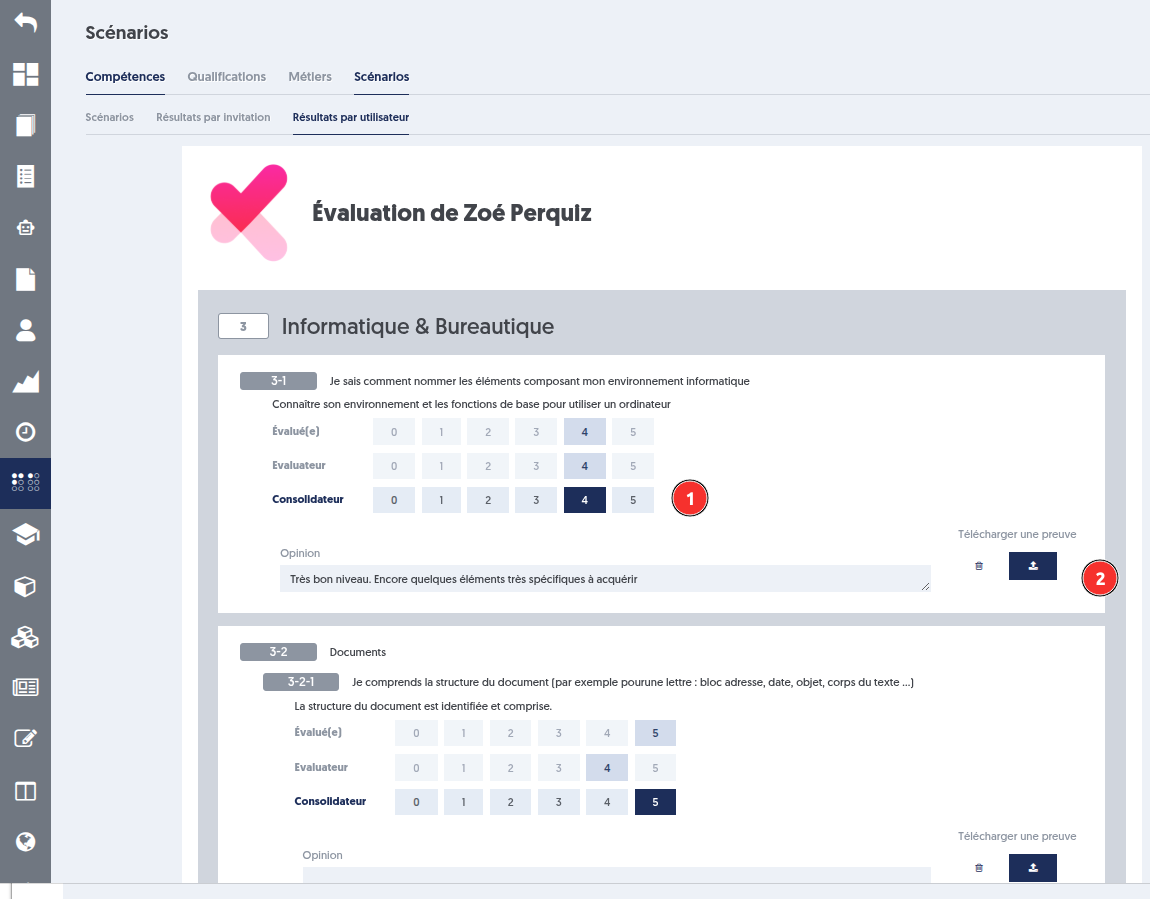
This step produces the final consolidated result.
The final record is definitive.
Results
The detail panel of a cross evaluation displays the results of the three evaluation stages:
- The self-assessment of the evaluated person.
- The evaluation performed by the evaluator.
- The consolidation carried out by the consolidator.
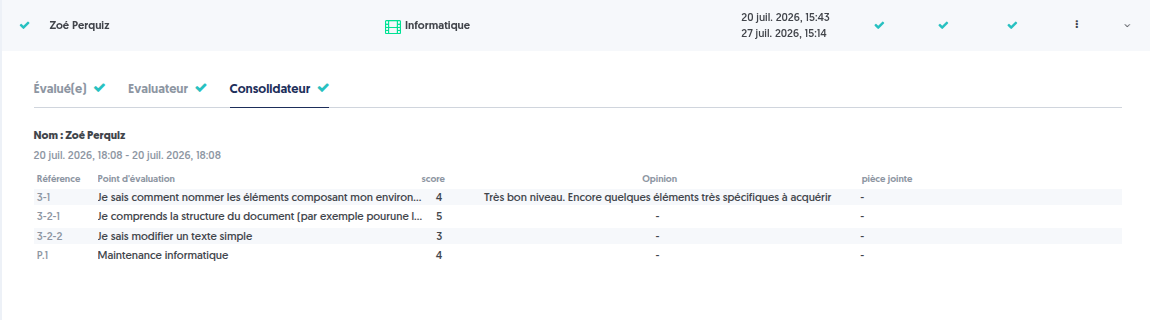
Once the cross evaluation has been consolidated, it is possible to:
- Update the evaluated person’s skills portfolio.
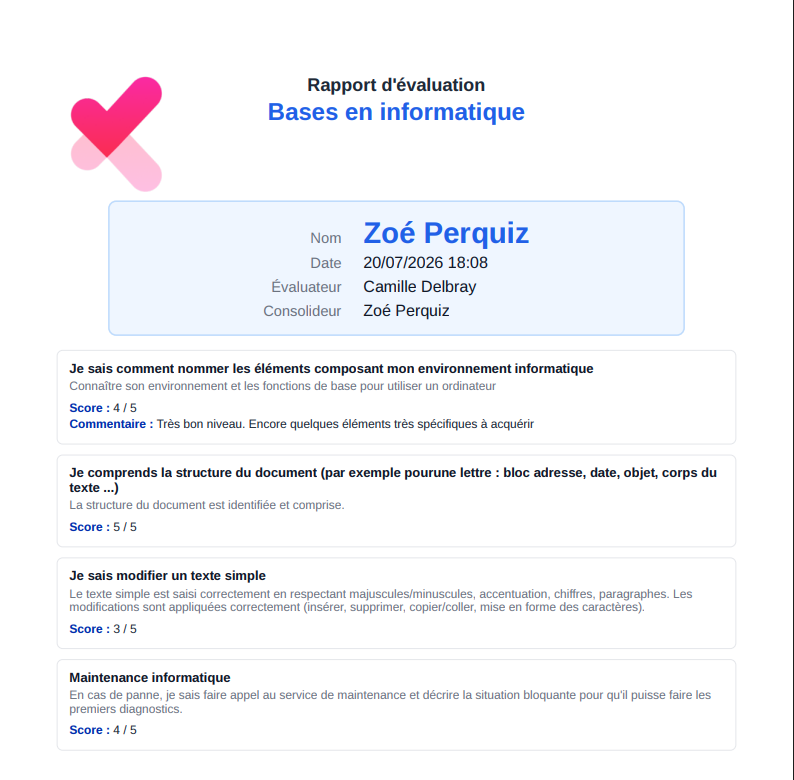
- Generate a PDF export of the evaluation results.
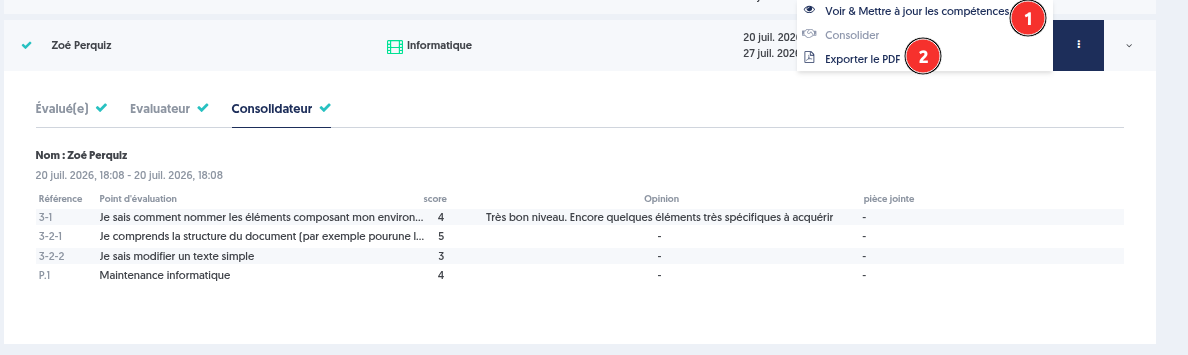
View the consolidated evaluation
PDF export of the consolidated evaluation
Update the skills framework
At the end of the cross evaluation, Zoé obtained the following consolidated results:
- Skill 3-1: score of 4/5, i.e. 80%
- Capability 3-2-1: score of 5/5, i.e. 100%
- Capability 3-2-2: score of 3/5, i.e. 60%
- Capability 3-2-3: score of 4/5, i.e. 80%
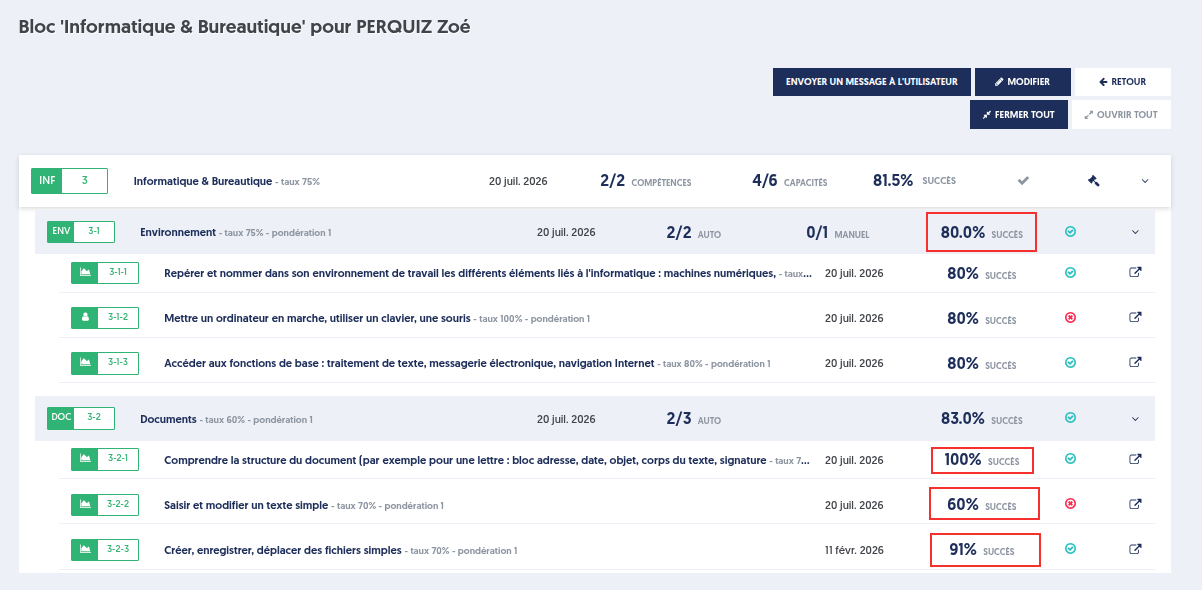
When the skills portfolio is updated, these results are used to populate the corresponding skills and capabilities.
It can also be seen that the 80% score assigned to skill 3-1 has been applied to each of the capabilities linked to it: 3-1-1, 3-1-2, and 3-1-3.
The traceability of each result is preserved: when viewing the origin of an assigned score, for example for capability 3-2-1, the cross evaluation that generated this score is displayed and can be consulted.
Process summary
- A scenario is created from the skills framework.
- It is adjusted to precisely define the evaluation points. Free evaluation points that are not linked to the framework can be added.
- The scenario is activated to make it available for use.
- A cross evaluation invitation is sent to the evaluated person and the evaluator.
- The evaluated person completes their self-assessment and the evaluator completes their cross evaluation, independently from each other and without any specific order.
- The consolidator produces the final consolidated version.
- The evaluation report can be exported as a PDF file.
- The skills portfolio can optionally be updated.