Certificates
Certificate Customization
When a user successfully completes a certification, an e-learning module, or a learning path, Experquiz allows a certificate or completion certificate to be made available to either the administrator or the user. These documents can be accessed from the score page, by email, or from the user's personal space.
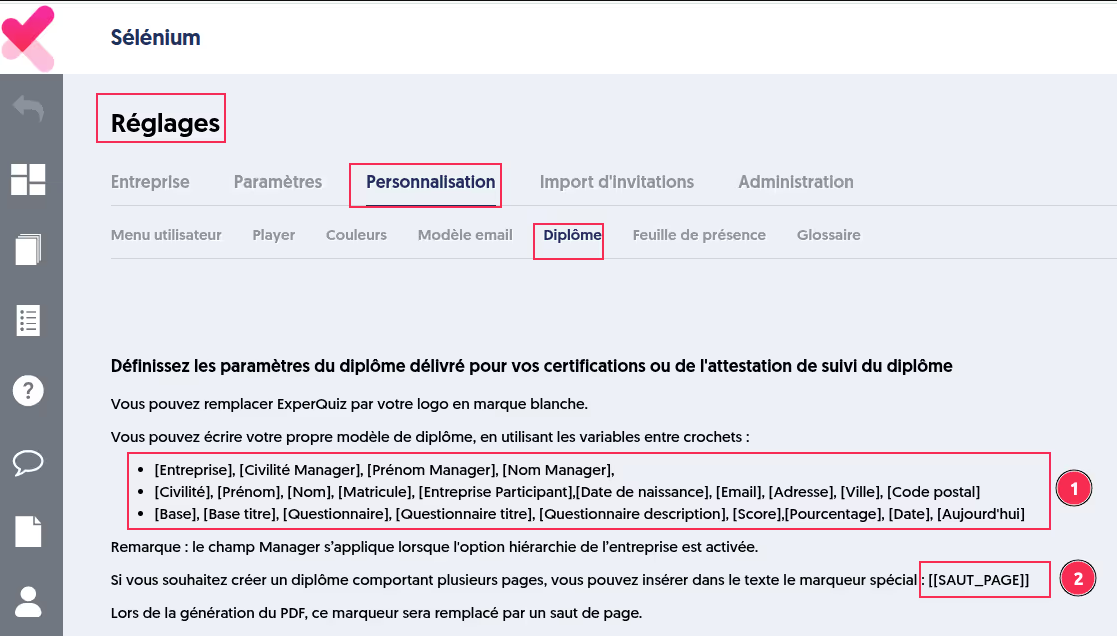
These documents can be customized from the Customization tab in the Settings menu. Several variables can be used to personalize the certificate content, and it is also possible to change the background image and logo.
The available variables are: * [Company], [Manager Title], [Manager First Name], [Manager Last Name], * [Title], [First Name], [Last Name], [Employee ID], [Participant Company], [Date of Birth], [Email], [Address], [City], [Postal Code] * [Database], [Database Title], [Questionnaire], [Questionnaire Title], [Questionnaire Description], [Score], [Percentage], [Date], [Today]
Note: The Manager fields are available only when the company's hierarchy option is enabled.
It is also possible to insert a page break using the variable [[PAGE_BREAK]]. This feature also applies to module and learning path completion certificates.
Certificates in Public Mode
A questionnaire can be used in public mode. This means that anyone with its URL or the associated QR code can take it freely.
You can associate an identity form before the public questionnaire starts in order to collect information about the participant (company, last name, first name, employee ID, email, etc.).
It is also possible to restrict access to this link to registered users within your company only.
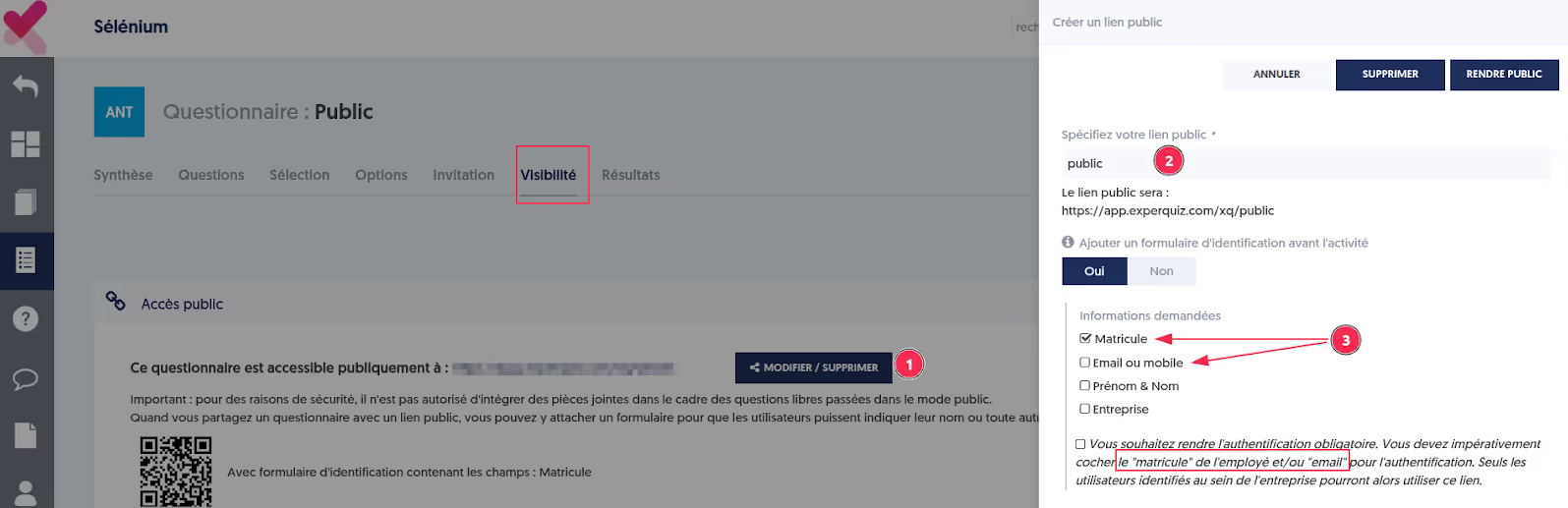
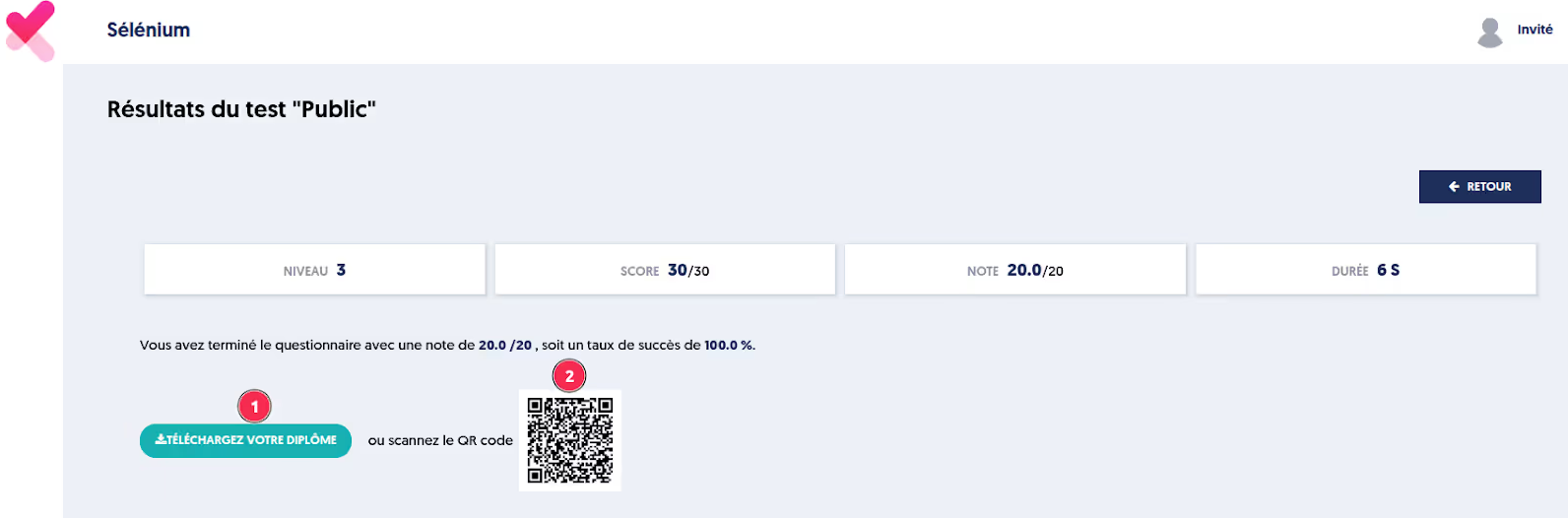
If this form requests the participant's employee ID or email address, it then becomes possible to issue a certificate on the score page. The certificate can either be downloaded directly (1) or obtained by scanning a QR code (2).
ZIP Export of Certificates
Following an activity such as a certification, the completion of an e-learning module, or a learning path, Experquiz can issue a certificate or a completion certificate.
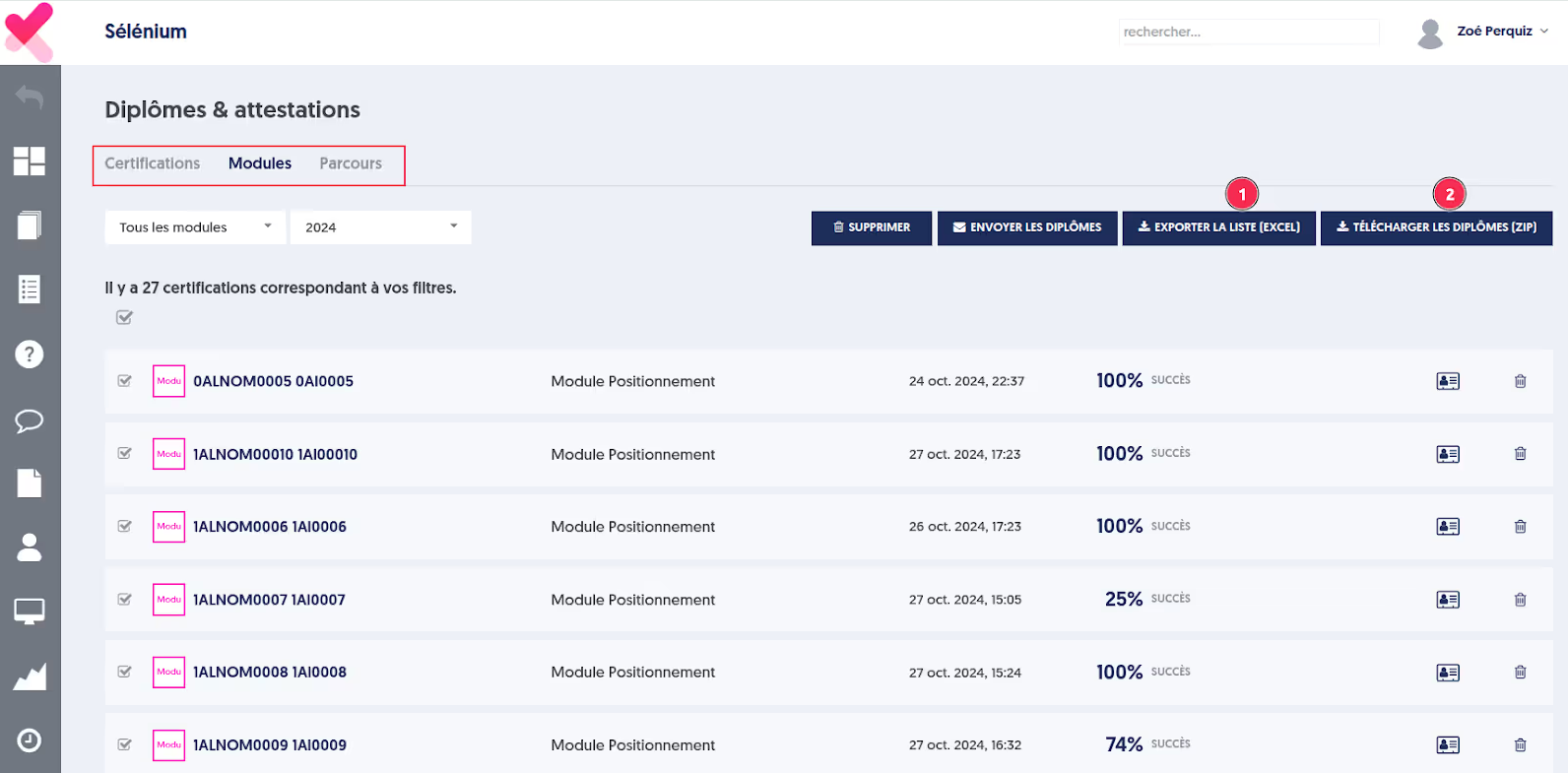
These documents are available from the Certificates menu.
You can export an Excel file (1) containing one row per certificate issued, including the following information: user name, certificate subject, date, and score.
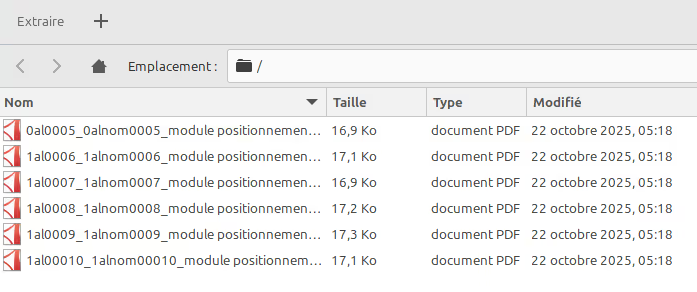
You can also export the certificates themselves as a ZIP archive.
To do so, select the certificates you wish to export, then click the Download Certificates (ZIP) button.