Interactive questionnaire
Experquiz offers an assessment mode based on interactive questionnaires linked to thematic question banks.
Interactive questionnaires allow learners to answer a series of AI-generated or AI-guided questions, with the possibility of interacting to clarify, deepen, or correct their understanding throughout the process.
They complement traditional questionnaires by providing a more dynamic and formative experience, closer to a pedagogical dialogue, while still maintaining a structured assessment framework.
This feature is sometimes referred to as conversational assessment, an evaluation that takes place in the form of a conversation.
Feature activation
To activate this feature, go to the Settings menu, Parameters tab, and check:
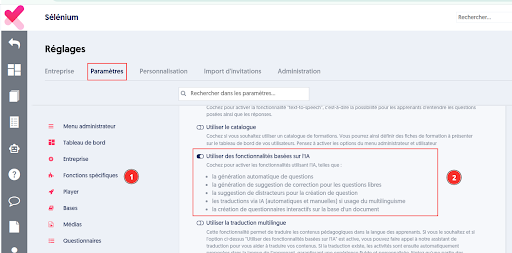
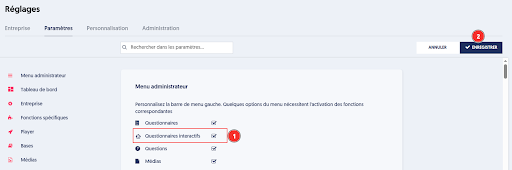
The menu then provides access to interactive questionnaires:
Creating an interactive questionnaire
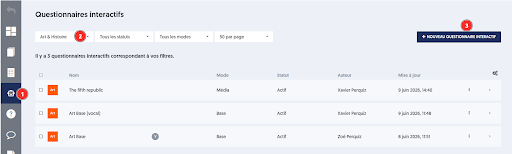
To create a new interactive questionnaire, choose a thematic question bank, then open the Interactive questionnaires tab. Next, click the NEW INTERACTIVE QUESTIONNAIRE button (1).
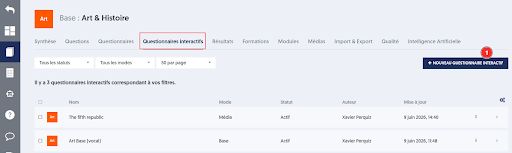
You can also go to the “Interactive questionnaires” menu (1), select a thematic question bank (2), and click the “NEW INTERACTIVE QUESTIONNAIRE” button (3).
A creation form allows you to configure the interactive questionnaire.
It allows you to:
- enter the name, title, and description of the interactive questionnaire
- choose the main source on which the AI will rely to generate questions
- define the test execution conditions
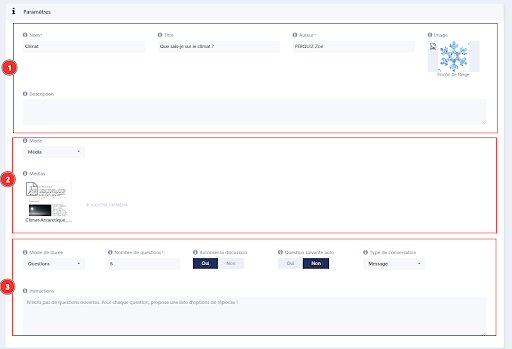
Main source
The main source determines the content used by the AI to generate questions, i.e., the knowledge that will be assessed.
Four options are available:
- Thematic bank: the AI relies on the bank’s questions and media library.
- Questionnaire: the AI relies on questions from an existing questionnaire.
- Media: the AI relies on a text document in DOCX or PDF format.
- Text: the AI relies on text you directly enter (or copy-paste) into the form.
Execution options
Execution options define the conditions under which the learner will complete the interactive questionnaire.
Two modes are available:
- Questions: the session ends after a defined number of questions. The number of questions can range from 1 to 30 (6 by default).
- Time: the session ends after a defined duration in seconds. This duration must not exceed 300 seconds.
Allow discussion: this option allows the learner to interact with the AI after each answer in order to request clarification or explore certain points in more depth.
- Yes: discussion is enabled; the learner can ask questions to explore the topic further.
- No: the AI immediately moves on to the next question.
Automatic next question (if Allow discussion is enabled): this option allows the AI to automatically move to the next question in case of learner inactivity.
- Yes: the next question is displayed automatically after a period of inactivity.
- No: the learner must explicitly request to proceed to the next question.
Pre-generated questions (if Allow discussion is disabled): this option allows all questions to be generated before the session starts, providing a smoother experience for the learner.
- Yes: questions are generated before the session starts.
- No: questions are generated during the session and rely on the history of previous questions and answers.
Conversation type: this option determines the interaction mode between the learner and the assistant during the interactive questionnaire.
- Message: the learner answers questions and interacts with the assistant in writing via the input field.
- Voice: the learner answers questions and interacts with the assistant orally when this option is selected.
- Automatic voice submission: when enabled, the voice message is automatically sent once the learner finishes speaking. When disabled, the transcription remains visible in the input field so the learner can review, edit, and send it manually. The learner clicks the send button to confirm input.
Testing an interactive questionnaire
When the test starts, the AI analyzes the resources and prepares its questions. This step may take around ten seconds.

A first welcome message explains the assessment flow and indicates the expected number of questions. The learner is also informed that they can ask clarification questions between steps if this is allowed in the questionnaire settings.
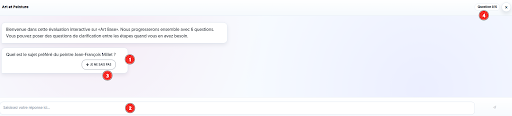
- The first AI-generated question is then displayed in a chat bubble.
- The input field at the bottom of the screen allows the learner to write a free response (and later ask clarification questions).
- The I don’t know button allows the learner to indicate that they do not know the answer. In this case, the answer is considered incorrect.
- A progress indicator shows the number of questions completed out of the total planned. In this example, no question has yet been completed: Question 0/6.
Answering a question and viewing assistant feedback
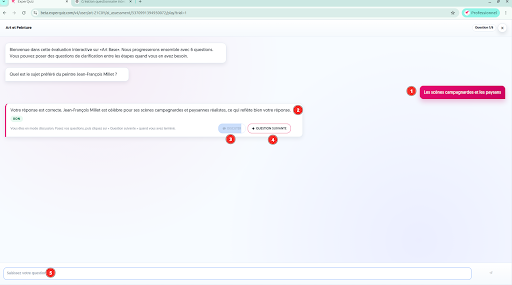
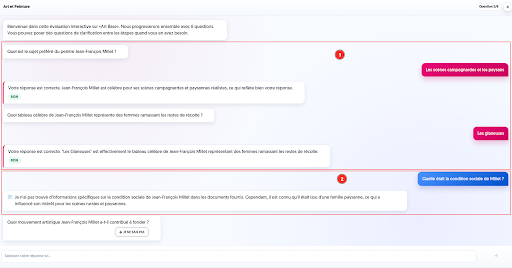
- When the learner answers a question, the response appears in the conversation area as a right-aligned pink message.
- The assistant then analyzes and evaluates the answer. It indicates whether the answer is correct or not and provides additional explanation. A result label quickly identifies the evaluation. Here, the label CORRECT indicates that the answer has been validated.
- When discussion is allowed and the automatic next-question option is enabled, the learner can ask follow-up questions before continuing. The Discuss button allows the learner to write a clarification question.
- The Next question button allows the learner to proceed to the next step once they have finished discussing or do not wish to ask further questions.
- The input field at the bottom of the screen allows the learner to write a question or message to the assistant during the discussion phase.
Discussion phases are highlighted in blue.
This allows switching between questioning (1) and deeper exploration (2).
Sharing an interactive questionnaire
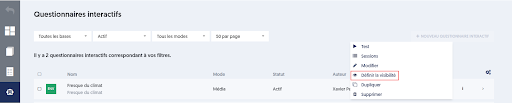
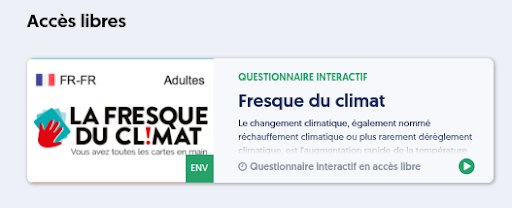
An interactive questionnaire can be made available on the dashboard in open access for revision purposes. This sharing is configured in the visibility settings of the interactive questionnaire.
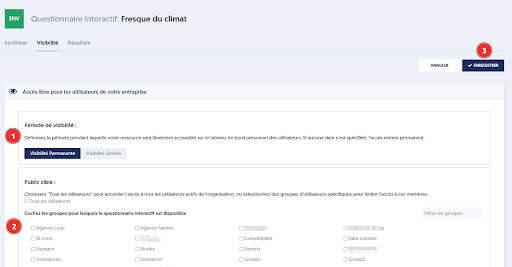
Select the user groups with whom you want to share the interactive questionnaire or all active users.
After saving, the card appears in the activities section.
Interactive questionnaire results: interactive tests
Administrator view
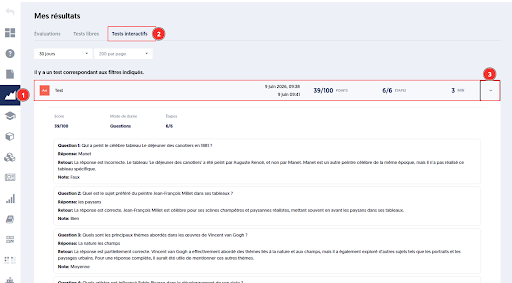
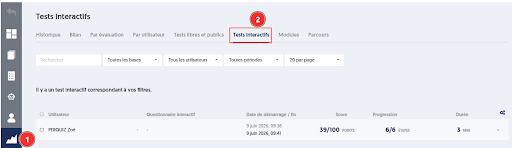
The Interactive tests page allows you to view interactive test sessions completed by users.
Several filters are available to search results:
- Keyword search
- Bank filter
- User filter
- Time period filter
The list shows the number of interactive tests matching the applied filters.
Each row in the table corresponds to an interactive test session and displays:
- The user who took the test
- Start and end date/time
- Duration
- Progress or number of completed steps vs total planned
- Score obtained
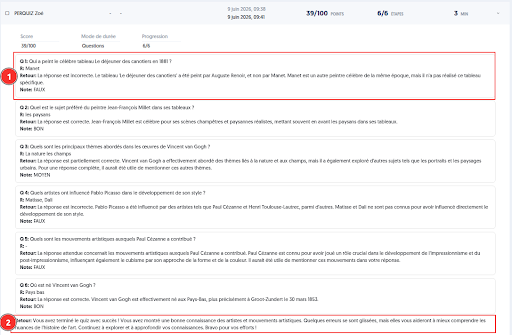
A detail panel provides an overall summary, followed by the list of questions asked during the session. For each question (1), the following is shown:
- the question asked by the assistant
- the user’s answer
- AI feedback commenting on the answer, identifying correct points, and highlighting missing elements
- a qualitative rating
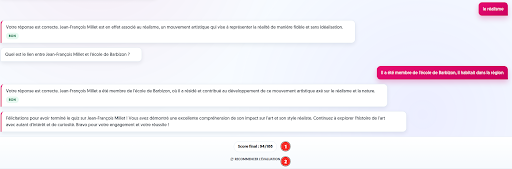
And a synthesis sentence (2) displayed at the end of the interactive test.
User view